
Create a new offer in 7 steps
An offer is the bookable unit in edoobox. It combines sessions, available places, prices, texts, venue, instructors, booking rules and visibility. These seven steps take you from organizing the offer in the tree to checking and publishing it.
If possible, first create venues and rooms and the required admins and instructors. You can then assign them directly to sessions.
Video tutorials
These videos complement this guide. The spoken language is indicated for each video.
Preview images are loaded directly from this website. Playing a video connects to YouTube, only for the video you select.
Create an offer in edoobox in a few steps
Create an offer and make it publicly bookable. The video complements the steps for categories, dates, capacity, prices and the final preview.
Recorded in the V2 interface in 2023. Follow this guide for current fields, today’s checklist, subscription conditions and cancellation groups.
Prepare before creating
Decide on the title, audience, category, sessions, venue, room, instructors, price, maximum participant count and registration deadline. Also consider whether you need a normal offer or, if the feature is enabled, a multi-offer.
1. Create or select category
Every offer requires a parent category. Create this via the plus menu or via the context menu of the account abbreviation or an existing category. Sufficient admin rights are required for creation.
Choose the category deliberately: It influences internal order, embedding, design, and partially rules that are applied to categories. More on this is in Create new categories and offers.
2. Add offer
Open the context menu of the target category in the offer tree and select Add offer. Alternatively, select Offer in the plus menu and then the category.
For creation, a name in the current offer language and a category are required. An internal offer number is optional and limited to 30 characters. If multi-offers are enabled in the account, the corresponding option can be offered during creation.
3. Enter the name, sessions, venue and instructors
Use a name that participants and admins can clearly understand, for example «Basic Course: Photography & Lighting». The restricted character check for categories does not apply to offer names. For categories, use letters, numbers, spaces, hyphens, underscores, vertical bars, and periods. Maintain offer names in all languages used and check the public display after saving.
Next, add at least one session. For in-person offers, assign a venue and room, and specify the instructor for each session if this information is needed for planning, calendars or communication.
4. Set registration deadline and capacity limit
The publication checklist requires at least one session, a registration deadline and a maximum participant count. Without these, the offer cannot be published through the normal process. If several offer languages are active, the checklist also highlights missing translations.
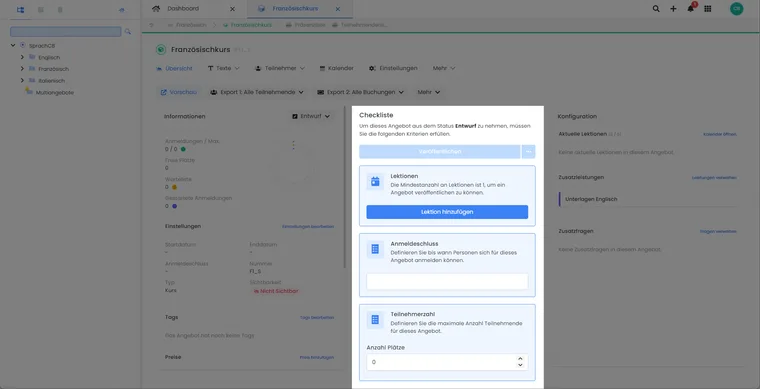
Before publishing, check at least the date, registration deadline, and capacity limit in the checklist.
The registration deadline controls until when regular bookings are possible. The capacity limit works together with the registration type, waitlist, request list, and other booking rules. Therefore, also check registration types, waitlist, and request lists if your process deviates from this.
5. Define price categories
First edit the existing standard price category: name, amount and translations. Additional prices can have their own capacity limit, active status and validity period, for example for early bookings. The standard price has no separate date or quantity fields; its capacity is determined by the offer.
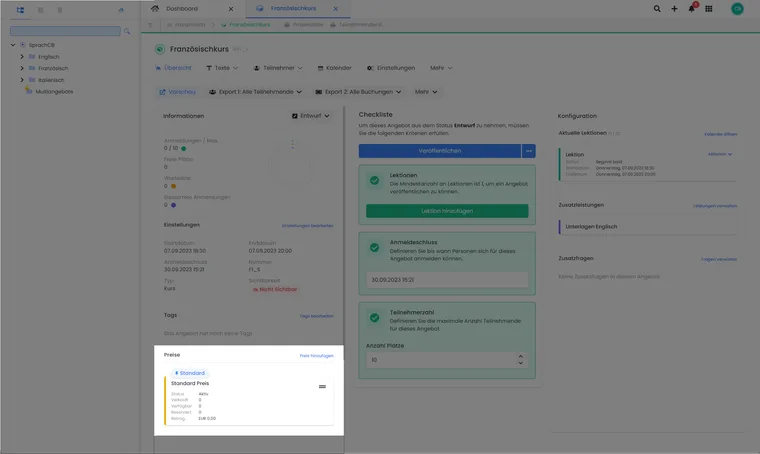
In the price area, you will find existing price categories and the action to add another price.
The number of available price categories is not a fixed number in this guide, but depends on the subscription and the existing price categories of the offer. If the limit is reached, no further price category can be created.
6. Add description and additional texts
Under Texts, you maintain the main description and up to three additional texts. Explain the target audience, content, prerequisites, included services, packing list, and organizational notes so that an interested person can make the booking decision without asking questions.
For longer content, you can use accordions or tabs and videos. The basics on placement are found under Description texts in offer and category and Additional texts.
7. Check preview, status, and test booking
Open Preview/Share and first check the offer details, dates and prices. A complete public test booking requires a status, registration period and capacity that allow booking; a draft is not sufficient. Then check the form, payment, completion page, confirmation and admin view. Use a prepared demo offer to try out a new process.
The Draft status keeps the offer hidden and prevents regular registrations. Once the checklist is complete, it can be set to Published. The other statuses are Guaranteed to take place, Closed, Released and Cancelled; Offer status explains their meaning.
Use cases
Application example: Publish a day course
An organisation creates the offer “Excel Basics” in the “Further training” category. It adds a date with a room and instructor, sets the registration deadline and capacity, edits the existing standard price and adds the target audience and prerequisites. It checks the preview and sets the complete offer to Published. It then checks the public booking process and confirmation.
Application example: Multilingual workshop
A workshop is offered in German and French. The team maintains the name, description, and additional texts in both languages and checks the translation hints in the checklist. Then it opens the preview in each language and checks the form, email template, and legal texts.
Application example: Early bird and standard price
For a conference, only an early-booking price should be available initially, followed by only a regular price. The team hides the standard price and creates two additional price categories. It sets the end of validity for the early-booking price and the subsequent start for the regular price, using the appropriate dates and times. It checks the transition to avoid an unintended gap or overlap. The existing standard price remains as the system’s base price; it cannot have its own validity start date.
Additional setup for subscription offers and groups
If only holders of a specific subscription are allowed to book a price, first activate and configure the corresponding plugin in the Plugin Manager. Then, specify the subscription restriction on the price category. Check price validity, valid subscription, available usage, and free places together.
For bookings by parents or companies, the group mode named participants – first person as contact person is available. In Bootstrap 5.3, it starts with a contact-only person and a prepared participant section. See form visibility for the contact person and group participants.
Before publishing, also select the appropriate cancellation group. This is saved for new bookings; a later group change does not automatically adjust old bookings.