
Admins and their user permissions
When you create an edoobox account, you are automatically registered as a superadmin. Create a separate admin login for each team member and assign only the permissions needed for their role.
We recommend at least one additional superadmin login to provide cover. Do not share admin logins: invitations, password recovery, outbox messages, notes and logs remain clearly traceable only when each person uses their own login. Where possible, enable at least one two-factor authentication method for each admin.
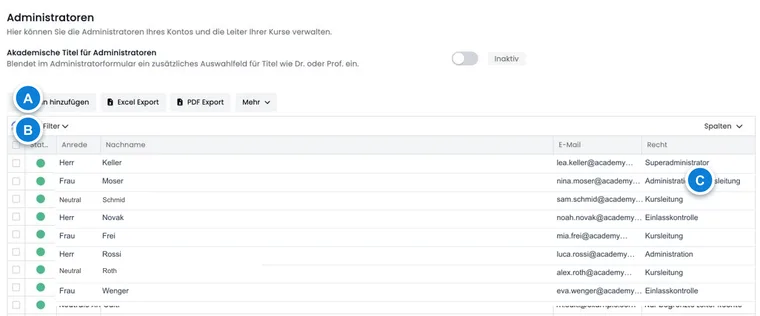
Overview of existing admins
You can access the overview of existing admins via the app menu in the Administrators section. The table can be sorted, filtered, and exported by columns. Typical columns are status, salutation, first name, last name, email, language, rights profile, phone numbers, address, and ID.
Active filters appear above the table. For regular checks, you can display columns such as status, name, email, language, and rights profile, and then create Excel or PDF exports. Visible columns, order, and widths can be saved per admin depending on the table. The general table logic is in Table filters, Table tools, and Save table views.
The admin list is also suitable for regular security checks: Filter by deactivated accesses, check rights profiles, verify that each active person uses their own email address, and export the list for internal audits. The view is only visible to admins with sufficient rights. If a team member cannot open the admin list, check the rights profile first instead of the navigation.
Create a new admin or instructor
As a Superadmin, open the administrators list and select Add admin to create admins or instructors. Salutation, first name, last name, email, language and permission profile are required. Use correct individual email addresses so that invitations, login, password recovery and 2FA work reliably.
When creating, you choose between Send invitation and Assign password. With an invitation, the person sets their password themselves. In password mode, you directly set a starting password. A secure password requires at least eight characters, uppercase letters, lowercase letters, a number, and a special character. Open or expired invitations can be resent later in the admin profile.
You can add any number of admins or instructors. All registered admins can be assigned as instructors to dates when their permissions and the process allow it. Deactivate former employees first rather than deleting them immediately, so historical bookings, dates, notes and outbox messages remain traceable. Before deleting, check whether the person is still assigned as an instructor to future dates, tasks or internal processes.
Further organization with the same admin email
An already used admin email does not generally rule out an additional organization account. edoobox limits repeated use during new registration for abuse protection; this does not imply a claim to unlimited accounts.
- First clarify whether a separate account or an internal area is needed.
- Register the additional organization via normal account creation with its own organization details and a new account abbreviation. Use your reachable personal admin email and complete the required verification.
- After setup, check the new organization name, account abbreviation, your admin access, and its security methods. An existing password or existing SSO connection is not generally guaranteed for every further account.
- Add the valid access to the browser via Add account.
If only another person should work in the existing account, create an admin there and send an invitation. The same email address does not link data or contracts of two organization accounts.
Additional details for admins and instructors
You can store additional profile data for admins and instructors: academic title, profile photo, description, signature and contact details. Depending on the account, you can also maintain professional background, a short introduction or further contact details. Use this information to present lecturers, speakers or people responsible professionally on the booking page.
The field for academic titles is only available if the corresponding account setting is active. Description texts should be short, professional, and maintained in all active languages. Profile pictures should be chosen frontally, sharp, and uniform so that the display on the website looks high-quality. Side or blurry photos are not suitable. edoobox can align images for a uniform display; however, the source image should already be well chosen. Use the same image formats, neutral backgrounds, and complete contact details for lecturers and speakers where possible.
The description and signature may later become relevant in frontend building blocks, email contexts, or internal profile views. Therefore, agree on publicly visible details with the person concerned.
Display instructors in the booking process
To display profile data publicly, add the appropriate widget in the Design Manager, for example Lecturer details in the offer details area. It displays the instructor assigned to the offer date as a card, including their name. In the widget, enable or disable Image, Description, Email and Phone separately. Display only contact details intended for public use.
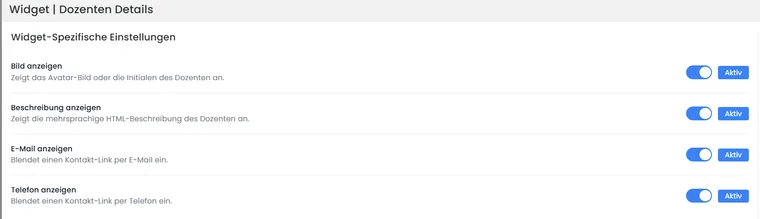
In the “Lecturer details” widget, configure separately whether the instructor’s photo, description, email address and phone number are displayed. Check that publication of the contact details has been approved before publishing.
The display relates to people assigned as instructors to the date. Check Calendar and dates if no instructor appears in the public interface. Test the public offer page after every change to the photo, description, contact details or assigned instructor.
Academic title and salutation: For example, enter “Dr.” in the instructor’s academic title field. This requires the account setting for academic admin titles to be active. Public name formatting includes the title when the setting is enabled; check how the instructor is displayed in the design you use. Do not also put the title in the first or last name if this would duplicate it.
Participant salutation and admin title are different data. The email placeholder ##UserTitle## stands for the participant salutation. You enter an academic title of a participating person in a suitably named own participant data field.
Choose system rights correctly
The rights selection loads the groups existing in your account. The standard roles are separated by the following tasks; older accounts may display different names. The content of the assigned group is decisive.
| Standard role | Typical use |
|---|---|
| Superadmin rights | Manages admins, rights profiles, API accesses, and global security settings as well. |
| Admin rights | Works operationally with offers, bookings, and participants. Critical account settings remain restricted. |
| Instructor permissions | Reads the designated offer, booking and participant data and uses the enabled instructor functions, such as attendance, notes and sending emails. |
| Admission | Restricted access for the admission task. This role does not grant general access to offers, bookings, and customer management. |
| No permissions | Grants no professional access rights. For a departure, additionally check the admin status and external login connections. |
Select the group based on the actual task. After assignment, have the person verify the required views and actions. Creating admins and changing their permission profiles are reserved for super admins.
Custom permission groups
Custom permission groups let you match access to your team’s tasks. First check whether a standard role is sufficient. Document and test each custom group using a separate login before assigning it to your team.
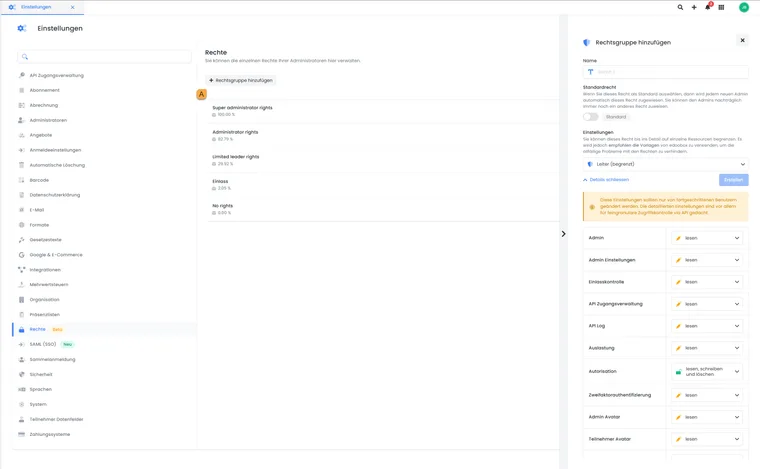
Custom permission groups are created in the Permissions area. The figure shows the form with the template and individual resource permissions; the specific permissions must match your tasks.
- A
- Permissions area: Open the form for a custom permission group via “Add permission group”.
Custom admin permissions must be enabled in the security settings. Admins with self-created permission groups can no longer log in to the old V1 version; access is exclusively via V2.
If a custom permission group causes problems, first check the same process with a standard edoobox role. Before contacting support, document the route, action, error message and required function. This helps distinguish a permission issue from a general error.
You can obtain superadmin permissions only through the edoobox Superadministrator rights template. Setting individual permissions manually does not replace a complete superadmin profile.
Enable two-factor authentication
Each admin configures their second factors in their own profile → Settings → Two-Factor Authentication. This section applies to the currently logged-in person. A superadmin does not register a passkey on another person’s behalf.
Available are passkey, OTP app, phone via SMS or call, YubiKey and backup keys. Multiple configured methods are available for selection during password login. Resetting the backup keys generates ten new replacement keys and invalidates the previous ones. Phone confirmations may incur costs for the edoobox account.
The complete setup and procedure in case of device loss are available at Set up two-factor and passkeys. For SAML-SSO, you manage the additional login checks with the Identity Provider.
Admin profile: Overview, Outbox, Calendar, and Utilization
Clicking an admin row opens the admin profile. There you see status, login connection or SSO, 2FA status, personal details, last logins, key figures, upcoming appointments, notes, and TODOs.
The profile also includes outbox, calendar, utilization, and settings. The outbox shows outgoing messages for the admin resource. The calendar shows appointments for this person. Utilization can be viewed by day, week, month, year, or a freely chosen period and exported as CSV or Excel.
In the overview, you can also see whether the access is active, whether an external login connection or SSO is used, when the person last logged in, and whether two-factor authentication is set up. This information helps to clean up old access and prepare delegations in a targeted manner.
Application example: Check open appointments and TODOs
Open the admin profile from the table. Check status, 2FA, and last logins. Then check upcoming appointments and TODO notes. For resource planning, switch to utilization, select the period, and export the view as an Excel file.
Settings, security, and files in the admin profile
In the admin profile, you edit personal details, status, language, permission profile, V1/V2 access, description, signature, and avatar. The permission profile is only editable with sufficient permissions. If you want to deactivate yourself or remove your own access, edoobox requires confirmation.
If the current admin changes their language, edoobox reloads the interface in the new language. Under Login connection, you can identify a connected external access. As long as this connection locks the password, no edoobox password can be set. Only a super admin can remove the connection after confirmation. Then set up a functional password access or the intended new login path. A participant provider with User only does not grant admin rights; details are explained in SAML data fields and admin rights.
Files in the admin profile are suitable for internal documents such as certificates, contracts, or qualification proofs. Before uploading, check whether the file truly belongs to the admin person and whether it contains personal data. General files for offers or categories should be stored in the appropriate offer, in the category, or in the Secure File Manager.
Maintain your own profile with restricted permissions
Even an admin with a restricted task area can maintain the normal details of their own admin profile. Managing other profiles and changing permission groups are separate permissions.
- Open your own admin profile and its settings.
- Change the approved personal details, contact data, or language and verify the saved values.
- Change a local password only on your own access. For an external login connection, note its password lock and the responsible Identity Provider.
- Set up your own second factors yourself. Missing admin list permissions are not a reason to use another person's access data.
You cannot expand your own permission profile yourself. If your own profile view is not accessible due to a custom permission group, a super admin can check its access without granting full rights across the board.
Personal display and dark mode
Personal settings include options for the navigation tree, table colours and opening resources as tabs or popovers. A personal light/dark mode switch is currently unavailable in this V2 settings view. Change the colours of a public booking page in the Design Manager; these changes do not affect the admin interface.
Status, deactivation, and deletion
An admin’s status determines whether they can log in and be assigned as an instructor. Deactivated admins remain visible in historical data but can no longer work normally. This is useful when someone has left but previous dates and bookings must remain correctly documented.
Before deleting, check future dates, tasks, notes, calendar feeds, outstanding invitations and possible API or integration references. If an instructor is removed from future dates, then check the public offer page, email templates, attendance lists and workload view.
Permission groups and API access
Permission groups are also relevant for API keys. Do not create super admin keys for integrations if only a partial area is needed. A group Accounting API should, for example, only receive invoices, payments, and required booking data.
If a permission group is still used by admins or keys, edoobox blocks deletion. Check assignments before removing permissions. More information is available in Manage API keys and access rights.
Apply the same care to custom permission groups as to admin permissions: document the areas a team actually needs, test the group with a separate login and avoid blanket full access. An incorrectly restricted group may make menu items appear empty, prevent dialogs from saving or stop detail views from opening.
Onboarding and offboarding of admins
A new admin needs proper onboarding as well as an account. Before sending the invitation, check which permission profile they need, whether they should appear publicly as an instructor, which language to use, and whether two-factor authentication should be set up immediately.
- Create an individual admin login; never share existing logins.
- Select the appropriate permission profile and only release necessary areas.
- Send the invitation or hand over the start password securely.
- Maintain profile picture, description, signature, and contact data only if they are needed.
- Set up 2FA and store backup keys securely.
- For instructors, test their display in the offer details.
When someone leaves, first deactivate the admin. Then check future dates, tasks, notes, outstanding invitations, outbox, calendar feeds, API references and public instructor entries. Delete an admin only when historical data, dates and booking records will remain understandable.
Example: an instructor leaves the organisation
The administration deactivates the admin login, checks future dates, replaces the instructor in the affected offers and then checks the public offer page. Only after no outstanding tasks, invitations or integration references remain is it decided whether to delete the record or leave it deactivated for historical purposes.