
Global settings in edoobox
In the global settings, you define rules that apply to the entire edoobox account or to large parts of it. These include organization, subscription, offers, registration, legal texts, payment and email settings, language, attendance lists, and other account options.
Change global settings deliberately: They can affect existing offers, new bookings, emails, invoices, or the booking process.
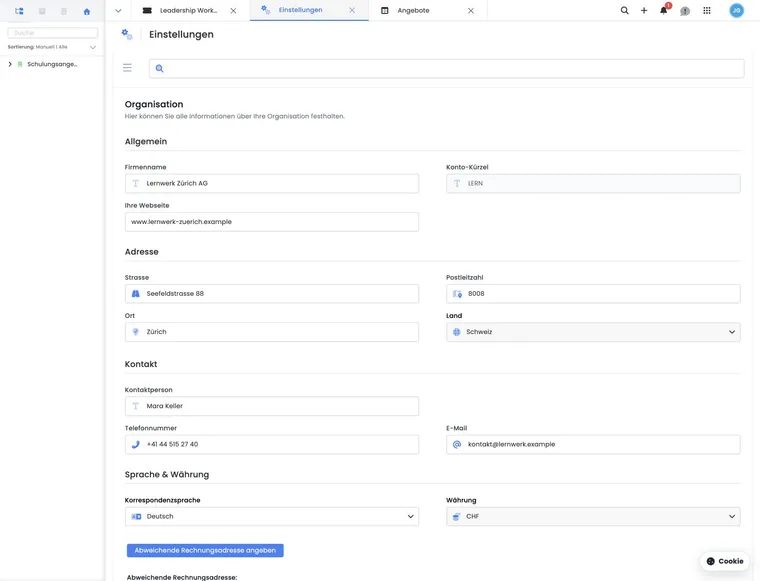
What global settings control
Global settings define basic rules for the account. Examples include company details, billing address, date formats, languages, email delivery, registration behavior, legal texts, payment processes, ticketing, attendance lists, and data protection.
Many detail pages refer to these global basics. If a behavior should be the same across multiple offers, the setting is often global. Individual offers or categories can supplement or override these basic rules depending on the area.
Open global settings
Open the app menu and select Settings. Depending on user rights, you see all or only selected setting areas. If an area is missing, check your user rights or ask a person with superadmin rights.
The settings view loads multiple areas in the background. For large accounts, it may take a moment until all tiles and data are ready. If an area does not appear completely immediately, wait a moment or reload it.
Important setting areas
| Area | What to use them for? | Guide |
|---|---|---|
| Account settings | Organization, billing address, formats, barcodes, participant data fields, API keys and outbox. | Account settings |
| Subscription | Current subscription, usage, limits, subscription change, account billing, and invoices. | Settings: Subscription |
| Offers | Account-wide offer rules and automated workflows. | Offers: General Settings |
| Registration | Completion page, participant account, allowed login methods, and booking label notifications. | Registration settings, booking cancellation |
| Cancellation and withdrawal | Terms, legal texts, cancellation process, and separate financial control. | Cancellation and withdrawal |
| Ticketing | Tickets, barcodes, and admission control. | Barcode: Ticket and barcode settings |
| Formats | Date, time, number format, and calendar grid. | Formats: Date, time, and number format |
| Legal texts | Terms and conditions, privacy policy, withdrawal information and legal confirmations. | Legal texts |
| Tracking | Analytics and marketing providers, subject to account enablement, plus events, consent and iFrame integration. | Google Tag Manager / Google Analytics |
| VAT | Tax rates, VAT numbers, GeoDynamic, and Reverse Charge. | Global VAT settings |
| Organization | Company and account information. | Organization |
| Attendance lists | Attendance statuses, attendance confirmations, certificates and layouts. | Presence list settings |
| Group registration | Bookings with multiple people or unassigned places. | Group registration with participant data |
| Languages | Multilingual booking process and correspondence languages. | Language Settings |
| Participant data fields | Custom fields for participant profiles and registration forms. | Participant data fields |
| Search and filters | Global search, filter logic, and operating states. | Global search in edoobox |
| Deletion and data protection | Automatic deletion, Swiss FADP/GDPR, retention and contracts. | Automated Deletion |
| Secure File Manager | Secure file transfer with the edoobox Support. | Secure File Manager |
| Outstanding payments | Check payment receipts and send payment reminders from bookings. | Check and follow up on outstanding payments |
Overview of other global areas
Global settings also cover email delivery and the outbox, payment systems, account billing, Swiss FADP/GDPR agreements, custom attendance lists, automatic deletion, API access and the Secure File Manager. These often affect the entire account, so check more than a single test offer.
After changing email, payment, language or legal text settings, perform a complete test: open the offer, make a booking, check the email and invoice, and review the outbox.
Distinguish between global and local settings
Global settings form the foundation. Individual offers or categories can additionally have their own settings. Therefore, check first whether a local setting overrides the global rule when encountering unexpected behavior.
Typical examples are email rules, offer status, waiting lists, MustPay, cancellation terms, price categories, and add-on services. An account can define a basic rule, while an offer has special requirements.
Legal texts and cancellation involve several layers: the published text, widget links, the cancellation group assigned to the offer and the conditions saved with the booking. Follow the setup sequence in Legal texts, cancellation and records. It also explains which changes affect existing bookings.
Safely check changes
Document important changes and test them with an internal offer. Afterwards, check the preview, test booking, email, invoice, and visibility on the website. For legal, tax, or payment-related changes, the responsible expert should review them.
Check beforehand which offers or booking processes are affected.
Check the change in a test offer or with a test booking.
Check the email, PDF, outbox, invoice and payment status.
In case of errors, document the change and reset it if necessary.
Application example: Prepare a new account before the first offer
An organization first sets up company details, languages, email delivery, legal texts, and registration settings. Then it creates a test offer and checks the booking process, confirmation email, and invoice before publishing real offers.
Set up extensions and new work areas specifically
| Task | Entry point |
|---|---|
| Check extension and contract terms | Plugins / Plugin Manager |
| Offer memberships and passes | Participant subscriptions in the Subscription Manager |
| Create your own reusable CSV exports | Export Manager |
| Manage rules and executions for events | Automations |
| Connect accounting or access system | Integrations |
| Set up passkeys and central login | Two-factor authentication and passkeys as well as SAML (SSO) |
| Pause your account or close it in an orderly way | Account lifecycle in the account subscription |
For Plugin Manager, Bexio, and Automations, areas are released on a per-account basis. Other functions may additionally require an active plugin or a service included in the edoobox package. The release of a menu item and the activation of a contract are different steps.
Use the search within the settings if you know the name of an option. Afterwards, check the associated area and its current notes. Options marked as “coming soon” or “Coming soon” are not yet a released setup path.
Personal booking notifications and signal tone
Under Settings → System → Notifications, activate Notification for bookings and, if needed, Notification tone for bookings. These two options belong to the logged-in admin profile; other admins choose their own settings. Without activated notifications, the tone option remains locked.
The guide Booking notifications and sounds explains booking start and completion notices, office procedures, and how to check the notification, sound, browser tab and audio output device separately. Internal registration information emails and payment records follow separate processes.