
Email system in edoobox
The email system links a business event to the right message: a booking, payment, reminder or attendance event generates a template in the recipient’s language, adds data and attachments, and places the message in the outbox. From there, it is sent through the active email provider.
If a message is missing or incorrect, check this chain from left to right. A nice template text does not help if the trigger, status, recipient, or provider is not correct.
The seven steps of an edoobox email
Trigger: Booking, status change, time rule, payment, cancellation, attendance, or manual action.
Recipient: Main contact, participant, admin, organization, or consciously chosen address.
Language: Appropriate template variant based on the process and account.
Template: Subject and message, as well as PDF or ICS components if applicable.
Data: Placeholders, IF conditions, and loops are rendered with the current context.
Queue and provider: The message is saved in the outbox and submitted through the active delivery method.
Check: Status, errors, recipient and content are checked in the outbox.
Select exactly one active mail provider
Under Settings → Email → Server, the V2 shows four delivery methods. For the account, only one is active at a time; the selection generally applies to all edoobox messages of this account and not per template.
| Delivery method | Suitable for | Responsibility |
|---|---|---|
| Email from edoobox (no-reply) | Quick start and limited standard sending. | No own sender domain; pay attention to notes regarding reputation or blocking in the settings. |
| Mailjet | Dedicated sending focused on deliverability with domain configuration. | Maintain API access, sender domain, SPF/DKIM, and Mailjet account. |
| Microsoft 365 | Sending via a work/school account or authorized shared mailbox. | Microsoft connection, send-as right, and reconnection in case of authentication errors. |
| SMTP | Own mail server or other provider. | Server, port, encryption, access, sender rights, and limits. |
When activating a dedicated provider, the previously active method is replaced. Therefore, perform a complete test after each change. Detailed instructions: Mailjet, Microsoft 365, and SMTP.
Automatic and manual sending
Automatic messages are only generated if the associated process and its settings are active. For example, an appointment reminder requires a suitable time rule, an attendance confirmation requires attendance data, and an invoice message requires a created invoice.
Manual actions such as Resend booking confirmation, write email, Send payment reminder, or planned Email tasks also use templates and the active provider but have different recipients and placeholders depending on the context.
Control planned tasks and execution
To plan a message, start with Create tasks and plan emails. The view with pending items, recurring tasks, and archive is explained under Tasks, pending items, and recurring tasks. For tasks at a specific location, use Create location-specific email tasks.
Check templates, data, and attachments together
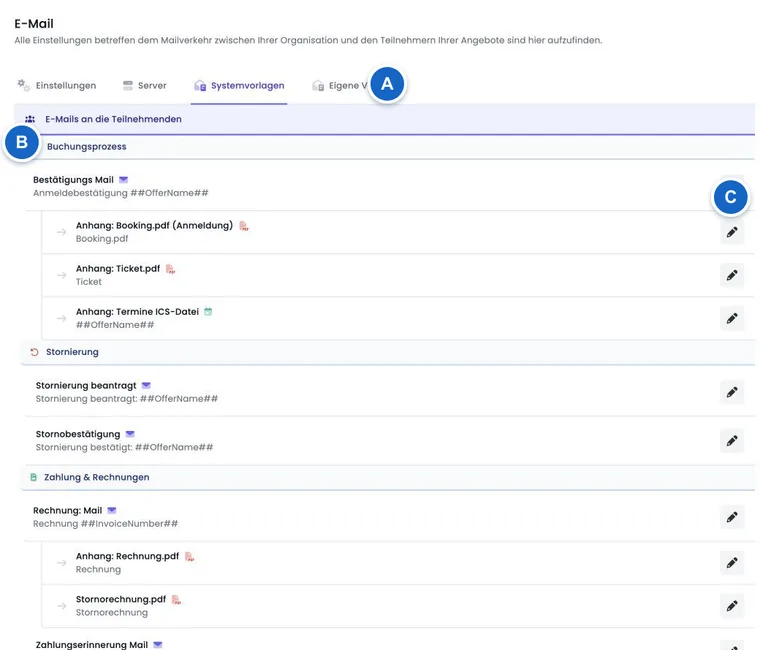
The Template overview shows which email and which attachment belong to which process. The Placeholder selection is different for each template. For conditions and lists, the rules for IF and EACH also apply.
For custom attachments, continue with Custom PDF attachments and templates for email templates.
Booking.pdf, Ticket.pdf, Rechnung.pdf, Zertifikat.pdf, or ICS are not sent just because they are designed. The respective account, offer, booking, or status rule must activate the attachment.
Interpret the outbox and provider status correctly
The outbox is the first place to check. Review destination address, creation and sending time, status, subject, content and attachments. A provider may technically accept a message even though later delivery fails because of spam filters, an invalid address or the recipient’s server.
In case of repeated authentication or provider errors, edoobox can automatically deactivate a dedicated delivery method. The V2 then shows a red notice at the provider requesting a check and reconnection. Reactivate the provider only after the cause and test send have been clarified.
Troubleshooting in a sensible order
Did the required business event actually occur, and does the record have the expected status?
Is the email address valid and does it belong to the correct main contact or participant?
Is the appropriate language variant present and saved?
Does the outbox show the expected message? First check the search term, error filter, person or address filter, and older entries. If the message is still missing in the correct context, check the trigger, recipient and task processing before investigating the provider.
Is exactly the intended provider active and without warning message?
Was the message technically sent but not delivered? Then check the provider log, bounce, spam filter, and recipient server.
After correction, test the same case again with an internal address.
Practical example: A new offer with a complete email workflow
An education provider tests a confirmed booking, waiting list and invoice. For each case, they check trigger, recipient, language, template, attachments, outbox and recipient inbox. Only then is the offer published.
Practical example: Switch from no-reply to Microsoft 365
The organization connects a shared mailbox and activates Microsoft 365. This replaces the previous provider. A test booking checks the sender, reply path, Rechnung.pdf and the sent message; the old no-reply path is no longer expected as a parallel delivery channel.
Practical example: Provider automatically disabled
In the provider area, a red warning appears, and new messages fail. The administration checks the last error detail, renews the access or permission, reconnects the provider, and sends an internal test message. Afterwards, failed customer messages are specifically re-triggered.
Plan subscription and dunning processes into communication
Triggers now also include subscription renewals and dunning stages. First enable and configure the relevant feature in the Plugin Manager or its settings area, then maintain the appropriate system templates. An active template alone does not create a renewal or dunning process.
For subscriptions, use the renewal reminder with personal payment, invoice and cancellation links. For outstanding payments, use dunning rules and their own templates. Check the content actually generated and its recipient in the outbox.
Create custom messages and custom documents
Under Custom Templates, you choose between Email and PDF when creating. Use emails in appropriate tasks and rules; PDF templates generate personal participant documents. A static PDF attachment and a PDF background are separate functions. The Template reference and Placeholder reference guide you through the available variants.
Send a single message from a profile
For an individual message, open Compose email from the appropriate profile or context. Select existing profiles or offers as recipients, enter subject and content, and check the result in the outbox. A normal profile message does not automatically supply a specific booking or invoice context. The full steps are under Send manual emails to profiles and offers.