
Manage cancellation terms
Cancellation groups determine which deadline, fee, and confirmation apply to a booking. Each group can include a legal text, tax rate, withdrawal process, and refund route. This guide explains how to configure the group completely. The calculation guide then explains which rule and amount apply to a specific case.
Legal texts, cancellation, and evidence shows the entire process from the published text version and booking confirmation through to reversal.
Prepare before setup
Have the intended fee tiers, refund route, and text for each active booking language ready. Create and publish the required legal text. If fees should have a tax rate, configure it under VAT. To refund using a voucher, voucher codes must be allowed in the booking process.
The admin needs access to settings and the Cancellation conditions permission; assigning conditions to an offer and editing a booking require their respective additional permissions. If a setting is not visible, first check permissions.
1. Activate Rules mode
- Open Settings → Cancellation & withdrawal.
- Stay on the Cancellation & withdrawal tab and select Rules in the selection field of the same name.
- Open a group or select Add cancellation condition.
| Mode | Behavior for the previous process and new bookings |
|---|---|
| Inactive | The previous self-cancellation process is disabled; new bookings do not receive a rule copy from it. |
| Active | Previous process with admin confirmation; marked as deprecated. |
| Active, without confirmation | Previous direct process; marked as deprecated. |
| Rules | New bookings receive their own copy of the selected active group or default group. |
The mode selection is saved immediately. Group settings are dimmed in other modes. Changing mode does not remove conditions already saved with bookings: those bookings continue to use their copy. The former Confirmation for admin cancellation switch is hidden in rules mode, but its saved value may still affect sending. See Registration and confirmation settings.
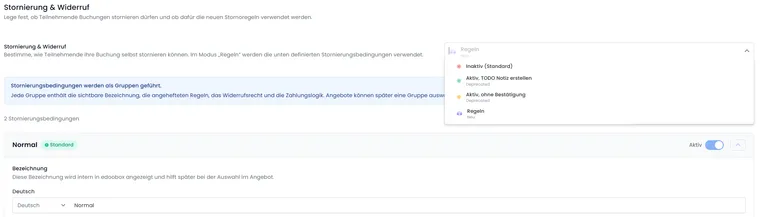
Select Rules mode to use saved cancellation conditions. Groups appear below with their name and active status.
Control self-cancellation, requests, and fees deliberately
First define the result you need. The fee amount does not determine whether a person may submit a request. Group management offers the rule actions Cancel automatically and Admin confirmation; there is no third “Do not allow requests” action here.
| Desired result | Appropriate approach | Important boundary |
|---|---|---|
| Disable ordinary self-cancellation across the account | Select the global Inactive mode and check both new and existing bookings. | This is not a per-offer selection. Previously saved condition copies may still take priority; Inactive does not remove them. |
| Prevent immediate automatic cancellation for specific offers | Create a separate group with Admin confirmation and assign it to these offers. | The person can still submit a request. A valid saved withdrawal without a waiver can be processed immediately. |
| Allow immediate cancellation without a fee | Choose a matching active Cancel automatically rule with 0%. | 0% means no cancellation fee. It does not disable the cancellation process. |
| Provide no automatic case within a specific period | Use no matching automatic rule; check the resulting participant view. | Without a matching rule, an admin request is created if a condition copy exists. A gap in the tiers does not block requests. |
| Exclude every self-cancellation request for some offers while allowing them for others | Clarify this special process with edoobox before publishing. | The reviewed interface provides neither a dedicated offer switch nor a rejecting group action for this. Admin confirmation only provides a manual decision on requests that remain possible. |
Do not deactivate or delete the assigned group as a substitute: new bookings may then fall back to the active default group. Even without an explicit group, rules mode does not mean “Cancellation prohibited”. A high fee does not prevent requests either.
- Create a separate active group for offers requiring a manual decision and choose Admin confirmation for every intended deadline tier.
- Maintain deadlines and fees according to the agreed conditions and check the separate withdrawal process.
- Assign the group to the affected offers. Other offers can continue using their group with automatic rules.
- Check a new booking and its saved copy. Verify that a request leaves participation active until the responsible person decides. Handle existing bookings explicitly; changing a template does not update them.
- If every request must actually be excluded, do not present this setup as a guaranteed block. Clarify the required product solution and communicated contact route before approving the process.
The decision in an individual cancellation case and processing an incoming request are separate steps. Hiding a notice or link in the design is not an established block on the booking action.
2. Name the group and select basic values
| Setting | Procedure and effect |
|---|---|
| Name | Maintain the internal name in each active language, for example “Day courses”. Change the language at the input field to do this. |
| Active | Active groups can be used for new bookings. Inactive groups remain saved; a default group remains active. |
| Default cancellation condition | Exactly one group is the default. To change the default, activate this selection on the desired other group. |
| Legal texts | Select the text at the end of which the matching legal text widget should append the fee tiers. “No legal text attached” omits this connection. |
| VAT for fee objects | Select an appropriate active tax rate or “No VAT”. This value belongs to the fee object and is not simply taken from the offer. |
The internal group name does not replace participant-facing text. The attached legal text must be published and included as a legal text widget in the booking process used. The automatic table shows deadline and fee; it does not include the “Automatic” or “Admin confirmation” decision. Therefore, also explain the intended process clearly in the text.
Preconfigured groups: “Online” and “Normal” may be provided as starter groups when loading. Their initial values already include rules and an active withdrawal process; “Online” also enables automatic refunds. Check these values before use. In the current process, missing preconfigured groups are added again. Renaming or deleting one may therefore cause an additional starter group to reappear. Use your own clearly named groups for your conditions and deactivate an unneeded template rather than assuming it has been permanently removed.
3. Configure rules and confirmation
- Select Add rule or edit existing rows.
- Enter whole days starting from zero under Deadline before start.
- Choose Cancel automatically or Admin confirmation.
- Enter a Cancellation fee from 0 to 100 percent and activate the row.
- Deactivate unneeded rules or remove the row using the recycle bin icon. Then save the group.
The deadline means no more than this number of days remaining. The smallest matching day limit wins. A row of “14 days, 0%” therefore applies to at most the final 14 calculated days. You need another limit for the time before that. Avoid duplicate day limits with different actions. The deadline table with boundary cases shows a complete tier structure.
4. Select the refund method
Automatic cancellation with refund allows processing of the already paid difference remaining after fees. The Refund method selection becomes usable only when this switch is enabled.
| Refund method | Result and prerequisites |
|---|---|
| Online payment system | edoobox attempts a refund through a supported original payment transaction. Failed refunds may block cancellation. Manually paid invoices require a separate refund. |
| Voucher code | The remaining difference is generated as a new voucher code. First enable voucher codes in the booking process. Check the code, amount, validity, and sending. |
| Retain as user balance | The difference remains as a positive credit balance in the participant account. No direct bank or card refund occurs. |
Without automatic refunds, no automatic online refund is triggered. Money already received may nevertheless be allocated to the new fee. Check and process any remaining refund amount separately. For more information, see Calculation by payment method and Check refunds.
5. Optionally configure the withdrawal process
Activate Right of withdrawal active and maintain the Checkbox text in every active language. The technical process uses a period of 14 times 24 hours from creation of the condition copy. If the offer starts in less than 14 days, an additional required checkbox is provided at the associated legal text widget. The group alone does not yet add this widget.
A valid saved withdrawal without a confirmed waiver sets the cancellation fee to zero and may cancel the booking directly, even if the rule requires admin confirmation. A failed refund or invoice issue may still prevent completion. Withdrawal for participants explains setup, the participant form, and evidence.
6. Save and reopen each group
Select Save at the bottom of the open group and wait for the Saved confirmation. Reopen the group and check its name, default setting, rules, withdrawal, tax, and refund method. A change in an input field alone has not yet been saved.
Complete one group at a time. Saving, adding, and deleting reload the group list; unsaved changes in other groups may be lost. “Add cancellation condition” already creates a group with initial values. Name and complete it before use. If saving fails, the current draft remains: read the message, correct the input, and save again.
7. Assign the group to the offer and check publicly
- Open Offer → Settings → Cancellation condition.
- Select the specific active group or Default. This field is hidden for sub-offers of a multi-offer; check the assignment in the parent booking context.
- In the Design Manager, open the booking process template used and connect the legal text widget to the same text.
- In the public process, check the text version, language, deadline table, and additional withdrawal checkbox for a start at short notice.
- For a new booking, check the saved group, rules, and withdrawal deadline in the booking details.
Special behavior of the “Default” selection: Saving this selection currently stores the ID of the group that is the default at that moment. A later default change does not automatically move these offers to the new group. Reopen the affected offers afterwards and select the intended default. Offers without a specific group assignment use the current default.
Effects of later changes
| Change | New bookings | Previously saved bookings |
|---|---|---|
| Edit the group’s rules, withdrawal, or refund settings | Receive the newly saved version of the group used. | Retain their own condition copy. |
| Save a different group as default | Applies where no specific assignment exists. Check previously saved “Default” offer selections separately. | No automatic reassignment. |
| Deactivate a non-default group | If an assignment to the inactive group still exists, creation falls back to the active default group. | The copy is retained. |
| Delete a non-default group | Assigned offers are reset to having no specific assignment and use the default. | The copy and fees already generated are not removed. |
| Change the global mode | Outside “Rules” mode, no new rule copies are created from it. | Existing copies may continue to determine cancellation. |
The default group cannot be deactivated or deleted. First select and save a different default. Before deleting, check the affected offers and website links to the group’s withdrawal form. Deactivated or deleted group access may make the standard public link unusable.
Change existing bookings deliberately
Open Edit cancellation condition in the booking details. Read the existing copy and history, select another active group if necessary, and document the reason. An admin can also make an explicit assignment when global self-cancellation is not currently in rules mode.
Remove condition only removes this assignment from the booking. The global group, history, and generated fees remain. Use the separate fee process to correct a fee. The booking cancellation guide explains subsequent actions.
Check the deadline after a new assignment
When a new group is assigned, edoobox creates a new condition copy and recalculates its withdrawal period from the time of the change. Check the deadline and confirmation state after saving. Do not casually switch groups simply to correct text. Merely selecting the same group again does not reliably replace the saved copy; check the version actually saved and its history.
Example: Fully configure a day-course group
An academy wants a traceable tier structure for day courses. It publishes its legal text, creates “Day courses”, and configures 365 days at 0%, 14 days at 50%, and 7 days at 100%. The first two rows cancel automatically; the last requires admin confirmation. It chooses an appropriate fee tax rate and “Retain as user balance” as the refund method, saves the group, and assigns it to the course.
To verify the setup, it uses a paid CHF 200 booking with no valid withdrawal and no other fees. With ten calculated days remaining, it expects a CHF 100 cancellation fee and CHF 100 credit; with five days, it initially expects a request pending the admin’s decision. Finally, it checks booking details, participant account, documents, task, and outbox. The check cases add boundary values and partial payments.