
Custom PDF attachments and templates for email templates
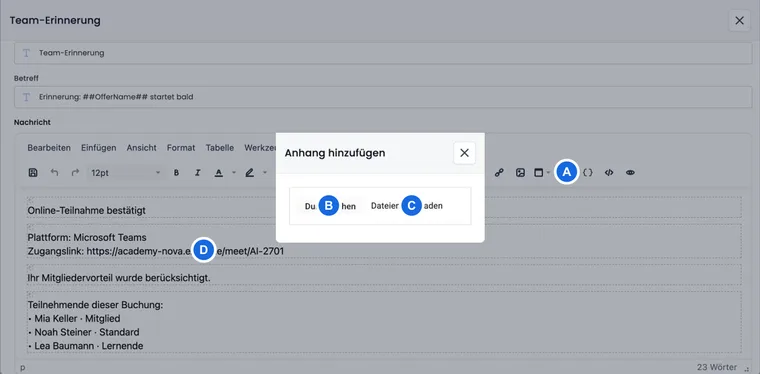
With custom PDF attachments, you automatically send static documents with a specific email template. Typical examples are terms and conditions, house rules, guidelines, packing lists, or detailed information that are identical for all recipients of the same template.
PDF templates serve a different purpose: They act as a background for PDFs generated by edoobox, such as Booking.pdf, Ticket.pdf, Zertifikat.pdf, or Rechnung.pdf. This gives these files a consistent appearance in the corporate design.
When custom PDF attachments are useful
Use custom PDF attachments when a document should be sent unchanged with every dispatch. For individual content such as name, date, price, booking number, or payment link, it is better to use placeholders directly in the email or in the generated PDF.
If a document changes depending on the offer, you should not maintain it as a fixed template attachment. Instead, link such information in the description text, via additional texts, or via offer-related documents.
Upload PDF attachments
Open Settings → Email, select the desired system template or custom template, and click the paperclip icon in the editor. Then upload the PDF file and wait until edoobox has checked the file.
After a successful upload, the attachment appears in the template's list. Only then is the file sent with the dispatch of this template. When deleting, a security prompt appears to prevent a production template attachment from being accidentally removed.
Please note: A maximum of five PDF attachments are possible per email template and per active language. A file size of less than 1.5 MB is intended per PDF attachment. Only PDF files are supported.
Use PDF template as background
Use a PDF background when documents generated by edoobox should appear on letterhead or follow a fixed layout. The background is incorporated into the generated edoobox PDF; it is not sent as a separate email attachment.
You can assign a separate background in each language to individual edoobox PDFs such as Booking.pdf, Ticket.pdf, Zertifikat.pdf, Rechnung.pdf or Stornorechnung.pdf.
PDF background limits: You can assign one background per edoobox PDF and language. Use PDF/A, keep the file as small as possible and below 1.0 MB. The single-page background is used on every page of the generated PDF.
Upload, check, and remove
edoobox checks PDF attachments and PDF templates after upload before they become active in the template. If an upload fails or the file does not match the expected file type, the template remains unchanged and no partially created attachment is generated.
PDF attachments appear as a list with file names and delete icons. A PDF template is displayed separately because it designs the generated PDF file. If a PDF template already exists, remove it first before uploading a new template.
Application example: Add terms and conditions as a PDF attachment
Open the booking confirmation template, click the paperclip icon, and upload the terms and conditions as a PDF. After the check, review the attachment list. This terms and conditions file will be sent with every future booking confirmation.
Standard file names and language variants
Always maintain attachments and templates in the correct language variant of the template. A PDF attachment uploaded in German is not automatically available in English, French, or Italian.
For system attachments, edoobox can use language-dependent standard file names. This ensures, for example, that an automatically generated Booking.pdf or Ticket.pdf is named in the appropriate language. Check such file names especially when you use multilingual email templates.
| File type | Limit | Effect |
|---|---|---|
| PDF attachment | Up to 5 files per template and language | Sent as a static attachment with the email. |
| PDF template | 1 file per edoobox PDF and language | Serves as a background for the generated PDF. |
| Standard file name | Language-dependent | Controls the visible name of system PDFs. |
Phone numbers and links in PDF
If phone numbers in a PDF are to be directly dialable, use a phone link such as <a href="tel:+41434346591">Tel +41 43 434 65 91</a> in the source document. Check the link in the finished PDF file after export.
Test PDF attachments
Before production use, send a test email from the template or trigger a test booking. Check whether all attachments are present, the file names are understandable, the file size is appropriate, and the PDF template does not cover text, logo, margins, and footer.
Three different PDF uses
| Goal | Suitable function | How to proceed |
|---|---|---|
| Send an unchanged document as an attachment | PDF attachment of an email | Open email template, select paperclip, and upload file. |
| Place letterhead behind a generated document | Background PDF assigned to a PDF template | Open PDF template and assign background PDF. |
| Generate a new personal document with data | Custom template of type PDF | Create a PDF template under Custom Templates and maintain placeholders. |
The third option generates a personal document from the available data. For detailed instructions, see Custom PDF templates for participant documents. A background is available only for a PDF template; an email itself cannot have a PDF background.
Paper format, PDF version, CSS, and edit protection
Select the paper size and PDF version under Format settings. The PDF documents are password-protected toggle is under Settings → System; it prevents editing and does not require a password to open the file. These settings apply to document generation across the account. A change can affect line and page breaks, so compare the resulting invoice, booking document, ticket and certificate.
The custom PDF CSS accessible in the PDF editor is also an account setting. Use custom classes for targeted rules, whose name starts with custom_. General CSS rules such as p { … } are not adopted as a freely usable stylesheet. A rule with * has a broad effect. Use only fonts offered in the account.
.custom_hinweis { color: #245678; font-size: 10pt; }In the HTML content, you use the following, for example:
<p class="custom_hinweis">Please bring your identification document.</p>Save the CSS and check the generated PDF. The HTML preview of an email says nothing about the page break in the PDF.
Distinguish printing from saving: edoobox’s editing protection for generated PDFs permits printing and copying; no password is required to open the file. This encryption is not applied when generating PDF/A-compliant documents. If a file requires a password to open or restricts printing or saving, compare the original file with a newly generated version. Disabling protection under Settings → System does not change previous downloads or remove existing protection from an uploaded original. See the troubleshooting steps under Files and PDF protection.
For long certificates and signatures in two columns, follow the layout steps for long participant documents. A background does not automatically control line breaks or scale content onto one page.
Troubleshoot upload errors
Before a new upload, check file extension .pdf, actual PDF file type, and size. The static attachment must be smaller than 1,500,000 bytes, and the background PDF smaller than 1,000,000 bytes. Existing five attachments or an existing background block another entry.
A PDF cannot accept additional static email attachments. For this, open the email component of the template. To replace a background, remove the existing background and then upload the new file. Afterwards, check the displayed entry and an actually generated PDF.