
Payment systems
This page is the starting point for setting up payment systems in edoobox. It helps you decide which payment method to configure and which detailed guide is relevant.
Distinguish between two areas: payment systems for participant payments relate to your customers' bookings. Payment for your own edoobox subscription is separate and is maintained in the account area.
For invoices, manual transactions, refunds and outstanding payments, use the Payments, invoices and reminders overview.
Payment systems for participant payments
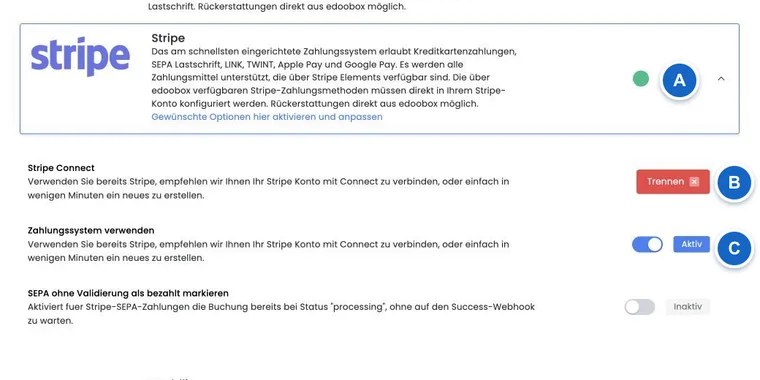
When participants pay for a booking, the settings under Payment systems for participant payments apply. There you can enable invoice, Stripe, PayPal Checkout, Worldline/Saferpay, Sofort/Klarna, BitPay or QR invoice.
The order and presentation of payment methods in the booking process can also be influenced through the Design Manager.
Invoice and bank transfer
The guide Invoice for offline payment and bank transfer explains how to configure conventional invoicing. This includes bank details, due dates, invoice numbers, delivery and payment receipt.
For subsequent corrections, read Create/edit invoices and cancellation invoices. If invoices are to be sent by post, see Sending invoices by post.
Online payments with Stripe, PayPal and Worldline/Saferpay
Stripe, PayPal Checkout and Worldline/Saferpay enable online payments during booking. The right option depends on your existing contracts, desired payment methods, fees and payout processes.
For SEPA Direct Debit, use Stripe - SEPA Direct Debit. For additional security checks on card payments, see Strong Customer Authentication (SCA) and Stripe - 3D Secure.
BitPay and Sofort/Klarna
BitPay is intended for cryptocurrency payments. Enable this method only if your organization genuinely wants to offer and account for such payments.
Sofort bank transfer (Klarna) is another payment option, provided it is relevant to your account and target markets.
QR invoice and payment reconciliation
QR invoices support Swiss payment workflows. To structure QR references automatically, read Automatic QR references for invoices.
Use Payment reconciliation using a Camt file to reconcile bank payments. This links incoming payments to edoobox invoices more efficiently.
Paying for your edoobox subscription
Paying for your edoobox subscription is not the same as a participant payment. For payment details, GDPR, EU VAT and billing, see Account: payment, GDPR and EU VAT and edoobox subscriptions.
Practical example: Find the right payment guide
You want to offer participants credit card payment. Start with the Payment systems for participant payments overview, choose Stripe or Worldline/Saferpay, then open the detailed guide for that provider. Afterwards, check in the Design Manager that the payment method is visible in the booking process.
Identify the right workflow for new payment features
| Task | Where to start |
|---|---|
| Use a participant's existing credit for their next booking | Automatically apply a positive participant balance. The switch is located above the payment systems; credit is applied in the same currency. |
| Automatically pay edoobox account costs with the company card | Automatic payment with a saved credit card. Manage these cards in your edoobox account's billing settings. |
| Bill a new period of a participant subscription | Participant subscriptions: renewal and cancellation. Renewal and invoicing do not by themselves mean that a card is charged automatically. |
| Select a machine-readable invoice format | Electronic invoices with ZUGFeRD and XRechnung. Select the profile required by the recipient. |
| Export edoobox fees for Stripe/PayPal payments | Export transaction fees as CSV; the download is available to authorized superadmins. |
Sofort/Klarna has a restriction: the entry appears only if a configuration already exists and the environment permits it. Treat it as an existing integration. With Stripe V3, Stripe's automatic payment methods control the selection; the old individual card/SEPA switches are hidden there.