
Integration of e-learning platforms such as Zoom and Teams
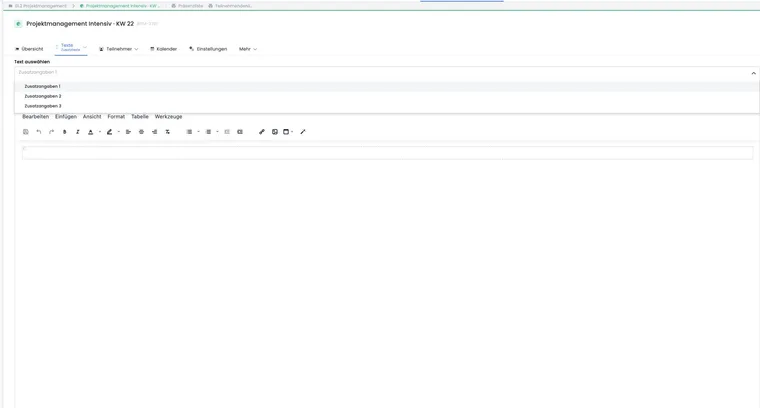
Additional texts are suitable when all bookings for an offer should receive the same online access. Maintain the link once in the offer and then reuse it in suitable email and calendar templates.
Choose the appropriate access-link workflow
| Requirement | Suitable workflow |
|---|---|
| One stable link for all bookings in an offer | Additional offer text and placeholders in templates. |
| A different link per offer | Use the same additional-text slot in each offer for its respective link. |
| A different link per session or participant | Do not use shared additional text; use an automated integration or individual task. |
| Automatically create a meeting when creating an offer or booking | Check Zapier, API or an external automation process. |
Enter one of the three additional texts
Create the meeting in Zoom, Microsoft Teams or your provider and copy the access link.
In edoobox, open the offer and select Texts → Additional texts.
Select Additional information 1, 2 or 3.
Enter the link, start time, time zone, dial-in information and a contact for technical problems.
Maintain the content in every active language and save it.
During output, edoobox uses the recipient's language and may fall back to the account's default language. An available fallback still does not replace deliberate checks of every language offered.
Use additional text in templates
| Additional text | Placeholder |
|---|---|
| Additional information 1 | ##OfferConfirmationText## or ##OfferConfirmationText1## |
| Additional information 2 | ##OfferConfirmationText2## |
| Additional information 3 | ##OfferConfirmationText3## |
Use the placeholder menu to insert the placeholder into a template where offer data is available, such as a booking confirmation, reminder email or suitable custom email template. Not every template has the same data context; use only placeholders offered by the editor for that template.
The complete reference is in All placeholders for emails and PDFs.
Use the link in the ICS calendar entry
Under Settings → Email, enable Send sessions in ICS format when booking. The ICS attachment is generated only if the booking contains sessions. A waiting-list booking does not generate this calendar attachment during normal booking completion.
The ICS entry's description comes from the system template for the calendar attachment. Insert the appropriate additional-text placeholder there if the online link should also appear in the calendar. Check the result in an actually generated .ics attachment; a correct email does not prove the calendar entry is also correct.
Plan security and changes
Do not use personal host or admin links as participant links.
Do not publish sensitive access details in the public offer description.
If a provider changes the link, update the additional text and check already scheduled emails or tasks.
For multiple parallel offers, check the offer name, link and time zone before sending.
Perform a test booking and open the link, email and ICS on a second device.
Example: Teams link in confirmation and reminder
A webinar uses the same Teams link for all participants. The organiser saves it in Additional information 1 and inserts ##OfferConfirmationText1## into the booking confirmation and reminder email. A test booking confirms that both messages refer to the same offer.
Example: online link also in the calendar
A multi-part online course sends sessions as ICS. The calendar attachment's system template contains the placeholder for Additional information 1. The team checks every session, time zone and link in the imported calendar and separately tests that waiting-list bookings do not receive access prematurely.
Example: automatically create personal Zoom links
Each booked person should receive their own Zoom link. Shared additional text would be unsuitable. The organiser uses a tested Zapier or API process, saves the mapping and accounts for rescheduling, cancellation and duplicate execution.
Account for a change after confirmation has already been sent
Changing additional text does not replace an email already received or a calendar entry already imported. For a new meeting link, therefore check which people already received the old link and send an appropriate targeted change notification. Check the offer context, recipient selection and ICS file actually generated.
For person-specific links, save and send the link in the individual data context. General additional offer text would give everyone the same access. A tag alone does not generate personalised meeting access.
Related guides
Additional internal webinar rules
To automatically label webinar bookings or select a suitable confirmation template, use automation rules. Example: when sending a booking confirmation, an offer tagged “Webinar” receives its own template containing the additional text for the meeting link.
The current internal action selection offers data-field/tag changes, notes, email delivery and template selection. It does not itself create Zoom or Teams meetings. A personal meeting link per person still requires the corresponding external process.