
Scan tickets and control access
Ticket checking verifies whether a ticket matches a booked person and selected offers or dates. A successful scan can simultaneously set the desired attendance status, combining admission and attendance checking in one step.
Configure validity scopes before doors open and test actual demo tickets with exactly the browser, scanner and network to be used on event day.
Prerequisites for safe admission
Tickets and barcodes are enabled in the account and generated for bookings.
The correct people are normally booked; waiting list participants do not count as normal admission bookings.
Attendance statuses are clearly configured.
The admission device has a stable connection and, for webcam use, the browser is allowed camera access.
The team knows the manual fallback process for unreadable or unfindable tickets.
Choose manual input, scanner or webcam
| Mode | Suitable for | Note |
|---|---|---|
| Manual | Individual unreadable codes or telephone checking. | A twelve-digit ticket code can be entered; edoobox adds validation information for checking. |
| Scanner | USB or Bluetooth handheld scanner that enters the code like a keyboard. | Test focus, suffix and scanning speed with several tickets beforehand. |
| Webcam | Laptop or camera-equipped device without an external scanner. | Plan good lighting, clear camera permission and a steady position. |
Incorrect format, unknown ticket code or mismatched validation information is treated as invalid. Never decide solely from the printed name; use displayed scan status and associated booking.
Set up validity scopes
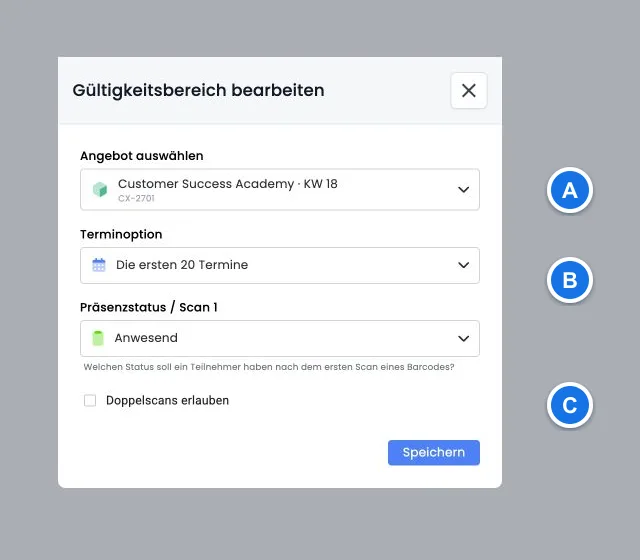
A validity scope links exactly one offer to dates and the attendance status to set when scanned.
Select an offer.
Adopt the next 20 dates or select individual dates.
For the first scan, select a status other than No status.
Save the scope and check its offer and date details.
At most five validity scopes can be checked per scan. Each may contain at most 20 dates. For larger events, therefore divide checking appropriately by entrance, period or offer group.
Read scan results correctly
The view distinguishes, among other things:
Valid: Ticket, booking and at least one requested date match.
Partially valid: Only some selected scopes or dates match.
Invalid: Code format, ticket or validity check failed.
Waiting list: The booking is not regular participation.
No booking or booked date: Matching assignment is missing, particularly for lesson bookings.
Attendance not changed: Desired status was already set or the rule permits no appropriate change.
After scanning, edoobox loads person, offers and dates for detailed display. Scan history can be cleared. The browser caches up to 50 recent entries for reopening later; the current session list may be longer.
If the same code matches several participations
The barcode belongs to a person. If they have several matching active participations in the checked scope, edoobox cannot uniquely assign the scan. In this case, checking is rejected and no attendance is set.
- In booking details, compare booking numbers and active participations.
- Check offer, specific date and, for lesson bookings, booked date selection.
- Open the attendance table and correct only the uniquely verified participation.
- Resolve accidental duplicate bookings through the booking process. Repeated scanning does not replace assignment.
Handle expired codes deliberately
If Ignore expired codes is disabled, an inactive or expired ticket code stops further checking. If enabled, checking may continue with validity scopes and attendance despite this error.
‘Ignore’ means an exception, not additional blocking: Enable only for a deliberately defined special case. This does not reactivate the ticket; the expired-code notice remains relevant. For regular admission, leave the option disabled.
Test first and second scans beforehand
The interface offers Allow double scans and a second attendance status, such as for entry and exit. The two statuses must differ.
Check attendance after a repeat scan: Allow double scans does not reliably switch to the second attendance status automatically. A repeat scan may leave the first status unchanged. Check the status actually saved before use. For exit, use the attendance table or a separate process checked with demonstration tickets.
Use table or swipe view
Besides scanning, the team can edit attendance per validity scope in a table or swipe list. Smaller screens preferably use swipe view. Special cases can thus be corrected without rescanning a ticket code.
For lesson bookings, status may be set only for dates actually booked. Use the table for custom statuses from ID 5 onwards, as swipe view offers only its four standard actions.
Event day checklist
Reread validity scopes, dates and scan 1 status.
Set ‘Ignore expired codes’ to the intended safe state.
Test with valid, invalid, expired and waiting list demo tickets.
Check scanner focus or camera, network and power supply.
Designate someone for special cases and manual attendance corrections.
After admission, compare samples of scan history and attendance list.
Example: Admission to a one-day seminar
The team creates a scope for the seminar and its single date. Scan 1 sets ‘Present’; expired codes remain blocked. A USB scanner reads tickets at the entrance; special cases are checked manually using booking and attendance list.
Example: Congress with several access areas
A congress has a main programme, evening event and three workshops. Five validity scopes are configured for them, each with at most 20 dates. A partially valid ticket shows the admission team which booked components permit access instead of granting blanket access to the entire congress.
Example: Exit with a controlled fallback process
The organiser wants a second scan to set ‘Exited’. In rehearsal, status does not switch reliably. For the event, ticket scanning therefore remains on ‘Present’; exit is recorded at a separate workstation in the attendance table. The process stays clear despite the limitation.
Release rooms with Comydo based on the booking
After activation in the Plugin Manager, the Comydo connection is available under Global settings → Integrations → Access systems. It links door scanners to confirmed edoobox participations and a permitted time window for each session. Room access can also record attendance.
The setup is performed via connection, access, scanner, and access rule. Check the assignment of the actually participating person: A non-participating contact person does not receive blanket access as a result. You can find the complete guide with test check and log under Set up Comydo access system.