
Design Manager: images, people and new information widgets
Multiple additional widgets allow you to intentionally integrate images, people, and booking information into the flow. First select the appropriate template. You can find an overview of all components in the Template and widget catalog.
Video tutorials
These videos complement this guide. The spoken language is indicated for each video.
Preview images are loaded directly from this website. Playing a video connects to YouTube, only for the video you select.
Display trainer profiles with a photo and description
Maintain trainer profiles with a photo and description and display them as information about people on the offer page.
The video calls this widget “Dozent Infos”. The current guide describes it under “Dozenten Details” (lecturer details).
Display the offer image independently of the description
- Open Offer Details in a Bootstrap 5.3 design and insert Offer image.
- Select 300, 600, or 900 pixels as the offered image resolution. Larger variants may be loaded for high-resolution screens.
- If necessary, select the offered Bootstrap image classes, such as
img-fluid,img-thumbnail,rounded, border, or shadow. - Set width, height, alignment, and spacing in the general widget settings.
- Save and check an offer with and one without an image.
The image fills the area without distortion. A different crop may therefore result if the aspect ratio of the area is changed. Without a saved offer image, edoobox hides the widget.
Capture or select a participant photo
Add Participant photo to the participant form or the appropriate place registration template in a Bootstrap 5.3 design. In its specific settings, select Face or Symbol image. The public interface offers options to take a photo or select an image. Photos of actual faces are cropped accordingly.
Check the path with camera permission, without camera permission, and with an existing image file. Only display a photo input field where the capture is needed for your flow. A file field and a photo widget have different functions.
Output instructor details as cards
Place Instructor details on the offer detail page and independently choose whether to show the image, description, email and telephone. Initials may appear if no photo exists. The description is displayed according to the translations available. Check the instructors actually assigned and publish only the intended contact details.
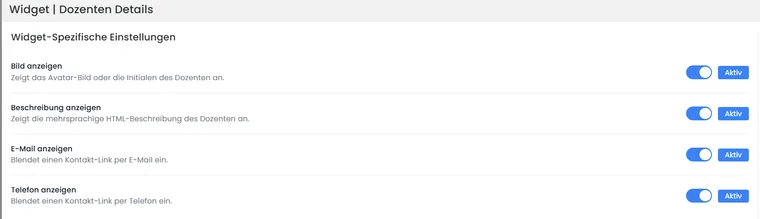
In the Instructor Details widget, you decide separately whether the image, description, and contact options are displayed. The switches visible here contain no personal data.
Design the summary as normal or as a sticky sidebar
The current widget Summary shows the last saved selection of the booking. Select normal display or a right sticky sidebar from tablet size up. Different sidebar widths may apply for tablet and desktop; on narrow devices, a normal readable display remains important.
Image display, order, and visibility of the areas Offer, Dates, Price categories, Additional services, Lessons, Multi-offers, Participants, Promotions, VAT, and Total are configurable. Maintain area names and empty text per language. A hidden price area does not change the price calculation.
Participant information for specific requests
The Participant information widget belongs to the request template. It shows this booking’s active named participants as cards, a list or a table. Select and sort the required data fields and adapt their labels in each language.
The general participant overview in offer details and the display of a specific booking are different views. For a request, use the data needed to decide about that particular booking. Details: Request template.
Dates calendar for free date selection
On the Dates template, a calendar can be used instead of or in addition to the dates list. Set available spots, fully booked dates, minimum selection, and maximum selection. With a maximum number of 0, this option does not set an additional upper limit. A positive maximum value must be at least equal to the minimum number.
Check actual date availability and selection limits. This calendar serves date selection during registration; the general calendar of the offer overview serves offer display. Instructions: Selection steps.
Display balance and documents in the account
The Balance widget shows the signed-in person’s account balance separately by currency and, for multiple accounts, by organization where applicable. It has no extensive content configuration of its own. Place it beside the booking overview in the account default design’s completion template if customers should be able to check their credit.
In All bookings, you configure tickets, calendar files, certificates, mobile wallet, external offer files, and their time-based release. The Assign spot button can be supplemented for open collective spots. Setup: Completion page and customer account.
Offer a withdrawal action
In a Bootstrap 5.3 design, the Exercise withdrawal button or corresponding navigation action leads to the designated withdrawal form on the login page. Choose its label and colour, check the public entry point and configure the applicable conditions under Registration settings, cancellation and withdrawal.
Set up further new areas separately
- Subscription catalog, checkout, my subscriptions, and subscription selection
- Waiting zone status, notes, and actions
- Invitation and place registration
- Certificate validation and LinkedIn
Save the widget contents and layout, and check every used page in the correct customer status, in all languages, and on mobile devices.
Compare configuration with the saved result
Open your own, actually assigned design. Offer image, participant photo, and withdrawal action require Bootstrap 5.3; first select the associated template.
For the Offer image, select the image resolution (300, 600, or 900) and the offered Bootstrap image classes. Width and height come from the general widget settings. Check the image crop with a portrait-oriented and a landscape-oriented offer image.
For the Summary, you determine the order and visibility of the areas, empty areas, image display, and multilingual labels. For the right sticky sidebar, set the tablet and desktop width separately; mobile requires its own check.
For the Dates calendar, a maximum number of 0 means no additional limit by this option. Check the minimum number, positive maximum number, and fully booked dates together with the free date selection of the offer.
Save the widget and layout. Open a real publicly visible example and check content, status, language, and mobile view. If content is missing, first check the linked offer, instructor, date, or customer data.
Wallet is an additional option in All bookings. The prerequisite is both the ticket release in the account and a suitable named participation. Details: Editing options.