
Invoices for offline payments and bank transfers
With the Invoice payment method, participants pay by bank transfer outside an online payment service provider. Depending on invoice settings and the booking workflow, edoobox can create and send the document, track outstanding amounts and match bank payments through CAMT. Since no payment provider reports the status directly, the number sequence, reference, payment reconciliation and consistent monitoring of outstanding amounts are particularly important.
Fully configure invoice settings
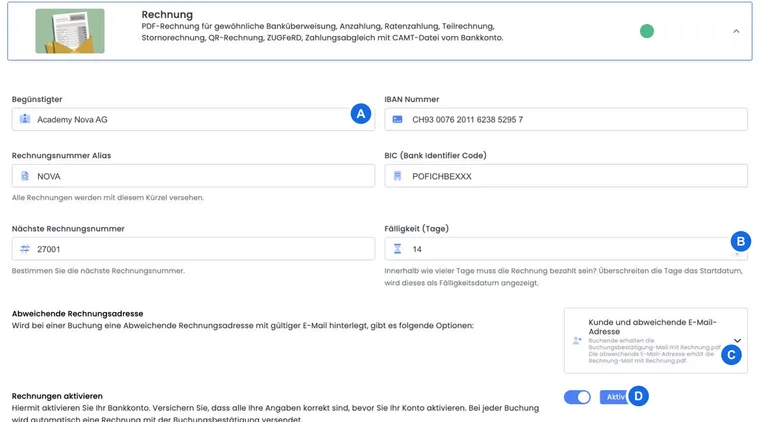
Open Settings → Payment systems → Invoice. Before activation, check:
| Setting | Current V2 rule | Purpose |
|---|---|---|
| Beneficiary | Required detail | Name of the organisation or person receiving payment. |
| IBAN | Validated as an IBAN | Account for the transfer and, where applicable, the QR payment section. |
| Invoice number alias | Maximum 5 characters | Short prefix for the number sequence. |
| Next invoice number | Digits only, maximum 10 characters | Next sequential invoice value. |
| Alias and number combined | Maximum 15 characters | Prevents excessively long invoice numbers. |
| Due date | Positive whole number of days | Invoice payment period. |
Clarify changes to the alias or number sequence with your accounting department. Do not rely on a claimed theoretical maximum number; the visible V2 input rules and your substantive number sequence are authoritative.
Distinguish automatic and manual invoices
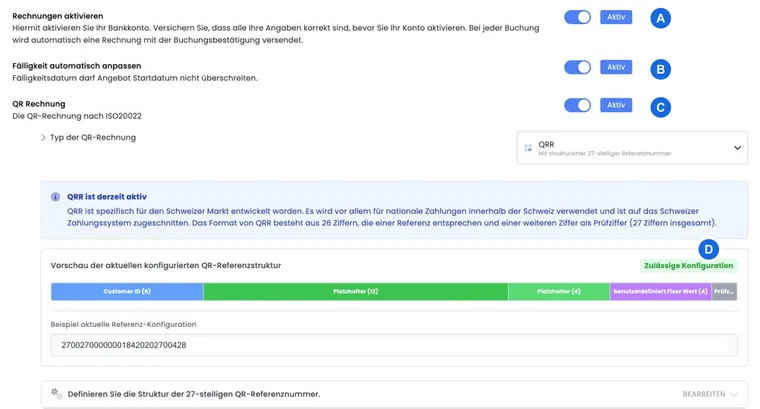
With Enable invoices, you enable the bank account as a payment system. For a corresponding booking, edoobox can automatically create an invoice and send it with the booking confirmation.
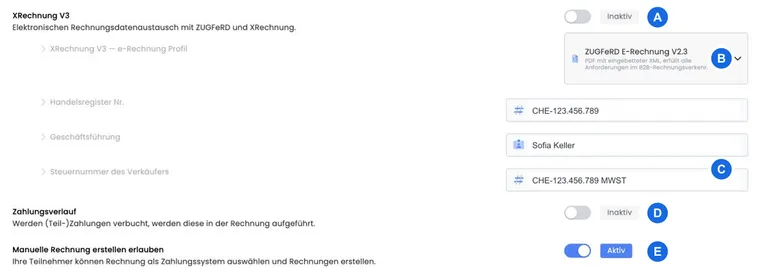
The additional Allow manual invoice creation option lets participants select Invoice as the payment system and create an invoice. Only enable this option if your booking process, deadlines and internal monitoring provide for this self-service route.
Check voucher purchases separately: depending on automatic invoicing or external invoice management, a purchase document may be created before payment. Sending the purchased voucher after payment is a separate process and does not guarantee an additional automatic invoice email. Check the document and, if needed, use the intended manual invoice sending process. The voucher sales workflow explains creation, the voucher email and the invoice separately.
Limit the due date to the offer start
The normal due date is calculated from the configured number of days. If Adjust due date automatically is active, edoobox caps the normal period at the offer start. However, on initial creation the due date is not before the invoice date: if the offer has already started, the invoice may be due on the invoice date. For short-notice offers, the normal period is shortened accordingly.
In Rechnung.pdf, use the ##InvoicePayableDays## placeholder only together with a clear due date, and test offers booked early, at short notice and after they have started. Do not promise a fixed period in offer text if the automatic limit can produce different output.
Why is an invoice due immediately?
Compare the actual invoice date, offer start and Adjust due date automatically. With a general period of 14 days and a start in three days, the start can limit the period. If the offer has already started when the invoice is created, the invoice date may appear as the due date.
The global period is not a promise of “14 days from the course start” and is not an instalment plan. Check Payable by in the invoice details and the issued document. Changing the global setting does not replace checking invoices already issued. For a correction with a new number, the recalculation option explained below also applies; downloading again does not set a new payment period.
Who receives the invoice
If an active separate billing address contains a valid email address, three sending routes are available:
| Option | Person making the booking | Billing email address |
|---|---|---|
| Customer | Booking confirmation with Rechnung.pdf | No separate invoice email |
| Customer and billing email | Booking confirmation with Rechnung.pdf | Additional invoice email with Rechnung.pdf |
| Billing email | Booking confirmation without Rechnung.pdf | Invoice email with Rechnung.pdf |
The table describes the booking confirmation workflow for a participant booking with an existing invoice. It does not promise delivery of a voucher sales email. Test each route you use with two different demo addresses. This immediately reveals whether an invoice is duplicated or sent to the wrong recipient.
Choose a QR invoice or structured electronic invoice
For Swiss bank payments, you can use a QR invoice with SCOR or QRR. The payment section supports CHF and EUR with a suitable CH/LI IBAN; check the invoice currency and bank support. For machine-readable business invoices, the current interface offers ZUGFeRD 2.5 (EN16931), ZUGFeRD 2.4 (EN16931) and ZUGFeRD / XRechnung. Older saved profiles may be normalised to the supported profile. XRechnung V3 may be available if that profile is already saved in the account; it is not generally offered for new selection.
Not simultaneously: enabling QR invoices disables ZUGFeRD/XRechnung; enabling electronic invoices disables QR invoices. Choose the required output route for each configuration.
For electronic invoices, also maintain commercial register details, management and, if applicable, the seller’s tax number. On the customer side, a complete billing address, VAT number, routing ID and order number may be required. Check generated test files with your accounting software or the intended recipient.
Incoming payments, partial payments and remaining balance
Bank transfers do not report their status directly to edoobox. You can manually record a payment against the outstanding invoice or allocate bank entries using CAMT. Before each manual entry, check the invoice, person, amount, currency and reference.
With Payment history, the invoice lists recorded payments and partial payments. This makes the remaining balance traceable but does not create an automatic instalment plan. If you permit deposits or instalments, deadlines, partial amounts and monitoring must be defined organisationally and communicated clearly in your text.
Exception: Invoice or partial payments when online payment is normally used
For an individually agreed exception, you do not have to change the general payment method for all online bookings. Enter or check the exceptional booking administratively, document the agreement and create the invoice from charges not yet invoiced. The MustPay workflow for regular online customers must be assessed separately.
- Check whether an active booking, invoice or online payment already exists. Do not enter a second booking for the same attendance.
- Record the total amount, agreed partial amounts and dates in your communication and an internal note.
- Create and check the invoice from the appropriate transactions. An invoice has one due date; the documented agreement is not an automatically created instalment plan.
- Record each partial amount actually received against this invoice with its payment date, or allocate the incoming bank payment through CAMT. An expected amount is not recorded as a payment yet.
- Before each reminder, check the remaining invoice balance and documented dates.
Example: Two agreed partial payments
For an invoice of CHF 300, CHF 100 in advance and CHF 200 later are agreed. Once the first CHF 100 arrives, the team records exactly that amount. It expects a remaining balance of CHF 200 and monitors the second date itself. The invoice is fully settled only after sufficient payment; automatic collection of the second instalment has not been configured by this process.
Track an outstanding invoice until payment
Check payment reconciliation before every reminder. Check the outstanding invoice, partial payments, cancellations and refunds. Before a payment reminder, also compare the invoice balance, account balance and amount used by the template. With partial payments or several bookings, these values are not automatically identical; if they differ, use a message containing the verified invoice balance.
The interface also includes a dunning area with rules and a journal. Automation is announced as “Coming soon”. If you are interested, contact support; individual activations may already be possible. Until the feature is enabled for your account and automation is active, use manual reminders. Check the status under Outstanding payments and dunning.
Test matrix before going live
Private booking without a separate billing address.
Company booking with a separate billing email address.
Due date for an offer far in the future, at short notice and already started.
Selected output route: QR invoice or ZUGFeRD/XRechnung; never assess it solely by the switch.
Partial payment and full settlement with visible payment history.
CAMT allocation followed by checking the outstanding balance and a possible payment reminder.
Example: A business customer receives the invoice directly
The participant receives their booking confirmation, and the company’s accounting department additionally receives the invoice email. The team tests both addresses, checks the company, order number and payment period in the PDF, and only then enables live sending.
Example: A short-notice course with a capped due date
The general payment period is 14 days, but the course starts earlier. With automatic adjustment, the period ends no later than the offer start. A test invoice verifies the specific due date and text containing InvoicePayableDays before booking opens.
Example: A partial payment is recorded through CAMT
A company booking first pays a partial amount. CAMT import allocates the payment using the reference; enabled payment history shows the payment and outstanding balance. Before a payment reminder, the team checks that only the remaining amount is outstanding and no automatic instalment plan is expected.
Due dates for invoice corrections and new output routes
The additional Calculate a new due date when updating the invoice option controls the correction route using a new invoice number. When enabled, the period is recalculated from the new invoice date; the optional cap at the offer start is taken into account. For an offer already started, the result is not before the new invoice date.
Downloading again alone is not such an update. Check the old invoice, cancellation document and new document using the intended correction process. Details on file format and validation: Electronic invoices with ZUGFeRD and XRechnung.
With external invoice management, the actions offered by the connected system apply; do not additionally generate a second local document for the same receivable. See Configure the Bexio integration.