
Manage additional questions and question groups
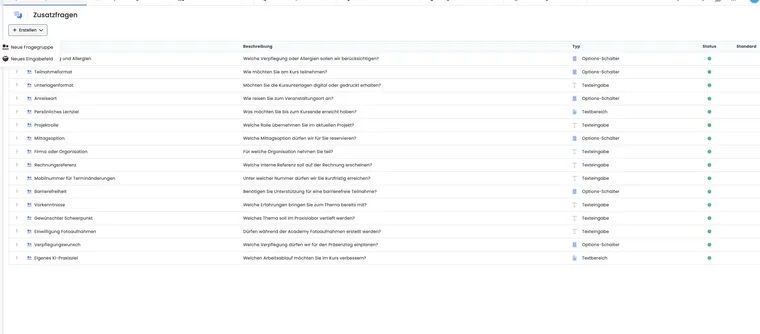
Additional questions record information belonging to a specific booking, such as catering, previous knowledge or workshop selection. In edoobox V2, individual input fields are bundled in a question group. The group defines title, description and shared answer format.
This structure makes questions reusable: a group can be assigned to several offers. Changes therefore affect future booking forms for every assigned offer and should be made cautiously for offers already running.
Additional question or participant data field?
| Use | If the information ... | Example |
|---|---|---|
| Additional question | is relevant only to this booking or offer | Menu choice, workshop, comment for course day. |
| Participant data field | belongs permanently to the person’s profile and is reused later | Membership number, date of birth, department. |
| Additional service | is a bookable quantity or price component | Course materials, lunch at extra cost. |
Create a question group
Open Additional questions and create a new question group.
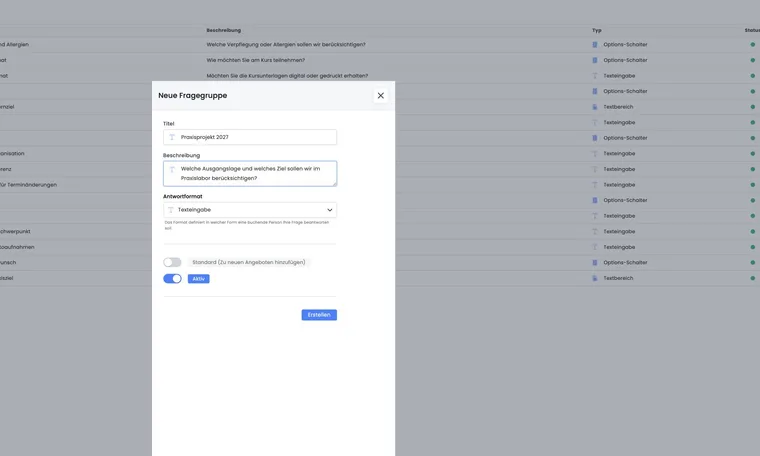
Enter an understandable title and required description. After creation, both texts can be maintained per active account language.
Select the group’s answer format: Radio buttons, Text input or Text area.
Decide on Default and Active. A default group is added to new offers; inactive groups should not be used in active booking.
Add input fields or options
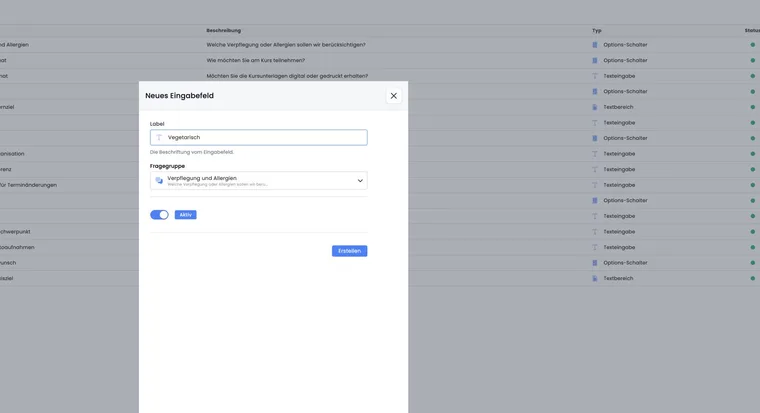
After creation, edoobox asks you to add at least one input field. The field has a label and belongs to exactly one question group.
For Radio buttons, individual fields form selectable options such as ‘Vegetarian’, ‘Vegan’ and ‘No catering’. Exactly one option is selected per group; this is not a multiple-checkbox list.
For Text input, use short, clearly labelled fields.
For Text area, an open field suits longer comments.
Text field answers may remain empty. An option group, however, requires a valid selection. If ‘no selection needed’ should be substantively possible, create an understandable option such as ‘No catering’.
Activate only required fields. A technical group name without a clear label does not help participants and worsens later exports.
Use a question group in an offer
Assign the group in the offer under Additional questions and additional services. Default groups already appear automatically in newly created offers.
Open public booking preview and check order, language and answer format.
Test on mobile devices and in every active language. A translated group also needs understandable field labels.
Perform a test booking and check answers in booking details.
Changes to ongoing offers
Do not silently change answer format, meaning or field labels if answers already exist. An older answer must remain understandable afterwards. For a substantively new question, a new group is often cleaner than reinterpreting an existing one.
Deleting a group requires interface confirmation. First check offer assignments and export needed answers. Deactivation is often better for controlled phasing out than immediate deletion.
Analyse answers
Answers appear in booking context and can be used for preparation, communication and export. Limit access to sensitive details and collect only information actually needed for delivery.
For lists or analyses, choose appropriate columns and filters. Before sharing, check exports for personal and particularly sensitive content.
Use cases
Example: Catering as an option group
A seminar group uses Radio buttons with ‘Standard’, ‘Vegetarian’, ‘Vegan’ and ‘No catering’. The group is assigned to two seminars and exported as a list before catering.
Example: Workshop selection for a congress
For a conference, an option group with three workshops initially records the preferred topic. This answer belongs to the booking and is not saved as a permanent participant data field. It does not reserve a workshop place. If the selection should create a confirmed participation with its own capacity, set up the workshops as sub-offers of a multi-offer.
Example: Record free-form comments multilingually
An organisation creates a ‘Notes for the instructor’ text area and translates title and description into German, French and English. It checks every language version during booking and restricts internal access to the delivery team.
Check answers for group registrations and multi-offers
Additional questions belong to booking context. For a company registration, check whether one answer per booking suffices or everyone needs their own information. Maintain permanent personal details as participant data fields and control display in the participant form.
In multi-offers, answers are additionally kept separate by sub-offer. The same question group can therefore occur in the main offer and several booked sub-offers with different answers. Always check offer reference as well as group title.
Setup and checking with two sub-offers are described under Additional questions in multi-offers.