
Formats: set date, time and number formats
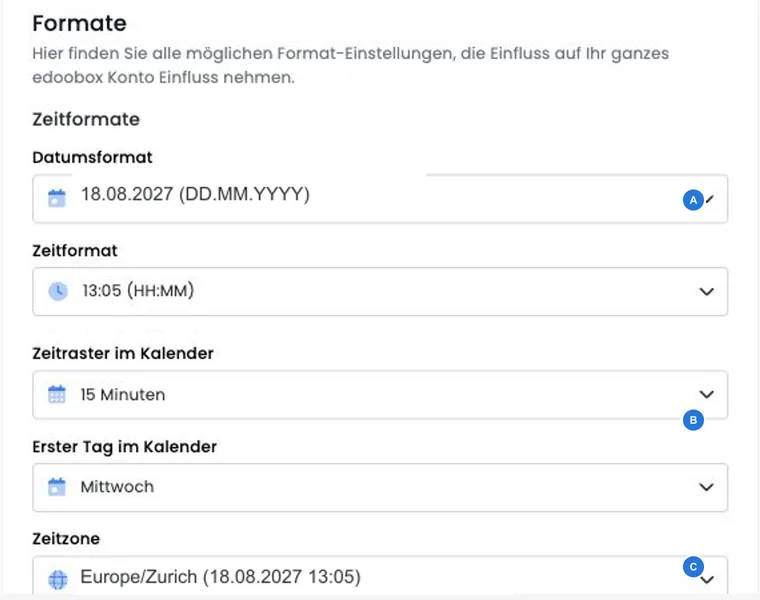
The format settings define how edoobox displays dates, times, numbers and the calendar time grid. These settings affect tables, calendars, sessions, prices and outputs in administration, among other things.
Choose formats that suit your organisation's country, audience and internal workflows.
What the format settings control
The settings cover date format, time format, time zone, first day of the week, price and number format, the calendar grid, and PDF format and PDF version.
If several admins work in different countries, deliberately agree the time zone and date display.
Open format settings
Open Settings in the app menu and select Formats. Adjust the required formats for the account there.
Date, time and time zone
The date and time format determines how sessions and times are displayed. The time zone is particularly important for online offers or admins working in different countries.
When you change the time zone, edoobox displays a confirmation with example times in the old and new zones and automatically reloads the page after saving. Previously saved times are displayed differently in the new zone. Therefore also check existing sessions; if their previous local times should still apply, correct them specifically. Changing the zone alone does not reschedule sessions and notify participants.
Coordinate the date format and booking language
Under Settings → Formats, select one date format for the account. Changing the booking language does not create a separate format configuration per language there. English text may therefore still display the account-wide date format.
- Set an account format that is unambiguous for your audience.
- Maintain texts and language versions separately. Where a template offers a formatted date placeholder or a widget has its own format option, check that specific output separately.
- For each language, check date entry, the offer page, confirmation and PDF invoice using the same unambiguous test date.
An explicitly formatted template output only applies where that placeholder is used. It does not change every table, widget and form. The entire language workflow is explained in Offer the booking process in multiple languages.
Check birthdays and other date fields correctly
A birthday belongs in a participant data field with the Date format if you want to process it as a date. Entry in the admin profile uses the account date format. Also check its display in the public booking form in the design used. Labelling a text field “Birthday” does not make it a date field.
| Area | What should be checked? |
|---|---|
| Account date format | For example, DD.MM.YYYY for day, month, year or MM/DD/YYYY for month, day, year. The selection controls the display; it does not repair birthdays previously saved incorrectly. |
| Profile and form | Check the correct field type and the calendar date actually selected. Reopen the profile after saving. |
| CSV import | CSV mapping passes field values on; it has no separate selection of a source date format per column. Prepare consistent values and check the saved result using a small sample. |
| Export | Compare the date in edoobox with the file. Spreadsheet programs may reinterpret date text using their own regional settings when opening it. |
Example: distinguish the day and month of a birthday
Use 17 May 1990 as a neutral test value: with day before month it appears as 17.05.1990, and with month before day as 05/17/1990. Save it in the correct date field, reopen the profile and compare the form, export and any template using this field. A value such as 05/06/1990 alone is unsuitable for checking because both the day and month can appear valid.
If only the display differs, correct the appropriate format or template setting. If the saved birthday is actually wrong, correct the affected record after comparing it with the source. Do not change the account time zone as a blanket solution for swapped days and months. Import preparation is explained in Prepare the CSV file.
Calendar time grid
The calendar time grid determines the increments used to maintain sessions in the calendar. Available options are 1, 5, 10, 15, 30, 60, 120 and 240 minutes. Short consultations can be planned in 15-minute increments, for example; coarser increments may make all-day programmes clearer.
Number and price format
The number and price format ensures that amounts and numbers are understandable for your audience. Check this setting before actively using invoices, payment methods or public prices.
The available price formats mainly differ in their thousands and decimal separators, for example 12'345.67 or 12,345.67. The predefined standard price formats use two decimal places. This selection does not provide a general switch for “prices without decimal places in administration”.
An amount such as 50 is therefore displayed as 50.00 or 50,00 in the corresponding price views. Separately formatting a public output changes neither the saved amount nor automatically the display in other admin views. Check the actual price, currency and output; do not round booking or invoice amounts merely to shorten the display.
Check changes
After making changes, create or open a test offer with a session and price. Check the calendar, offer details, booking process, email and invoice.
Example: prepare an account for Swiss courses
A Swiss organisation chooses the appropriate time zone, a date format with day before month, Monday as the first day of the week and a 15-minute grid. It then creates a test session and checks the calendar, booking process and confirmation email.
Select the PDF format and PDF version
Under Other formats, select the PDF format from the provided paper size list. Below or beside it, use PDF version to specify whether documents are created with edoobox PDF v1 or edoobox PDF v2.
- Select the required PDF version and paper size.
- Open an existing invoice and a multi-page template in the preview.
- Check page breaks, margins, headers, footers and tables.
- Adjust the affected template if necessary and check its preview again.
Custom PDF layouts and CSS may display differently depending on the PDF version. Maintaining an attendance list is described in Layout for attendance lists; for email attachments, use custom PDF attachments and templates.