
Design Manager: widget editing options
The illustrations show an earlier version of the interface. Use the steps in this guide for the available features and options.
The editing options in the Design Manager determine which content a widget displays in the booking process and how this content is presented. Which options are visible depends on the widget and the template.
Typical settings are visibility, order, texts per language, calendar views, ticket downloads, mobile wallet, external files, or the display of the summary. Many options directly affect layout, width, height, spacing, mobile view, and visibility for specific visitor groups.
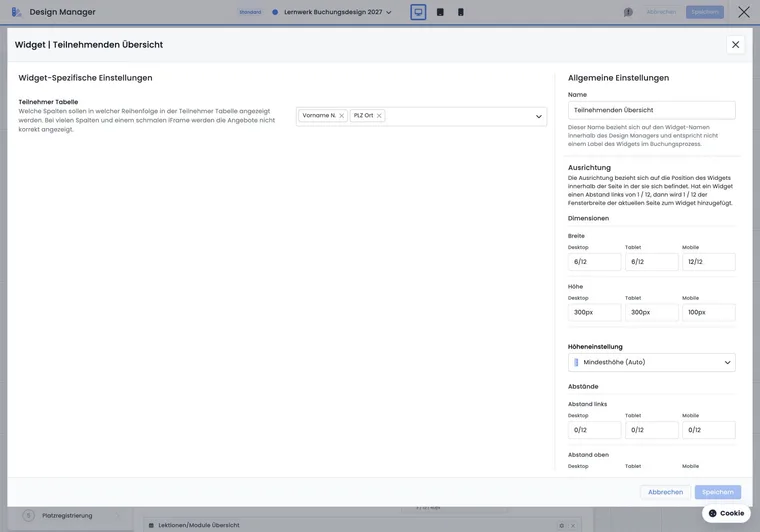
Where to find the options
Open the desired template in the Design Manager and select a widget. Depending on the interface, you open the editing via the gear icon, by double-clicking, or via the right settings bar.
General display options affect width, height, spacing, automatic height, mobile visibility, tag visibility, and visibility for participants. Widget-specific options affect the content of the widget itself. Some widgets have many settings; others deliberately indicate that no further widget settings are available.
Booking overview and all bookings
In the booking overview, you determine which documents or actions participants see after a booking. These include ticket PDF, mobile wallet, calendar file, certificate PDF, and external offer files.
If you offer external files, carefully check visibility, watermark, and access. External files can be listed below the booking; visibility and PDF signature protection only apply if external files are active in the widget.
For request lists, you can adapt the texts shown after a successful request in each language. For group registrations, you can also control whether participants are listed individually in the booking overview.
Summary and sticky sidebar
The summary widget displays the offer, dates, participants, services, promotion, VAT, and total. You can sort, hide, deliberately display empty areas, or display them as a sticky sidebar if needed. The order can include, for example, offer, dates, price categories, additional services, lessons, multi-offers, participants, promotion, VAT, and total.
The sidebar is helpful when long forms are used and bookers should permanently see the price, dates, or total. From tablet size up, additional widths for tablet and desktop may appear. The labels of the summary can be edited multilingually if terms such as offer, date, or total should be named differently.
Calendar and date view
In the calendar widget, you control which views are available, whether weekends are displayed, and whether free places are visible. Activatable views can be month, week, days, or list; additionally, you set a default view. Only activated views can be selected by people booking.
Limit the visible time range if necessary and specify at what time the calendar scrolls when opening. For evening courses, the view can start directly in the late afternoon; for all-day offers, a larger range remains sensible. Additionally, check the time grid so that short and long appointments remain readable.
Further information on dates is available in Calendar and dates.
Category lists and tiles
Category lists can display or hide empty categories, make categories expandable, or use multiple columns. For column lists, depending on the widget, title, number of columns, number of rows, and background color can be selected. For visual entries with images, use tile views.
The appropriate guides are Create tile view for categories and Create tile view for categories and subcategories.
Practical example: Simplify the booking summary
A provider wants to show only date, price, participant data, and total in the final booking step. Open the summary widget, sort these areas to the top, and hide unnecessary sections. Then test a booking on desktop and smartphone.
Practical example: Provide documents securely after booking
A seminar provides a ticket, calendar file, and an external PDF document in the booking overview. The administration activates only the required buttons, limits the visibility of the external file, and checks the watermark or PDF protection. A test booking shows whether authorized participants see all documents and other files remain hidden.
Practical example: Find evening courses more quickly in the calendar
A provider conducts its courses predominantly between 5 PM and 10 PM. They activate the week and list view, hide weekends, display free places, and set the visible time range to the evening. Then they check on smartphone and desktop whether the calendar scrolls directly to the relevant time period.
Finish button and widgets without options
In the Finish button, you choose the alignment and the text preset: automatic, booking, shopping cart, payment, or custom text per language. The text preset only changes the label. Whether a booking is made directly or the shopping cart is opened first is determined by the booking view of the design and offer shopping cart in the widget. The complete process is described under Shopping cart and finish action.
Some widgets do not have specific editing options. General options such as width, spacing, and visibility remain relevant. If a specific option is missing, first check the template, Bootstrap version, and possibly plugin activation.
Additional practical information
Benefit and limit: Align the display with the person's task
Widget options help to make exactly the information visible that is needed at a specific point. A compact summary can facilitate completion; a suitable calendar view can make date selection more understandable. Decide per template which goal the widget should fulfill.
Display options are separate from the business workflow. Hiding a notice, for example, does not tell you whether a booking rule has been disabled. Also check the responsible offer or account setting if you want to change behaviour rather than just visible information.
Checklist: Assess a change in the context of all booking steps
Do not check the edited widget in isolation. Proceed forward through the affected booking steps and check whether the required information appears in the right place. Test different data cases, for example multiple dates or a group booking.
Check all active languages and a narrow view. A long label or an extensive person selection may look different from the simple preview case. Then check the intended public integration with the actually assigned design.
Edit new business options in the right place
| Component | Important options | Guide |
|---|---|---|
| Subscription catalog and My Subscriptions | Price, tax, duration, benefits, remaining uses and customer actions available for the status. | Subscriptions in the design |
| Waiting zone | Position, waiting time, free places, capacity notes, warning when leaving, and action labels. | Design the waiting zone |
| Participant photo and offer image | Face or symbol image; for the offer image, resolution and Bootstrap image classes. | Image widgets |
| Participant information | Cards, list, or table; field selection, order, and multilingual labels for the persons of this booking. | Request template |
| All bookings | Assign a place for unassigned group participants; release external files immediately, before start, or after the first module attendance. | Place registration |
Hiding a button does not change the underlying business rule. For booking cancellation, subscription cancellation or a payment action, also check the associated settings and status of the specific record.
Wallet and cancellation in All bookings
In the account’s default design, open the completion page and All bookings. Enable the Mobile Wallet buttons if needed. They appear only for a suitable named participation with available ticket data; open MustPay bookings, list places and unassigned invitations do not provide reliable wallet access. The account’s ticket settings must also enable Mobile Wallet.
Use Always hide cancellation button to suppress the relevant account action. A permitted withdrawal remains a separate route. Do not hide cancellation with the aim of changing the underlying cancellation or withdrawal rules. After saving, check both a paid booking and a booking with payment outstanding.