
Design the booking process with the Design Manager
The illustrations show an earlier version of the interface. Use the steps in this guide for the available features and options.
Use the Design Manager to design the public booking process: offer overview, offer details, optional selection steps, participant form, summary, payment, completion page, header and footer. Widgets determine which information and actions someone booking sees on each page.
Always work with a demonstration offer and a design copy. This lets you test content, navigation, booking rules and display together without inadvertently changing production workflows.
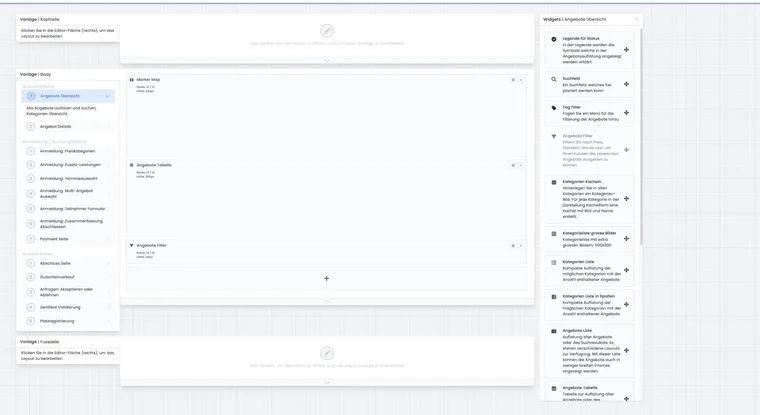
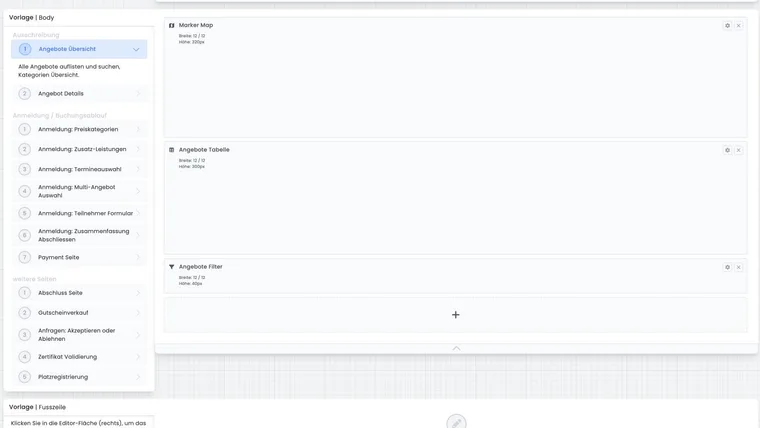
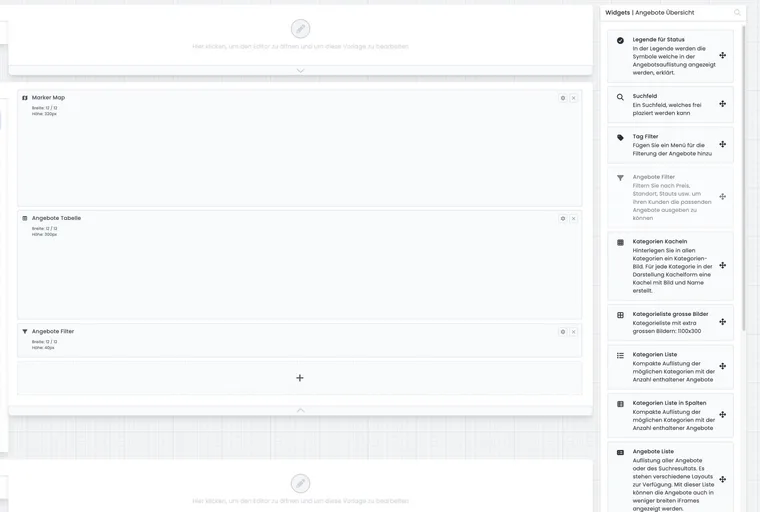
Start with a design copy
The starting design is the protected system foundation. It cannot be restructured in the editor like a custom design. Use Add design to create a copy and give it a unique name, such as “Course booking 2026 Test”.
Then define whether the copy becomes the default design or applies only to specific categories. Category assignment determines the design actually used by a public offer page. If a change seems missing, first check the design, category and preview link used.
If the same organisation wants an overall overview and a separately designed category entry page, both need the appropriate entry point and design assignment. The full workflow is under Category design and complete offer overview. If the website display differs, compare the copy with the actual embedded link using Find a saved design change.
Distinguish header, body and footer
Header: Recurring navigation, login, language selector, logo or notices.
Body: The respective booking page, such as Offer overview, Offer details, Participant form, Summary or Payment.
Footer: Recurring legal notices, cookie banner, navigation or deliberately included custom code.
First choose the correct design, then the content area and finally the specific template. The widget selection on the right adapts to the selected template.
Check the completion page separately: It uses the designated default-design configuration. If the account has multiple designs, always test actual completion of a demonstration booking after changes.
Arrange and edit widgets
Drag new widgets from the selection into the workspace. Existing widgets can be moved, resized or removed. Editing opens general and widget-specific settings.
General settings include name, width, height, automatic height behaviour, spacing, mobile visibility and tag-dependent visibility. Participant tag effects are explained in Use tags as conditions.
Some widgets are intended only once per template. Offer filters, the all-bookings overview and session calendar are disabled in widget selection once placed. This prevents duplicate controls or navigation areas.
Design for desktop, tablet and mobile
Switching editor views changes layout values per breakpoint. Width and horizontal and vertical spacing can therefore differ for desktop, tablet and mobile. A widget can also be hidden on mobile devices.
The actual Design Manager requires a large screen. If the browser is too narrow, edoobox shows only a notice to use a larger screen. Mobile switching is a preview and configuration layer within the desktop editor, not a smartphone editor.
On mobile, hide only content unnecessary for the booking decision. Price, selected sessions, mandatory fields, legal confirmation and the completion action must remain accessible in every relevant view.
Save layout and widget settings deliberately
Layout changes initially remain a local draft. New, moved, changed and removed widgets are applied together as a layout plan only with Save. Cancel discards the layout draft.
Switching templates or closing the editor with unsaved layout changes makes edoobox ask whether to return, discard or save. Widget settings also have their own saved state and warn before closing with unsaved changes.
Observe saved states: First save newly inserted widgets with the layout. Then save their specific settings in the popup. For existing widgets, confirm pending specific changes and then any open layout draft. Check all displayed saving errors and inspect the public preview only after successful application.
Use widget-specific settings correctly
Depending on the widget, configure texts, sorting, lists, maps, form fields, payment methods, legal content or button labels. Multilingual widgets use the currently selected language; maintain and test every visible text in all active languages.
A text block suits short explanations but does not replace a functional core widget. For example, do not remove price category, session, participant or completion functionality merely because custom text describes the same step.
Keep headers and footers restrained
Recurring areas accompany every booking step. A compact header may contain a logo, navigation, language selector and participant account. The footer suits legal texts, privacy, cookie banners and restrained additional navigation.
The code widget is intended for experienced administrators. Check custom code on mobile devices, with cookie consent, in every language and under applicable security policies. External scripts must not block booking completion.
Test the booking process completely
Start the public preview of a specific demonstration offer.
Check desktop, tablet and mobile.
Test simple offers, waiting lists, lesson booking, group registration and multi-offers as applicable.
Trigger mandatory fields, validation, login, legal texts and error states.
Follow the payment method and completion page through to the end.
After each change, save widget and layout, reload the preview and document the result.
Example: derive a course design from the starting design
A language school copies the starting design, assigns the copy only to the “Language courses” category and adds a language-level tag filter in the offer overview. After saving, it checks one A1 and one C1 offer in the public preview.
Example: shorten mobile booking
On desktop, offer details show a map, social widget and extensive additional information. On mobile, only the map and social widget are hidden; the name, sessions, price, availability and registration button remain visible. The full booking is then tested on a real smartphone.
Example: save a layout change and widget text
An admin changes the registration button's text and moves the widget. They first save the widget setting, then the layout draft. No warning appears when switching to the next template. In the preview, they check both label and position.
Include new customer journeys in the design
Alongside standard booking steps, include pages actually used by your features. The waiting zone appears before registration, place registration after an invitation for a reserved group place, and certificate validation through the designated certificate link.
For participant subscriptions, edit the catalogue, subscription checkout, navigation, My subscriptions and subscription selection in the booking summary. Follow Design subscriptions and the customer area. Plan creation and validity are managed in the subscription manager.
Before assigning the design, open every used route with the appropriate test state: signed out, signed in, without a subscription, with a valid subscription, with a reserved unnamed place or an outstanding payment. A populated editor preview does not replace these checks.
Design classic completion or the shopping cart
For custom designs, also check Booking view: in the classic workflow, completion leads to the intended booking or payment; the membership option first opens the shopping cart. A custom button label does not change this workflow. Configure the mode and navigation using Shopping cart and completion action and check the route from offer details through to actual booking status.