
Tables and export options
edoobox provides tables and exports in many areas so you can review records, process them further, or use them in external workflows. Tables can be filtered, sorted, searched, customized with columns, and exported in various formats.
The toolbar with column selection, active filter chips, selection counter, and synchronization is described in Table tools. Filter logic is explained in Table filters. For recurring reports, saving table views is also useful.
Additional questions and additional services have their own table logic because groups and individual entries may appear as columns or detail rows. Question group columns and Additional service group columns explain these columns.
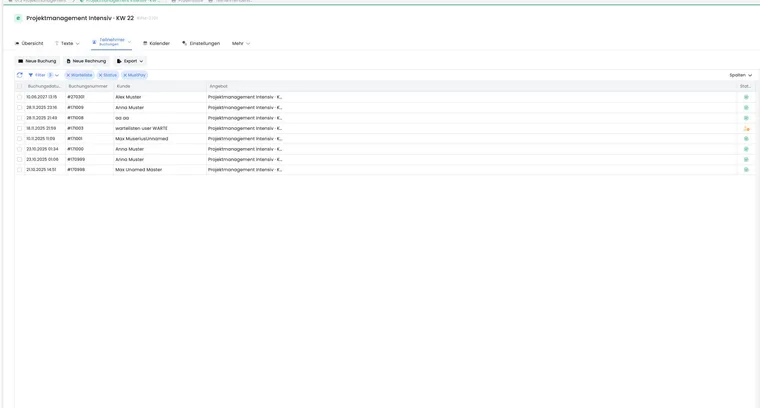
Choose the correct export source
Many types of data can be exported from several places. The right source depends on the question to answer. A global export shows data from different offers in the active account, an export within an offer is already restricted to that offer, and an export within a booking shows only the specific booking context.
| Question | Suitable source | What to watch out for? |
|---|---|---|
| Who is participating in this offer? | Offer > Participants or offer dashboard | Check price categories, group participants, and booked dates |
| Which invoices are outstanding? | Global invoice table | Set status, payment deadline, currency, and date range field |
| Which codes have been used? | Promotion or voucher code table | Check validity, status, redemption, and remaining amount |
| How busy is an instructor? | Admin profile > Utilization | Select date range, calendar view, and export format |
| Which rooms are occupied? | Venue/room > Utilization | Check location, date range, and overlapping dates |
A saved table view is useful for recurring reports. Personal table configuration stores columns and supported display options; check filters separately for every export. For one-off accounting or support questions, a deliberately set temporary filter is often more suitable.
Overview of all tables and exports
Tables and exports are available in several edoobox work areas. Filters, available columns, and export formats vary by area.
Accounting: bookings, invoices, and transactions.
Global: offers and customers or participants.
Within an offer: offer dashboard, participant list, bookings, invoices, and calendar.
Within a booking: the booking’s invoices.
Promotions and vouchers: campaigns, codes, sold vouchers, and voucher codes.
Admins and utilization: admin list, instructor utilization, locations, and rooms.
edoobox billing: account journal and monthly/yearly overview.
API and automation: Custom exports can be built using the edoobox API or Zapier when standard exports are insufficient.
Export areas in detail
Many export names sound similar but provide different data. Choose the work area first, then the export format.
| Area | Typical exports | Suitable uses |
|---|---|---|
| Accounting | Bookings, invoices, transactions | Outstanding amounts due, payment checks, accounting reconciliation, cancellation and payment statuses. |
| Global | Offers, customers/participants | Lists spanning multiple offers in the active account, data maintenance, target groups, and offer overviews. |
| Within an offer | Offer dashboard, all participants, all bookings, participant list, bookings, invoices, calendar | Operational course lists, attendance preparation, date lists, and offer-specific payment checks. |
| Within a booking | Invoices for a booking | Individual case reviews, partial payments, cancellation or invoice history for a specific booking. |
| Promotions and vouchers | Campaigns, codes, sold vouchers, voucher codes | Code distribution, redemption, remaining values, validity, and partner checks. |
| Admins and utilization | Administrators, admin utilization, locations/rooms | Staff scheduling, room planning, fee or capacity checks. |
Columns, search, and sorting
Use Columns to select visible data fields. Selected columns are marked. In many exports, visible columns also determine which data is included.
In several tables, you can reorder columns by drag and drop and adjust their widths. The search field filters by names, numbers, or terms. Sort a column using its heading. Some custom data fields or special columns have a filter icon in the heading. Depending on the table, custom participant data fields can also be displayed and exported.
Before every export, check three things: the intended columns are displayed, active filter chips are correct, and sorting is sensible. This avoids exports with missing data, old filters, or an order that takes time to correct later in Excel.
Export formats and CSV in Excel
Depending on the table, CSV, Excel/XLSX, ODS, or PDF is available. CSV suits accounting, data imports, and large datasets. Excel suits manual analysis. PDF provides readable overviews but is less flexible for further processing.
Open CSV files in Excel through Data > From Text/CSV so delimiters, accented characters, and number formats are recognized correctly. Do not open CSV files by double-clicking if amounts, phone numbers, postal codes, or special characters must be preserved reliably.
If an export will later be imported again or loaded into another system, keep the original file unchanged and work with a copy. This preserves a record of the data edoobox actually exported.
Some exports include only selected rows. If an export appears empty or incomplete, first check the selection counter, active filters, visible columns, and whether the table requires a selection.
Accounting exports
Accounting provides global tables for bookings, invoices, and transactions. These can also be filtered to individual participants or offers.
Bookings: Filter by offer, customer, MustPay, cancelled/active, waitlist, and date range. For waitlist exports, filter by offer and additionally select Waitlist. When comparing active and cancelled bookings, display cancellation status and choose the date range deliberately.
Invoices: Filter by customer, status, invoice number, booking number, description, amount, currency, and date range. Partial payments may be visible directly. Depending on your report, choose the date range by created on, paid on, payable by, or cancelled on. For outstanding amounts due, payable by is usually decisive; invoice date or payment date is often more useful for revenue checks.
Transactions: Sorting, column selection, and export for payment and accounting checks. Use this table to trace incoming payments, fees, refunds, or manual entries.
See Manage bookings, Invoice and cancellation invoice, and Participant transactions.
Global exports: offers and customers
The offer table shows central offer data. To export archived or deleted offers, display the Storage column and filter by active, archive, or recycle bin. Additional filters include category, location, status, date range, waitlist, and tags.
The customer table provides an overview of all participants or customers across offers. You can display active participant data fields as columns and then export them. This is useful for membership lists, audience analysis, or data cleanup. For data field details, see Participant data fields.
Exports within an offer: dashboard, participants, and bookings
The offer dashboard often provides two static exports:
Export 1: All participants: provides people in an offer, including group participants; waitlist bookings are excluded. The export is limited to 5000 people and grouped by person. Price categories appear as separate columns. With free date selection, dates are marked as booked or left empty. For multi-offers, the main and sub-offers are listed with the booked price category or 0.
Export 2: All bookings: provides non-cancelled bookings outside the waitlist, including the contact person, additional questions, additional services, the embedding/iFrame label, and a different billing address. Person columns refer to the booking’s contact person.
The Participants tab also provides participant list, booking, and invoice tables for the offer. These generally correspond to the global tables but are restricted to the current offer. The participant list suits operational course lists, the booking table suits booking statuses and group bookings, and the invoice table suits payment checks within the offer.
Export participants, additional questions, and waitlists appropriately
Complete preparation may require several files. Choose the export according to the list’s purpose:
| Required data | Procedure | Check |
|---|---|---|
| People in the offer with price categories and custom profile fields | In the offer dashboard, open Export 1: All participants and choose CSV, Excel, or ODS. | Export the waitlist separately; for very large datasets, note the limit of 5000 people. |
| Additional questions, booked additional services, and contact person | In the offer dashboard, open Export 2: All bookings and choose a format. | A booking row does not replace a list of everyone in a group booking. Cancelled and waitlist bookings are intentionally excluded here. |
| Waitlist bookings or cancellation history | Open the global booking table, filter by offer and waitlist or cancellation, display the required columns, and select rows. | Account for the selection counter and all table pages. This table export includes the available visible columns. |
| Attendance on specific dates | Use the participant and attendance list. | A registration or waitlist entry is not proof of attendance. |
Custom participant data fields, such as a membership number, belong to the profile. Additional questions and additional services belong to the booking context. A visible profile column therefore does not replace an additional question’s answer column. See Participant data fields, Question group columns, and Additional service group columns.
For multi-offers, the main offer’s booking export also includes additional questions from sub-offers. A sub-offer’s export includes its own additional questions. Additional services from sub-offers are not automatically added as main-offer services. Check the required service in the appropriate offer context.
Use case: A course with accompanying people, catering, and a waitlist
The course instructor needs a list of people; the organizing team needs the number of lunches ordered and catering answers. Export 1 and Export 2 are therefore created from the offer dashboard. Admins export waitlist bookings separately from the filtered booking table. The files are analyzed using booking numbers and their respective row types. A contact with three booked people is not counted as just one participant; an order is not added again for every person row.
Export 1 groups by person: if the same person books the same offer several times, the number of person rows is not a reliable booking count. To check individual bookings, use the booking list and its booking numbers.
These offer exports run independently of rows selected in the table header. For table exports across multiple pages, follow the complete selection guide.
Reconcile bookings and invoices traceably
- Open the global invoice table. Set status, currency, and the correct date range field: invoice date, payment date, and payment deadline answer different questions.
- Display Number, Booking number, Customer, amount, currency, and status. Export the verified selection and account for additional table pages.
- Create the matching booking list with booking number, offer, contact person, and booking status.
- Match the files using the booking number. Name and email alone are insufficient for matching.
- Check unmatched invoices individually in the invoice and booking details. Review linked items and invoice history.
An invoice can contain multiple booking numbers, so the corresponding cell may show several comma-separated numbers. Conversely, a booking can have multiple invoice documents or cancellation invoices. A custom invoice item does not necessarily have a booking number. Clarify empty cells in the details first.
For group bookings, distinguish the contact person, participants, and any different billing address. A name in the invoice list does not prove that this person attends the course. The booking export includes the contact; the person list shows the booked people. Use the booking details to verify.
When joining multiple person rows, do not allocate the full invoice amount to every row without checking. This would count the amount repeatedly. Also check payments and refunds in Transactions; a booking or invoice amount is not yet an incoming payment. For details, see Invoices and cancellation invoices.
Analyze participant tags by names and values
A tag consists of a technical ID, a name, and optionally a value, for example “Interest → Specialist seminars”. The participant overview resolves the tag assignment for visible tag cards. For a file used elsewhere, check the actual output: a technical tag reference is not yet a readable name, and the tag value is not an ID.
- Open the user overview or the offer’s participant list.
- Under Columns, display at least ID, first name, last name, and Tags. Initially choose one person with a simple tag and one with a name and value.
- Export these selected people as CSV or Excel and compare the file with the tags shown in their profiles. Check multiple tags per person and empty tag assignments.
- If the file contains IDs or structured assignments instead of readable details, retain the original values. Do not rename them by guessing. Use the API mapping below for complete resolution.
Resolve technical tag references with read-only access
For a repeatable report, an integration with appropriate read permissions can combine data from API v2. API: Getting started explains access and query setup.
| Source | Required data | Mapping |
|---|---|---|
GET /v2/user | id and tags; names if needed. | Each entry in tags contains the tag reference under tag and the assignment type under type. |
GET /v2/tag | id, name, and value. | Join user.tags[].tag to tag.id. For an individual reference, GET /v2/tag/{id} is also available. |
- Load the required people and tag master data with the specified fields. Account for API pagination in both lists; a single response does not automatically represent all records.
- Create a working row for each person/tag assignment with user ID, tag ID, name, value, and assignment type. Join using the complete returned IDs within the same account.
- Build the readable label as Name → Value when a value is present, otherwise use only the Name. Retain IDs and separate name/value columns for later reconciliation.
- Mark unresolved references as unclear and check tag master data and read permissions. Do not replace them with another tag of the same name. Compare samples with participant profiles.
This mapping describes tags saved in the participant profile. Effective tags derived from booked offers and booking requirements are a separate matter; Which tags are considered for a person explains those rules. Current tag master data also provides no historical snapshot of earlier names or values.
In the Export Manager, the participant tag is currently a filter rather than a selectable name or value column. Renaming another column does not add this data. For available fields, see Fields, filters, and result structure.
Create a company training history with attendance
A company report combines several types of information: employer in the person’s profile, booked offers, and recorded attendance per date. The current Export Manager has no ready-made combined company/attendance report. Its catalog also offers no freely addable company or attendance status column. Reconcile the existing views and exports traceably.
- Define the mapping: Decide whether to use the participant’s current employer, your own internal company identifier, or the invoice recipient. A group booking’s contact person and different billing address are not automatically the employer of all participants.
- Export person master data: Open the user overview. Display ID, name, email, and Company / organization or the custom field maintained for this purpose. Check filters and select the required people. The table export uses selected rows; include all required pages.
- Export booking history: In the Export Manager, create a participant definition with User ID, Booking ID, booking number, booking date, Offer ID, offer name, and offer number. Run it for each required offer. Explicitly decide whether to include waitlist and cancelled bookings.
- Match the files: Outside edoobox, join the ID from the person list to the user ID in the booking report. Apply the verified employer mapping. Names or shared email addresses alone are insufficient for unambiguous matching. A person with multiple bookings receives multiple rows as intended for the report.
- Check attendance: For each affected offer, open Attendance and check the actual booked participation and relevant date. Add the recorded status to your report and retain the offer, date, and person/participation for verification. For identical names or multiple participations, clarify the booking details first.
- Provide evidence: If needed, use a custom attendance list as a PDF with the required personal data and date columns. This PDF output is not an automatically merged Excel company report. For recurring automated attendance reconciliation, consider your own read-only API reconciliation: attendance data has date, participation, and person references as well as a status.
- Reconcile the result: Compare the numbers of people, bookings, and assessed participations separately. Resolve missing mappings and statuses before sharing the finished report. Document the date range, selection, and creation date.
Booked does not mean present. An empty or missing attendance entry does not confirm absence. With lesson selection, also check whether the person booked the date at all. The attendance confirmation percentage may refer to the entire offer and does not replace checking a specific module.
The company in today’s participant profile is not an automatically frozen employer record for every earlier booking. If an employer has changed or a historical company report is needed, clarify the past mapping using your records. A domain filter is only a supporting criterion; the approach for multiple email domains also explains its limitations.
Use case: Company report across several training courses
An organization needs an overview of employees who booked various workshops. Admins first join current company master data and bookings using the person ID. They then check recorded attendance for dates in each workshop. A pending booking, cancelled participation, and date not yet assessed remain clearly distinguishable. The finished report contains only data needed for this purpose and is agreed with the responsible team.
Exports within a booking
An individual booking provides, in particular, its invoice table. It shows active and cancelled invoices for that booking and generally uses the same filtering and sorting options as the global invoice table.
Use this view to check partial payments, cancellation invoices, invoice date, or payment status for an individual booking without filtering the global invoice list again.
Export calendars and dates
In an offer’s Calendar tab, the table view provides a list of all dates. It can be restricted by date range; past dates can be shown or hidden depending on the view. Date export is typically available as an Excel file.
For instructor or room planning, the offer calendar alone is often insufficient. Also check utilization in the admin profile or at the venue when overlaps between several offers must be ruled out.
For more details, see Calendar and dates. For monthly instructor fee preparation, use the date/instructor schedule followed by deployment checks. Planned dates do not themselves prove that lessons were actually taught.
Analyze several offers and their dates
| Reporting goal | Appropriate approach |
|---|---|
| Offer overview with start, end, and status | Filter the global offer table, select columns, and export selected offers. For historical data, account for storage status. |
| Bookings across several offers | Open the global booking table and remove an individual offer filter. Narrow down date range and status separately. For a specific subset of courses, export per offer if necessary and merge files using booking numbers. |
| Individual lessons with start, end, instructor, and location | Use the date list or a custom Export Manager definition with Date / Admin. The offer start and end do not represent every individual lesson. |
The current offer input in the Export Manager is a single selection. For several explicitly chosen offers, run the same definition for each offer in turn and include offer number and name as columns. The date/instructor schedule explains setup. A date with two instructors may produce two rows.
The regular date list’s Excel export uses the currently loaded date rows. Check the date range, past dates, and page size. A file is a complete date overview only when it includes every required page or offer run.
Use case: Compare three courses for semester planning
Admins first create an offer overview for the three courses. For room planning, they then run the same date/admin export definition for each course, retaining offer number, date start, date end, and location. After merging, they count unique date IDs; additional rows for multiple instructors are not counted as additional lessons.
Promotions, vouchers, and admins
Promotion tables can be filtered by validity, for example current, expired, or planned. Within a promotion campaign, you can view and export its codes. Code export is useful when codes are printed externally, distributed to partners, or checked after use.
Sold vouchers and voucher codes have similar table and export options. Pay particular attention to value, remaining amount, validity, status, and redemption so vouchers remain traceable for accounting and support.
The admin list is in the Administrators area. Admin export is typically available as Excel or PDF; CSV may be unavailable depending on the view. For admins and venues, utilization can be exported by date range, usually as Excel or CSV. Depending on the view, no PDF export of the utilization overview is provided. These exports help with resource planning, room planning, instructor fee checks, and internal staff scheduling.
Exports for edoobox billing
You can find your edoobox billing under account billing. Select a year and month or all months in a year. Billing can be exported as Excel or CSV; PDF export may be unavailable depending on the view.
For more information: Account: billing and account journal and Account: payment, GDPR, and EU VAT.
Label export from booking statistics
Booking statistics provides a dedicated Label export. Select a date range, then XLSX, ODS, or CSV. This export includes booking date, label, offer data, total amount, booking number, and waitlist and cancellation flags, among other fields. Visible registration form fields may also be included.
Use this export to analyze bookings by source, embedding, or campaign label. A label is not a reliable payment or participation status; also compare invoices and transactions for financial questions.
Pre-export checklist
- Is the correct table open: global, within the offer, or within the booking?
- Have archive, recycle bin, cancellations, waitlist, or pending inquiries deliberately been included or excluded?
- Does the date range refer to the correct date field?
- Are all required columns visible, including custom participant data fields?
- Is the export format suitable for further processing?
- Does the export contain personal data that must be protected or deleted after use?
A quick check of active filter chips before exporting saves considerable rework. Especially for accounting, mail merges, and lists for external providers, document export criteria so they can be traced internally.
If an export appears incomplete
If data is missing, first check active filters, the selected date field and the period. Also check whether only selected rows were exported or a required column was hidden.
First check active filter chips, search terms, and the selection counter.
Check whether archive, recycle bin, cancellations, waitlist, or inquiries are deliberately included.
Display custom participant data fields before exporting if they should appear in the file.
Open CSV files in Excel using the import dialog to preserve accented characters, amounts, and leading zeros.
Data protection and further use
Export only the data you actually need. Keep exports no longer than necessary, protect personal data, and avoid sending sensitive CSV or Excel files by unsecured email.
Use case: Export an offer’s waitlist bookings
Open the global booking table, first filter by the required offer, then enable the waitlist filter. Check active filter chips and select the required columns. Only then export the filtered list.
Export storage and repeatability
If exports are regularly used for accounting, controlling, or external systems, document the source, filters, columns, and date range. This makes the same report repeatable and prevents teams from accidentally comparing exports from different tables.
Use case: Export selected participants with custom fields
Only 24 people are needed for a mail merge. Admins display salutation, first name, last name, and the custom “Membership number” field, select exactly these rows, and check the selection counter. Only then do they start the Excel export.
Use case: Analyze a campaign label over a date range
Marketing wants to compare bookings from a partner link. The campaign date range is selected in the label export and exported as CSV. Cancellation and waitlist flags are then analyzed separately; the total amount is not equated with incoming payments.
Consider subscriptions when selecting people
For a list of people with a particular subscription, open the user overview, select the subscription template in the filter, and activate Active subscriptions only if required. Check the result count, then select the intended people for export.
This export is a person list. Check individual periods, payment states, or remaining pass uses in the subscription area of the user profile. A filtered person list does not replace this detailed review.
Reuse custom CSV definitions
The Export Manager under Settings → Export Manager adds saved definitions with custom columns, filters and result structures to the predefined table exports. Use the offer ID selection to define the initial scope of the definition.
Setup and execution require the appropriate activation and Export Manager permissions, as well as access to the data used. A definition saves the structure of an export. It is not a custom-named personal view of the regular user or booking table. For specific steps, see Create a custom export.