
Booking details
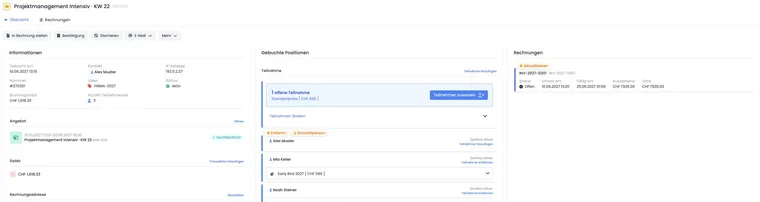
Booking details is the central working view for an individual booking. Open it from the booking table, user profile, booking dashboard or linked areas of an offer.
Check this view before changing, cancelling, transferring, invoicing or communicating a booking again. Many actions affect invoices, balance, outbox, participant status and supporting records.
Note on visible actions
Many actions are disabled once a booking is cancelled. Visible options also depend on offer type, waiting list, request list, free date selection, additional questions, additional services, payment method, permissions and global settings.
If an action is missing, first check booking status, offer status, user permissions and whether the feature is enabled in the account.
Overview and invoices
Booking details consists of an overview and an invoice area. The overview shows booking number, booking time, contact, IP address, offer, status, booking total, active participations, outstanding amounts and important actions.
The invoice area shows invoices relevant to the booking, including number, status, due date, outstanding amount and total. The list relates to the booking, offer and contact. If the booking total and invoice no longer match, edoobox indicates that an invoice should be updated.
Find the basics under Create/edit invoices and cancellation invoices.
Actions in booking details
Typical actions include creating an invoice, cancelling a booking, retrieving a ticket or Booking.pdf, writing an email, sending a booking confirmation, booking reminder, payment reminder or attendance confirmation, editing participants, opening additional data or starting a booking transfer.
Before every resend, check that the booking total, invoice, participations, email address and language are still correct. Especially after a transfer, price change or cancellation, PDFs and outgoing messages should not be resent without checking.
For waiting list bookings, edoobox partly replaces normal confirmation with a waiting list menu. You can send a request or confirm a waiting list booking as a regular booking there. If the booking originates from a request list, affected people can be marked as accepted in that list.
See Waiting list, Request lists and Manually send a booking confirmation.
Check an existing confirmation against the current booking state
If someone presents a confirmation, compare its booking number and offer with the open record. Check the contact and active participations separately, especially for a group booking. Then read the current status, invoices, payments and history. A message from an earlier state or a forwarded group booking does not alone prove that the person currently has an active place.
Before resending, check whether a transfer has since created another booking or the participation concerned has been deactivated. If the record has not yet been found, start by searching by booking number and context. Do not hastily create a replacement booking during this check.
Information, status and offer
The information area shows whether a booking is active, cancelled, waiting, open, MustPay or completed. edoobox may also show a request list's status or report that a linked request list can no longer be found.
The offer block shows the offer name, number, date and status. If the offer still exists, you can open it directly. If it is deleted or inaccessible, a notice appears. See Offer details for the offer view.
Cancellation terms, fees and billing address
Before cancellation, open the attached cancellation terms in the information column. Check rule levels, the currently applicable rule, withdrawal information and refund method. Existing fees are listed with status, amount and outstanding amount and can be opened.
- Check the booking, invoice, payment and current balance.
- Select Cancel and read the preview.
- Choose the attached rules, a waiver without a cancellation fee or a custom cancellation amount, if the booking allows it.
- Take any active withdrawal into account and record a clear reason.
- Confirm, then check status, fee, invoice and refund.
Send a payment reminder separately through Email → Send payment reminder. The reminder itself does not create a cancellation fee.
Changes to the billing address should be checked before creating a new document. Open the address on the booking record and check company, contact, address, country and additional invoice information.
Change the cancellation terms saved on a booking
The booking contains a saved copy of the cancellation terms. Later changes to the global group do not automatically update this copy. Read the existing copy under Cancellation terms → All rules and compare it with the legal texts accepted.
- In the information column, open Edit beside Cancellation terms. This requires the designated editing permissions.
- Check Current cancellation terms, time saved, rule levels, refund method and withdrawal date. A group recommended from the offer is a suggestion and does not replace this review.
- Under Select different cancellation terms, choose an active group and click Save terms. You can also use this to assign terms for the first time to a booking without them. The same group cannot simply be saved again without any further change.
- After switching, check the new saved copy, particularly the withdrawal period. When creating the new copy, edoobox recalculates its end time; do not assume that the previous date still applies.
- If only the local assignment should be removed, select Remove terms and confirm. The global template remains; existing fees are not cancelled by this action.
- Check the new state and the change note attached to the booking. Also document the reason agreed with the person before performing a subsequent cancellation.
Technically, the Ignore withdrawal for this booking switch makes edoobox calculate fees according to the rules. The display distinguishes an exclusion confirmed during booking from activation by an admin. An admin change does not create retrospective participant consent. Check the actual agreement and saved evidence; the software display alone does not assess their legal validity.
Changing or removing terms, or changing this switch, does not alter existing fee objects. Handle these specifically under Cancel a fee and check the reversing entry. Manage groups and rules as described under Cancellation rules and fees.
Participations and price categories
Booked items shows named and unnamed participations. You can open participants, add, remove or re-add them, retrieve certificates or, where several price categories exist, change the price category of an active participation.
edoobox prevents a booking from being left without an active participation. For unnamed participations, you see the number of unassigned participations per price category and can assign people or increase or decrease the number. Remove participations carefully and then check that at least one active named or unnamed participation remains.
Price changes may affect the balance. Check invoices and outstanding amounts afterwards. More information: Price categories and Manually create and book participants.
Check membership benefits, passes and zero-percent access
Under Booked items, a Membership benefit (subscription benefit) card may show an amount, affected participations and a link to the subscription template. For individual participants, Pass used shows the pass applied. An access pass with a 0 percent discount may grant booking entitlement without reducing the price. Check proof of the pass and price separately.
- Open the booking and check beside which person the pass appears.
- Open the subscription link to check the template used. Find personal validity, status and available uses under Participant profile → Memberships.
- Compare the subscription benefit, booking total, invoices and balance.
- If the benefit should deliberately be removed, open Remove discount, enter a reason and confirm the change. The action requires sufficient permissions and an active booking.
The removed benefit remains traceable with its reason and time and is not automatically reapplied when this booking is recalculated later. If the display mentions restoring a pass use, also check the pass usage afterwards. Existing invoices require a separate review.
Example: A person has an access pass without a price discount. Their participation lists the pass, while the booking total remains at the regular price. By contrast, a second person with a discount subscription has a quantified subscription benefit. These cases affect the invoice amount differently.
Next: Book and use subscriptions and Passes and redemption codes.
Dates, additional questions, additional services and multi-offers
For offers with free date selection, booking details shows the booked dates or lessons. Use Manage selection to add or deselect dates. Each click is saved separately. A full date displays a warning before deliberate overbooking. The selection applies to the booking's active participations. Change a booked lesson describes the full process, including capacity, group, price and invoice checks.
Additional services show quantity, unit price and total. Additional questions appear in groups with type and answers. Both areas can be edited from booking details, but may affect price, invoice, material planning and delivery of the offer.
For multi-offers, you see booked sub-offers, status, quantity, start and end dates. Sub-offers can be added or removed and price categories adjusted for each participant. Basics: Calendar and dates, Additional questions and services and Multi-offer / conference module.
Perform a booking transfer with preview
- Select Transfer booking and a specific target offer.
- Assign a target price category to every previous price category displayed. Each row shows the number of affected participations. Check price and currency. Adjust the price if necessary or select Keep price to use that row's previous price.
- Read the preview of additional services and questions. Deliberately choose which matching items and answers to carry over.
- Check the promotion: the preview shows whether the code can be carried over to the target. An unsuitable code is not carried over.
- Confirm only after reviewing the complete preview. Then check old and new bookings, participations, dates, price, invoice, payment and outbox.
For multi-offers, also check the affected sub-offers. Include a pass or subscription benefit in the follow-up review: entitlement to the old offer does not prove entitlement to the target offer.
If the preview cannot load completely, close the dialog and clarify the cause before retrying. A manual replacement booking requires deliberate financial and participation reconciliation to prevent a duplicate booking or charge.
With connected accounting, a booking transfer may require manual review. First check the existing invoice and cancellation state in the responsible accounting system, then update the edoobox booking. Do not bypass such a block with repeated transfer attempts or an unchecked replacement booking.
The transfer internally cancels the previous record. Its saved cancellation terms may trigger fees or refunds. Therefore, also check Fees per booking on the old record after the transfer. A new confirmation for the target does not replace this check. See Transfer a booking.
Promotions, invoices, notes and balance
If a promotion applies to the booking, you see its code, minimum booking value, amount or percentage and activation status. Admins with sufficient permissions can edit the promotion while the booking is not cancelled. More information: Promotional campaigns and vouchers.
The balance shows the contact's current position in each currency. Use Add transaction to record a manual transaction while the booking is not cancelled. Notes are loaded for the booking; TODO notes can be marked complete. After every change to price, additional services or participations, check booking total, balance and invoices together. See Participant transactions and Notes and TODOs.
Cancellation requests are a special TODO case: For a TODO linked to an open cancellation request, Complete & Save may actually cancel the booking according to its attached rules. Therefore, first check terms, fees and payment; do not mark it complete merely to tidy the task list. For a waiver or custom amount, deliberately open the booking's cancellation dialog instead. Details: Process a cancellation request.
Legal texts, tickets and evidence
Under Legal texts, you see entries saved for this booking in the new legal text management. Each row shows the text name, version number, fixed date, version status and Accepted or Not accepted. A required-field marker identifies mandatory texts.
- Open the relevant booking and find the Legal texts section.
- For every required text, check the saved version and acceptance. An optional text may be listed as not accepted.
- Click the entry to open precisely the linked version in its saved language. Compare its content with the disputed record; do not simply open today's published template instead.
- Interpret Archived correctly: a newer published version in the same language may now exist. The old version remains evidence for this booking; archived status alone does not revoke its earlier acceptance.
- If the version link is missing or the text cannot be retrieved, document the gap and check the actual booking time, the management system used then and existing booking documents.
The message No next-generation legal texts were accepted means that no corresponding new entries exist. It proves neither consent to all current versions nor that no terms were agreed at the time. Older bookings may require other evidence.
General booking information shows an IP address; the legal text list does not thereby provide a separately confirmed acceptance IP for each entry or new consent after an admin change. Use the evidence actually saved and add internal notes about the case. Publishing and version management are described under Legal texts. Find the full workflow from setup to later evidence under Legal texts, cancellation and evidence.
Tickets, certificates and attendance confirmations are loaded from the booking. Find ticket and barcode basics under Barcode: ticket and barcode settings. For a cancellation request requiring approval, read Check cancellation requests and fees.
Trace automatically generated certificates
If an automation rule has replaced the standard certificate template, the booking summary displays a Certificate · Executions list. It contains the email or PDF template used, rule, affected person and execution time. Open the execution using Show details.
The list contains matching successful template replacement executions. Its timestamp proves execution of the automation, not email delivery by itself. Check delivery and attachments in the outbox. An absent list does not prove that no certificate has ever been created: it appears only for matching executions, with the feature enabled and sufficient permissions. After correcting attendance, make a deliberate decision about resending.