
Cancel or move an individual participant in a group booking
A collective booking can contain several named or still-open attendances. In edoobox V2, clearly distinguish three processes: removing an individual attendance, changing a person’s price category, and rebooking or cancelling the entire booking.
This distinction protects the other people in the collective booking. Nevertheless, before every change, check available places, the invoice, outstanding payments, tickets, attendance data and emails already sent.
Which action is suitable?
| Required change | Suitable action in V2 | Effect |
|---|---|---|
| One person will no longer attend | Remove participant | Only this attendance becomes inactive; the collective booking remains. |
| A removed person will attend after all | Add participant | The existing attendance is reactivated, provided the booking is not cancelled. |
| One person needs a different price category | Select the price category directly for the active person | The price and booking balance are reassessed; an existing invoice must be checked. |
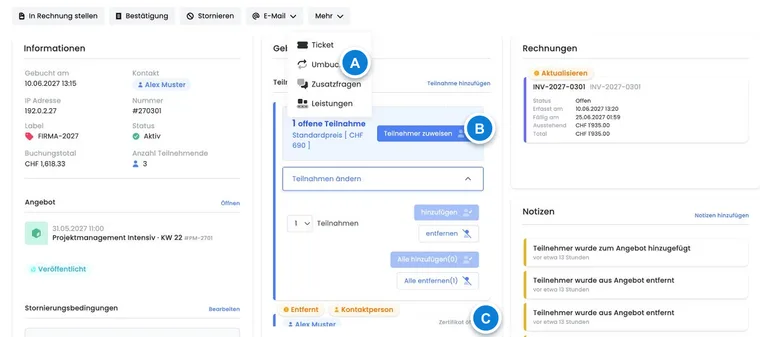
| Everyone moves to another offer | Rebook in the booking’s action menu | The entire booking is transferred to another offer. |
| Only one person moves to another offer | Create a new destination attendance and then remove the old attendance | The other people remain in the original booking. |
Remove or re-add an individual person
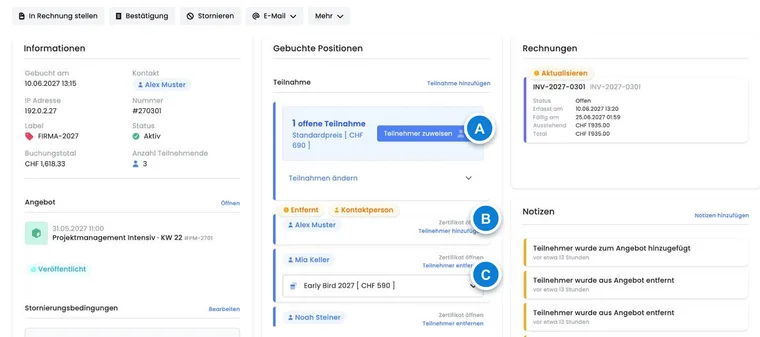
Open the affected booking and find the correct person under Booked items → Attendance.
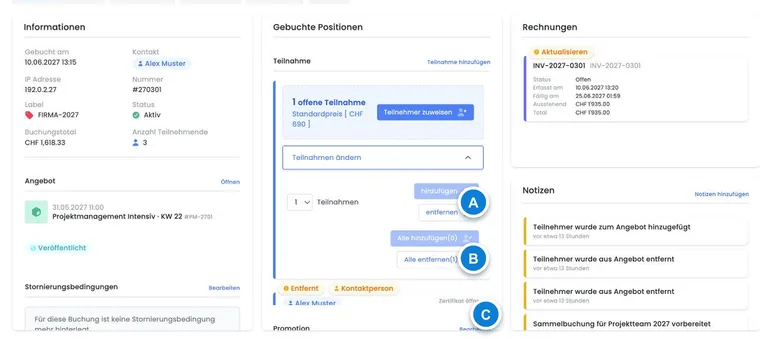
Select Remove participant. The person receives the removed status; other named or open attendances remain active.
If removal was accidental, select Add participant for the same person. This action is blocked if the entire booking is already cancelled.
The last active attendance cannot be removed individually. Use cancellation of the entire booking so that fees, balances and documents are processed together. If Add participant is blocked, check cancellation status, available offer places and the global collective limit. Reactivation requires available capacity.
Remove participant changes the individual attendance; this action does not open a dialog with the three cancellation fee modes for the overall booking. Therefore, do not treat removal as a fully financially settled cancellation. Check the agreed conditions, new total price and required invoice correction. Charge a separately agreed fee only after clarifying its amount and documentation; avoid a second fee when the entire booking is cancelled later.
Move only one person to another offer
The V2 Rebook action applies to the entire booking. To move just one person to another offer, proceed as follows:
Create a new admin booking in the destination offer or add the person to a suitable existing booking. The maximum permitted collective size, destination offer setting and available places limit whether another attendance is possible.
At the destination, check the price, additional questions, services, appointments and promotion. Only then remove the person from the original collective booking.
Send the appropriate booking confirmation specifically and inform the original booking’s contact if they are organisationally affected.
Check after the change
Capacity: are available places correct in the old and new offers?
Price and documents: was the booking balance updated, and is a corrective or cancellation invoice required? An existing invoice is not simply replaced by the attendance change.
Documents: are the ticket, certificate and attendance list still assigned to the correct person and offer?
Communication: have the contact and affected person received the correct confirmation? If unsure, check the outbox.
If the entire collective booking is cancelled, check the fee preview based on the booking total and the refund to the paying contact. An already paid company invoice is not divided into individual payouts to every co-registrant. The workflow is under Cancel a booking with or without a cancellation fee; pending requests and fee objects are under Review cancellation requests and fees.
Use cases
Example: An employee changes her course date
A company has registered four employees together. One person wants to attend a course managed as a separate offer instead. The administration creates a new participation in the target offer, checks the price and available places, and only then removes the old participation. The other three participations remain; the invoices and payments of both bookings are then reconciled.
Example: A removal was accidental
The wrong person was removed during a check. As long as the entire booking is not cancelled, the same attendance is reactivated through Add participant. Administration then checks the balance and only sends a new confirmation if the person previously received a contradictory message.
Check passes, subscription benefits and the contact when making changes
A pass used is displayed against the respective attendance. Before removal or rebooking, check which person it concerns. A contact’s pass does not automatically apply to all co-registrants. With an access pass without a discount, eligibility can change even if the total looks the same.
After the change, also check the subscription benefit, available pass uses, invoice and balance. For open places, check the price category and name the actual person before personal tickets or records are required. A contact who does not attend remains responsible for the booking without occupying an active place.