
Set up location-based email notifications
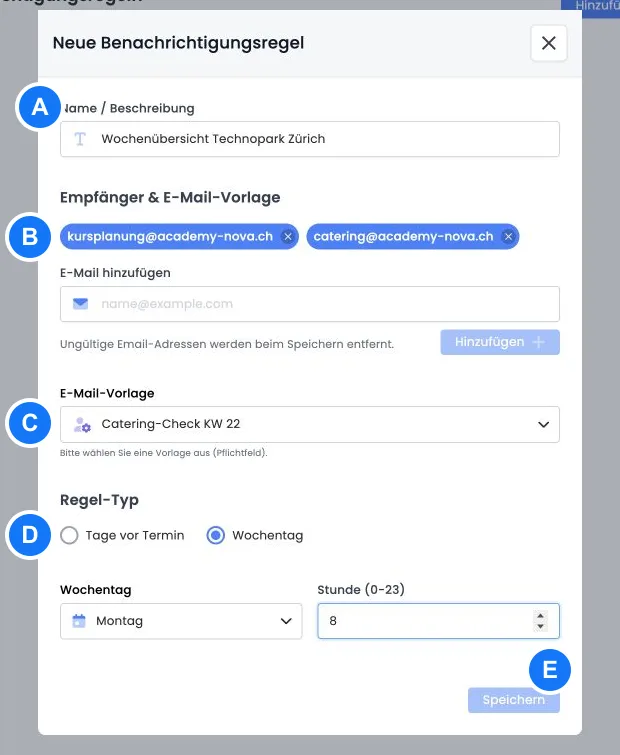
Location-based email notifications automatically inform internal or external teams about appointments at a particular venue. Reception, facilities, catering or technical teams therefore receive only the location information relevant to their work.
The rule belongs to the venue, not to an individual offer. It collects matching appointments from different offers at the same venue and inserts them into a message using a custom email template.
Requirements and limits
The venue must be saved first.
A maximum of five notification rules is possible per venue.
At least one valid recipient address is required.
Only active custom email templates can be selected; system templates are not permitted.
The sending hour is a whole hour from 0 to 23. Minutes cannot be selected separately.
Invalid email addresses are removed when saving. Check the displayed recipient list again afterwards.
Create a notification rule
Open Venues and edit the required venue.
Switch to Notification rules and select Add.
Give it a name that identifies its purpose and audience.
Add one or more recipient addresses.
Select a custom email template.
Select Days before appointment or Weekday, set the hour and save.
The overview shows the name, rule, recipients and template. A rule can be edited or permanently deleted. There is currently no separate switch for temporarily disabling it. To pause it, document the settings and delete the rule, or temporarily replace the recipients with an internal test address.
Understand days-before and weekly rules
Rule | Selected period | Suitable use |
|---|---|---|
Days before appointment | All matching appointments on the calendar day 0 to 365 days ahead, processed at the selected hour. | Catering two days beforehand, room checks the day before, technical services on the event day. |
Weekday | From the selected hour on the sending day until the same hour plus 59 minutes seven days later. | A weekly overview for reception or facilities. |
The weekly rule excludes appointments on the sending day that have already started before the selected hour. For a complete weekly overview, therefore select an early hour or a day before the actual planning period.
The appointment window is calculated in the account’s time zone. Check the actual sending hour against a known appointment, particularly where time zones differ. After changing the time zone, check every rule.
Which offers and appointments are included
The current process only includes appointments at the selected venue for offers with the statuses Guaranteed to run, Closed or Released. An offer that is merely Published, or one that is Cancelled, is not included.
A maximum of 500 matching appointments is processed per run. For very large venues, check whether this limit is reached. An additional rule at the same venue with the same period does not increase the limit and can generate duplicate messages. Plan the necessary division into locations or a suitable separate export.
Multiple recipients and data protection
The first address is used as the direct recipient. All further addresses are added as CC and are therefore visible to the other recipients. If external service providers should not see each other’s addresses, create separate rules. Remember the limit of five rules per venue.
The rule uses the template variant in the default language of the edoobox account. There is no separate language setting for each recipient or rule. If partners need different languages, create separate custom email templates and rules. Put the required text in the default variant used by the account; adding a translation to the same template alone does not change the variant selected by the location rule. Check the subject and message actually received.
Available location and appointment placeholders
The rule provides the list Dates and the location name PlaceName. The following values are available within the loop:
Placeholder | Output |
|---|---|
| Offer name |
| Appointment description |
| Start date and start time |
| End date and end time |
| Venue and room |
| Identified attendances; for normal offer bookings, named people who are not on the waiting list. Check lesson bookings separately. |
| Combined answers to additional questions, if the template requests this value |
<h2>##PlaceName##</h2>
{EACH?Dates}
  <h3>##OfferName##</h3>
  <p>##Start_date##, ##Start_time## to ##End_time##</p>
  <p>##Place##, room ##Room##</p>
  <p>Participants: ##ParticipantCount##</p>
{ENDEACH}
Use exactly {EACH?Dates} and {ENDEACH}. Further loops and conditions are explained in IF and EACH in email templates.
Test the rule in a controlled way
Start by using only an internal test address.
Create two demo appointments at the same venue with a suitable status.
Test the actual time window of the selected rule.
Check the subject, default language, appointment order, room and recipients in the outbox.
Only add external addresses after a successful test.
Use cases
Example: A weekly overview for reception
Every Friday at 06:00, reception receives all matching appointments up to 06:59 on the following Friday. The template shows the offer, date, time and room. Since only one address is used, there are no visible CC recipients.
Example: Catering two days before each appointment
A rule runs daily at 08:00 and collects appointments exactly two calendar days later. The template contains the participant count and a non-sensitive catering selection. Free-text questions are deliberately omitted. After cancellations, the team checks the count in the outbox.
Example: Inform technical services and facilities separately
Technical services and facilities should not see each other’s addresses and need different content. Two rules are therefore created with the same weekly schedule but separate recipients and templates. Technical services receive the room and technical additional question; facilities receive only the time and room.
Use a custom email template and the location context
Since custom PDF templates also appear under Custom templates, choosing the correct type is particularly important: the location rule only offers custom email templates. If your template is missing, check its type. The location rule provides PlaceName and Dates; normal booking or invoice values from another sending type are not automatically available as a result.
The filtered location reference shows every supplied appointment value. Within Dates, use Start_date and Start_time; do not confuse these spellings with StartDate in the ICS file.
Check the participant count for your offer type
For normal offer bookings, ParticipantCount counts named attendances that are not on the waiting list. Individually bookable lessons use a separate selection method. Before using its result for catering or capacity decisions, check it against a specific lesson and compare the count with the people actually booked. Unnamed places do not automatically provide a reliable headcount for external services.
For individually booked lessons, only use ParticipantCount and the additional-question analyses that depend on it after comparing a specific test lesson with the people actually booked. This case requires a separate product check. Until then, use the verified participant list for the relevant lesson for binding order quantities or capacity figures.
If a message is empty, first check whether any appointment falls within the time window and has a permitted status. If counts are wrong, then check the offer type, waiting list, named people and affected appointment.