
Automatic payment with a saved credit card
With automatic debit, your organization pays outstanding edoobox account costs via a saved company card. In the Business subscription, an automatic credit top-up can additionally be set up. You manage both functions under Settings → Billing.
These cards are used for your organization’s billing with edoobox. For participant payments, connect a payment system instead. Renewing a subscription you have sold is a separate process: Participant subscriptions: Renewal and cancellation.
Preparation
- You can edit the billing settings of your account.
- The company card is valid and authorized for the planned charges.
- The organization knows the amount, currency, card limit, and responsible accounting department.
- The recipient of the billing e-mails is correct and monitored.
Add company card
- Open Settings → Billing.
- Select Add new card from the saved cards.
- Enter the card in the displayed payment form and confirm saving. Complete any required bank authorization.
- After successful completion, check the card brand, last digits, expiration date, and status in the list.
- Check which card is marked as default before you activate the automation.
edoobox supports a maximum of ten active usable cards. An expired or invalid card cannot be used for charging. Simply storing a card is not yet a successful payment of your outstanding account costs.
Set default and backup card
Automatic payment first tries the usable default card. If that attempt fails and another usable card is designated as backup, it is tried within the same payment process. edoobox does not simply charge every saved card in turn.
- Store a second usable company card for failover protection.
- Select Default for the desired main card.
- Mark another card as Backup.
- Check the status markers of both cards again.
The interface offers role switching only with at least two usable cards. The default and backup roles must be on different cards. The current default card cannot be removed directly: First set another usable card as default, then remove the old non-default card with confirmation.
Activate automatic monthly debit
- Select an appropriate recipient for billing e-mails: organization address, valid active different billing address, or active admin person.
- Activate Automatic debit.
- Wait until the change is saved, and check the switch after reopening.
- After the next billing run, check the account journal and the associated payment receipt.
The monthly run considers active, non-paused accounts with automation enabled. It offsets a negative account balance; a sufficiently covered account does not require a card charge. Selecting a card alone does not set a fixed flat monthly amount.
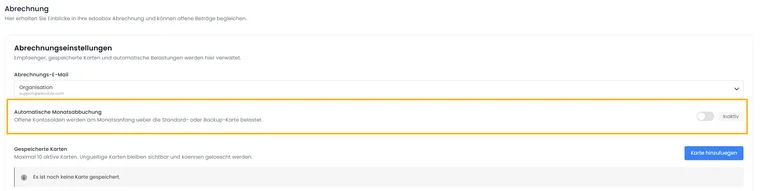
The monthly debit is a separate switch in the billing settings. Store and check a usable company card beforehand.
End bank standing order and card automation separately
A standing order set up by you at the bank is managed at that bank. It is not a switch of the edoobox card automation. Turning off automatic debit or ending an account does not replace the check of your bank standing order.
- Check with the bank whether a regular transfer order to edoobox is set up, and adjust or end it there according to your confirmed contract status.
- Check the switches for monthly debit and Business top-up in edoobox separately.
- Compare transfers, card billing, and account journal. A subsequent bank transfer is not a new card charge solely because of its receipt.
- Use the receipts to clarify any remaining credit or unclear payment with your accounting team and support. This guide does not promise an automatic refund when an account is cancelled.
The actual account steps are explained in Pause or delete account.
Set up Business top-up
In the Business subscription, a separate top-up option appears. Define a threshold and a top-up amount; both must be positive. If the account balance at the corresponding trigger is below the threshold, edoobox attempts to deposit the defined top-up amount via the default and, if applicable, backup card.
Top-up and monthly debit are separate switches. Top-up loads the defined amount; the monthly run depends on the outstanding balance. A stored top-up configuration is not a promise of continuous real-time monitoring of the bank account.
Example: Top up credit before a booking peak
A Business account sets the threshold to 100 and the top-up amount to 300 in its account currency. If the balance drops to 80 at the next relevant trigger, the top-up process attempts a top-up of 300. The accounting department then checks the account journal and card receipt; an activated monthly debit assesses an outstanding balance independently of this.
One such trigger is the calculation of the business fee after a booking. Simply switching on the toggle does not trigger a guaranteed immediate top-up. After a failed top-up, the check is repeated at the next eligible trigger; from the second failed attempt, a billing email is sent to the designated recipient.
Resolve a failed charge
A saved card may expire, be declined, or require additional bank authorization. The payment is only considered complete upon confirmed success. Background charges cannot perform an interactive bank authorization on your behalf. Further information: Strong Customer Authentication.
After a failed monthly attempt, edoobox schedules another attempt no earlier than approximately 24 hours later. If this also fails, the process is marked as failed and a billing email is sent to the identified recipient. For top-ups, a lockout period of approximately 24 hours after an error also prevents immediate further attempts; another attempt requires a suitable trigger. This does not imply a guaranteed charge time.
- Check the error message, card status, expiration date, available limits, and billing email.
- Check the account journal to see if a deposit already exists.
- Save or select a different usable card if necessary.
- If an interactive payment is required, open Record Payment and consciously confirm the payment after review.
- Then compare the account balance, receipt, and card statement. In case of a discrepancy, clarify the existing process before making another attempt.
Check after card change or payment
Check the default/backup indicators, active switches, recipient, and account balance. Keep the last digits and expiration date of the company card up to date internally. Full card details do not belong in notes, emails, or screenshots.
Further reading: Account Journal, Record Payment or Create Bank Invoice and Account Payment Details. The fundamental distinction between a saved card and a subsequent charge is explained in the official Stripe documentation.