
Outbox: check emails and failed deliveries
The outbox shows emails generated by edoobox through automatic workflows, tasks or manual sending. These include booking confirmations, invoices, payment reminders, custom email tasks and messages entered directly from a profile.
Use the outbox to check whether a message was created, who it went to, what it contained and whether an error occurred during sending.
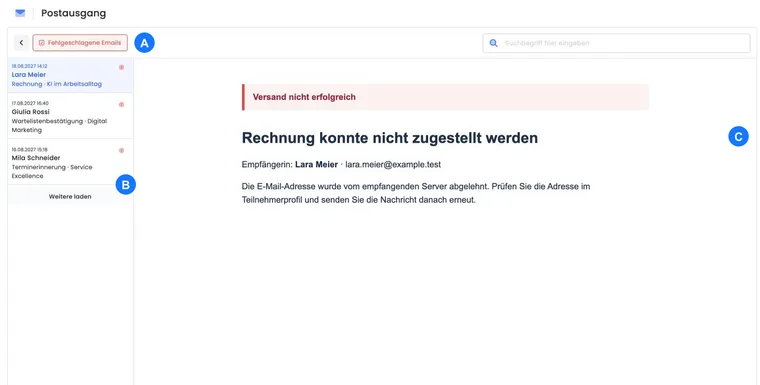
Log view rather than template editor
The outbox is not where email content is edited. Content, placeholders, attachments and triggers are prepared in email templates, email settings, tasks or the relevant business process.
The outbox then shows what edoobox actually generated or attempted to send. This is particularly useful for participant queries or failed messages.
Where to find the outbox
The outbox appears in several places. In the user profile, you see messages relating to that person. In the admin profile, you see messages in the relevant admin context. In account and email areas, the view may open as a global outbox view or sidebar.
The view typically consists of a message list and a preview. The list shows the sending date, recipient name, subject and an error icon if the entry contains an error. The preview shows the generated message as HTML so you can check its subject, content and layout.
Check sent messages
Open the appropriate outbox, for example in the affected person’s user profile.
Search by subject, recipient name or email address.
Select the required message.
Check the recipient, subject, content, attachments and timing in relation to the booking, invoice or task.
Example: Check a sent booking confirmation
A participant reports that she has not received a booking confirmation. Open her user profile, switch to the outbox and select the latest booking confirmation. Check the recipient address, time and content. Then decide whether the email should be resent or sent manually.
Filters, search and failed emails
For detailed search and filtering workflows, also read Outbox: Search and filtering. This detailed guide clearly distinguishes email log searches from the global search in edoobox.
For a user with a saved email address, filtering by customer can be distinguished from filtering by email address. The customer filter shows messages directly associated with the user profile. The email filter helps when the same email address has been used in several contexts.
Search covers the subject, recipient address, recipient name and, depending on the view, message content. The failed emails filter displays only entries with an error status. Longer lists load incrementally.
Example: Find a failed message to an email address
Enable filtering by email address and then “failed emails”. Search for the address or a subject. Open the entry to check the content and the sending route concerned.
Understand failed emails
An error means the message was not delivered or processed as expected. Common causes include invalid recipient addresses, blocked domains, external mail server problems, oversized or invalid attachments, or a temporary sending-service outage.
First check the recipient address and affected record. Then check the email settings and active sending route, such as Mailjet, SMTP or Microsoft 365.
Investigate repeated errors for one address
If only one person is not receiving messages, compare several specific events sent to the same address. A missing email alone does not reveal whether the message was never generated, rejected during sending or filtered in the recipient’s mailbox.
- Open the participant profile and its outbox. Switch to Filter by email address so that other events saved against the same address also appear. If an address has since been corrected, also check its old spelling in the global view.
- Search for the address and expected subject. First check all results and then failed emails. Load further entries if needed. Note the creation time, recipient, event and any error text or error code.
- If the expected entry is entirely missing, check the trigger: booking status, valid recipient address, enabled confirmation or completed task. Check the chain in the email system.
- If there is an error, compare it with messages to other addresses from the same period. Under Settings → Email → Server, check the active provider and its notices. A single rejected address does not justify changing the provider for the entire account.
- If the provider accepted the message, have the destination mailbox checked for spam, quarantine, mailbox rules and possible rejection. For Microsoft, Check sending and delivery explains the difference between technical acceptance and actual delivery.
- Correct the identified cause. Then trigger a required message specifically from the original business process, such as the booking confirmation. Check the new outbox entry and have receipt confirmed before sending further messages.
The log view does not retrospectively edit the old message text or recipient address. Correcting an address in the profile therefore does not change an email already generated. Triggering a new confirmation generates it using the current business context; compare the booking status, links and attachments again.
If the error persists, have the affected address, time with time zone, subject, associated event and error details ready for the responsible mail administrator or Support. Do not send passwords or API keys. Recovering a participant password does not automatically fix failed delivery.
Compose a manual email
From suitable profile or context views, open Compose email. Select existing participants, admins or offers, enter the subject and message, and send using the displayed organisation sending route. The sender selection is locked in this dialog.
The full guide Send manual emails to profiles and offers explains recipient selection, multiple addresses, missing profiles and the data context. After feedback identifies unreachable people, correct the affected profiles and resend specifically to them.
Stop accidental sending and prepare a correction
| Stage | What you can do |
|---|---|
| Task still pending, message not yet generated | Open the correct task and delete it or change its timing. Also check other pending tasks and recurring rules serving the same purpose. |
| Message already generated in the outbox | Deleting the task afterwards does not recall this message. Check its specific state; if technical sending is still in progress, clarify a possible interruption directly with Support. This does not guarantee interruption. |
| Message handed to the provider or delivered | The edoobox outbox does not provide a general recall for emails already sent. Correcting a template does not change content already sent. |
- Stop further scheduled or recurring triggers insofar as they have not yet been processed.
- Use the actual outbox entries to identify recipients and the content sent. In particular, check links and attachments.
- Correct the template or business data. Decide whether a brief clarification or a new correct message is required.
- Check the correction using an internal address first, then send it specifically to those affected. Another bulk mailing to everyone is not automatically the right choice.
The original entry remains the record of the content at that time. Preparing with internal demo recipients helps prevent premature real sending.
Distinguish tasks, templates and payment reminders
Tasks schedule sending. Email templates define content, placeholders and attachments. A payment reminder is triggered from the booking. The outbox then shows which message was generated and whether it was processed successfully.
Check subscription renewals and dunning stages
Also check the new subscription renewal reminders and payment reminders and dunning notices in the outbox. Open the specific message and compare its period or dunning stage, amount, payment deadline, language and available action links with the business process. The editor preview only shows example data for this purpose.
A subscription email may lack a payment or invoice link if there is no outstanding payable renewal period or invoice. For dunning notices, the outstanding amount and dunning fee must match the stage generated. For a query, trigger a current message from the business process; an old personal link may have expired by now.
Change the sender in the correct place
The current Compose email dialog shows the sender, but its selection is locked there. Check or change the active sending route under Settings → Email → Server. Maintain recipients, subject and message in the sending dialog. Wait for the sending notification and then check the new outbox entry before repeating the same send.