
Record attendance, send attendance confirmation and certificate
The attendance list links every appointment to the booked participants. edoobox calculates attendance from the recorded statuses and can then generate attendance confirmations, certificates and attendance lists.
For reliable results, first define the attendance statuses and percentages. Then record a status for each relevant appointment before triggering emails or combined documents.
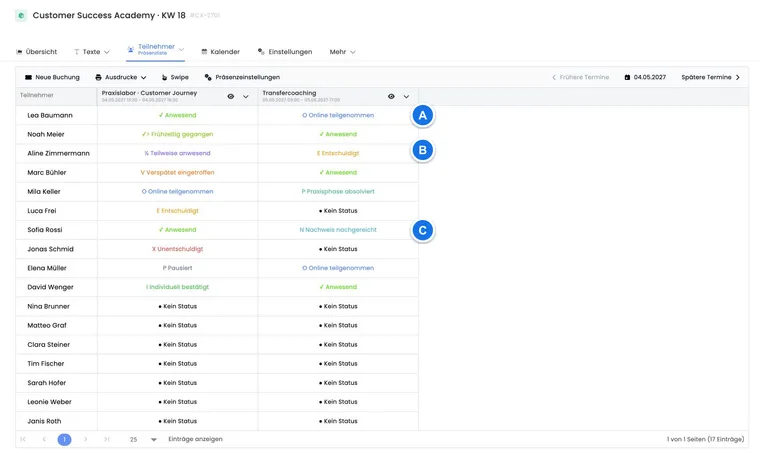
Record attendance in the table
Open the required offer and its Attendance area.
Select the applicable attendance status for each participant and appointment.
Use the arrows or calendar to move to further appointment columns. The offer’s appointments are marked in the calendar.
Finally, check that every required cell contains a deliberately selected status.
The number of appointment columns visible at once adapts to the screen width. For lesson bookings, a status can only be set for appointments actually booked for the person.
Authorised admins can book a person directly from this view using New booking. Note the specifics of manual admin bookings.
Set a status for an entire appointment
Open the menu in the date column header. All present directly sets the default status. With Change all statuses, open the Attendance status / Scan selection, choose the status and confirm Apply. The action applies to the loaded participants for this appointment; also check further table pages.
Then check and correct exceptions individually in the table. For lesson bookings, only appointments actually booked for a person may still be assessed.
Work faster with the Swipe view
Open Swipe in the attendance view if the action is offered. This view can process all appointments or a specific appointment selection at once. In the normal offer attendance view, this entry is hidden when lesson booking is active; use the table there and check the appointments actually booked.
The default actions on the left use status IDs 2 and 4, typically Left early and Unexcused.
The default actions on the right use status IDs 1 and 3, typically Present and Excused.
Custom statuses from ID 5 onwards are not additional Swipe actions. Use the table view for these.
People on the waiting list are not shown as regular participants in the Swipe list.
Deliberately select multiple appointments: one Swipe can set the person’s status for all selected appointments. Check the appointment selection before quickly working through an entire group.
Print lists and create a combined certificate file
Depending on the configuration, the attendance view’s print menu contains:
an attendance list from an active custom PDF template;
a participant list;
a combined certificate PDF file.
The combined file is created as a background task and then saved as an internal offer file. It is an administrative printing and archiving tool.
The combined file does not check a certificate threshold: it includes regular participants who have at least one attendance entry. The global percentage for the automatic certificate attachment is not used as a selection filter here. Check eligible people yourself before creating it.
If you need a list for just one lesson, note the difference between the standard list with appointment selection and a custom PDF template in the printing workflow for individual lessons.
Configure automatic sending
Open the global Email settings and configure the attendance confirmation area:
No attendance confirmation email: nothing is sent automatically.
Yes, if x percent attended: edoobox sends automatically after the offer ends and the selected delay.
Only for scheduled tasks: sending occurs only in connection with the designated scheduled tasks.
Percentage for confirmation: determines whether the attendance confirmation or, if appropriate, the threshold-not-met email is used.
Percentage for certificate: is a separate threshold for the PDF attachment and may be higher than the confirmation threshold.
Further options: signed certificate with validation URL, copy to a second email data field, email when the threshold is not met, and a sending delay from 2 hours to 60 days.
Certificate validation depends on the subscription. Only enable it if the required placeholder and validation page are available in the subscription being used.
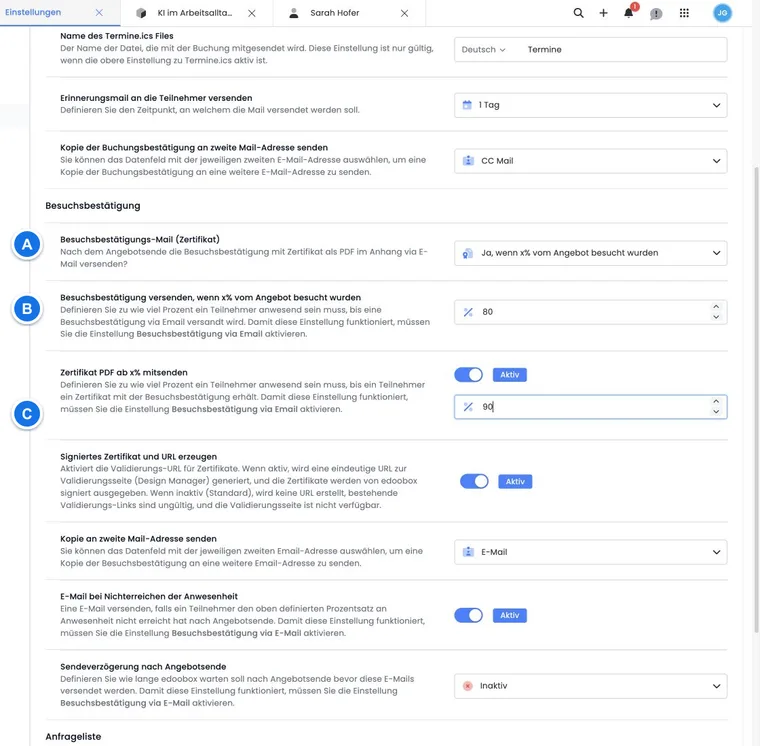
When the automatic process handles an offer
The automatic run considers normal bookings, not the waiting list. It starts after the offer ends and the configured delay, provided the offer has an appropriate status:
Released: can be processed.
Published, Guaranteed to run or Closed: are processed if the minimum participant count has been reached.
Draft, Cancelled or deleted offers are not processed as regular automatic sending cases.
Archiving alone does not reliably stop sending. To prevent an automatic attendance confirmation, change the responsible sending configuration and check tasks already scheduled. Below the confirmation threshold, an alternative message is only generated if Email when attendance threshold is not met is enabled. A certificate is automatically attached only if the confirmation, attachment and certificate threshold all align.
Plan certificates for each module and the entire offer
Normal automatic attendance confirmation sending is based on the end of the offer and the configured delay. The end of an individual lesson within this offer does not trigger this automatic process again. The attendance percentage also relates to all appointments in the offer.
| Required evidence | Suitable workflow and limitation |
|---|---|
| Completion confirmation with optional certificate after the entire course | Configure automatic sending, the confirmation percentage, certificate percentage and delay as described above. Record all required attendance in good time. |
| Confirmation before the overall offer ends | Check manual sending from the specific booking. It still uses the offer template and saved percentage rules. This does not switch it to an individual module context. |
| A separate automatic completion record for each module | Normal automatic attendance confirmation within a single multi-part offer does not cover this workflow. If modules are to be booked and completed independently, consider dividing them into separate offers with their own end dates and associated bookings. |
| Attendance list for today’s appointment | Use lesson printing. It documents attendance and does not automatically send certificates. |
Example: an offer consists of four modules, each with one appointment. After the first module, “Present” has been recorded once for a person. The regular offer percentage is therefore 25 percent. Manually triggering sending now with a confirmation threshold of 80 percent does not automatically produce a record of 100 percent for module one. For a record covering the entire course, record the remaining appointments and use the completion process after the last appointment.
If your concept requires independently completed modules, define the offer structure before publication. For each separate offer, check participants, appointments, thresholds and templates. Changing the print layout or sending time afterwards does not split existing bookings. For scheduled information, use tasks and scheduled emails and check their selected offer and recipient context.
Use the instructor, signature and additional logo in the correct record
First configure the PDF template and its available placeholders. For different logos or conditional content per offer, use the verified template conditions in IF and EACH with a certificate example. Instructor assignment, the available image type and execution context must match the placeholders used.
- Create or copy the certificate template and select placeholders using its own selection menu.
- Check an offer with one instructor and one with several instructors. A record for the entire offer does not necessarily produce the same instructor selection as an individual lesson.
- Generate output with and without the data or conditions required for the additional logo or signature. Missing data must not result in an empty label or incorrect logo.
- Check the PDF actually generated in the intended sending or print job. The Design Manager for certificate validation controls the later verification page; it does not edit the contents of your certificate PDF template.
Open an individual certificate directly as a PDF
For an individual certificate, open the specific participation in the booking. You do not need a combined certificate file or an email send for this.
- Open the relevant booking and its Summary.
- Find the participation card for the required person. For group bookings or people booked more than once, compare the offer, booking number and specific participation.
- On this card, select Open certificate. edoobox loads the PDF for that specific participation.
- Check the name, offer, attendance details, template and signature. Save or print the open PDF using the available PDF/browser function.
The action is available only for an active named participation with an available certificate. If it is missing or disabled, check the name, participation status, attendance records and configured confirmation threshold. Opening the PDF does not bypass these eligibility requirements. An unnamed place must first be assigned to a person.
Opening alone does not send an attendance confirmation email or create a combined-file task. To send the person a message, use the manual sending process below and check the outbox beforehand.
Send an attendance confirmation manually
Open the relevant booking and select Send attendance confirmation in the summary. The action processes participants in this booking who have a valid email address, and still uses the saved percentage and template rules. The action is disabled for a cancelled booking.
Before manually sending again, check the outbox so that a person does not unintentionally receive several identical confirmations.
If a confirmation or certificate is missing
Check that the person has a regular booking and is not on the waiting list.
Check every appointment and any missing attendance statuses.
Compare the confirmation and certificate thresholds.
Check the offer status, minimum participant count, end time and sending delay.
Check the email template, Zertifikat.pdf, recipient address and outbox.
For a combined file, check that at least one attendance entry exists for every required person.
Example: Confirmation from 80 percent, certificate from 90 percent
A weekend course ends on Sunday. The confirmation threshold is 80 percent, the certificate attachment threshold is 90 percent and the delay is 24 hours. A person with 85 percent receives the attendance confirmation without a certificate on Monday; a person with 95 percent also receives the PDF.
Example: Record a lesson booking for selected dates
A person has booked three out of ten lessons. The instructor records the appropriate values in the table only for those lessons. All ten offer appointments remain the basis of the confirmation percentage: three fully attended appointments give 30 percent. Administration aligns the thresholds and wording of the record with this offer model.
Example: A combined certificate file for the archive
An education provider needs certificates for a particular group. Administration selects the required people in the participant list and starts the combined certificate PDF file there, checking the person selection in the task dialog. Starting from the print menu in the attendance view includes all considered regular participants. Check substantive eligibility yourself, since the global certificate threshold does not filter this print job.
Check a certificate task that has been pending for a long time
A combined file is created in the background; a pending display does not yet explain the cause. Check the existing job before creating the same job again or resending an attendance confirmation.
- Open the associated task and compare the type, offer, selected people, scheduled time and displayed execution state. Refresh the display and also check the task archive.
- For a combined certificate PDF file, open the offer’s internal files and look for the result of the existing job. Check the file and its contents if it is already available.
- For an attendance confirmation, also check the outbox with recipients and attachments. Another sending job can generate further messages.
- Check any error messages and the prerequisites above: valid participation, recorded attendance, suitable thresholds and an active template. For a support query, note the task type, approximate start time and the error message.
- Only start a new job after this check and a deliberate decision about which missing results or recipients should be processed again.
A combined certificate file and an attendance confirmation email are different processes. A finished combined printout does not prove that email was sent. For a query, only pass on the necessary information through the designated support channel; full participant lists, certificates and login details are not needed for a general error description.
If you initially need only one certificate or a targeted layout check, use Open certificate on the specific participation card. This does not replace checking the existing combined job, but avoids another job for the same individual file.
Distinguish multiple participations by the same person
For group and repeat bookings, work with the specific participation in the correct offer and session. A contact person may manage a booking without participating. Assign a person to an unnamed place before creating an individual certificate.
If the same person appears several times, compare the booking number and participation before opening attendance records, a ticket or a certificate.
Check certificates from automation rules
If an automation rule has replaced the standard certificate template, the booking summary displays a Certificate · Executions list. It contains the email or PDF template used, rule, affected person and execution time. Open the execution using Show details.
The list contains matching successful template replacement executions. Its timestamp proves execution of the automation, not email delivery by itself. Check delivery and attachments in the outbox. An absent list does not prove that no certificate has ever been created: it appears only for matching executions, with the feature enabled and sufficient permissions. After correcting attendance, make a deliberate decision about resending.
A combined certificate file can take time to process. Wait for the task to finish, then open the generated internal offer file. Do not start an identical second job merely because the file is not displayed yet.