
Barcode: Ticket and barcode settings
Barcodes identify a person in edoobox. The same current personal code applies to all bookings of this person. At entry, the booked participation, the offer, and the selected dates determine whether access is granted. You can scan tickets, record attendances, and for ongoing offers check who participated on which date.
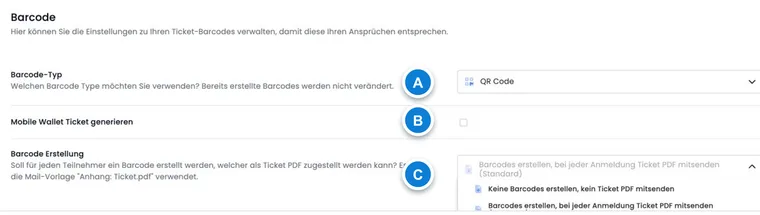
You can find the global settings in edoobox under Settings > Barcode. There, you select the barcode type and decide whether edoobox automatically generates tickets or whether you want to determine per offer whether a Ticket.pdf is sent along.
You also set up mobile wallet tickets under Settings → Barcode. The complete guide explains Setting up mobile wallet tickets.
What barcodes are used for
Entry control: Employees scan the ticket at the entrance and see whether the code is valid.
Attendance control: For courses, series, and continuing education, the scan can serve as the basis for attendances.
Ticket dispatch: edoobox can automatically send the Ticket.pdf along with the booking confirmation.
Replacement tickets: If a ticket is lost or could be misused, create a new barcode for the person.
Select barcode type
Select the code type suitable for your reading device. edoobox supports PDF417, QR Code, and Data Matrix. Before first use, check which type your scanner, webcam, or smartphone can reliably read.
For many events, a QR code is well understood because it can be easily tested with smartphones. If you already use professional scanners, PDF417 or Data Matrix may be useful, provided your devices support these formats.
Create Ticket.pdf automatically or per offer
In the barcode settings, you define whether edoobox attaches a Ticket.pdf when sending the booking confirmation. The Attachment: Ticket.pdf email template is used for this.
Do not create barcodes: No Ticket.pdf is sent along. This setting is suitable if you do not use entry or attendance control with tickets.
Create barcodes for every registration: Every booking automatically receives a Ticket.pdf. This variant is useful if every offer is controlled with a ticket.
Activate per offer: You decide in the individual offer whether participants receive a Ticket.pdf. This variant is suitable if only part of your program operates with entry control.
Create barcodes for existing participants
For an existing person, open the user profile and in the Barcode area, the action menu. Select New barcode and confirm with Create barcode if no code exists. Barcodes must be enabled in the settings. Repeat the process for the required persons and then send the confirmation or ticket specifically again.
Subsequently, check a booking on a sample basis to ensure that the ticket, barcode, and email template look as expected.
Replace individual barcode
If a ticket is lost or has been passed on, open the barcode menu in the user profile and select New barcode. Read the warning and confirm Reset barcode. The previous code becomes invalid; the new personal code applies to all bookings of this person. Therefore, resend all tickets that are still needed.
Tell the person to use only the newly provided tickets for all upcoming bookings. When resending by email, check the outbox to confirm that the message contains the current ticket attachment.
When resetting, the previous barcode is deactivated and stored in the person's history with the creation date. It must no longer be used for entry. The history helps to clearly identify a presented old ticket as replaced.
Use scanner, webcam, or smartphone
For scanning, standard barcode scanners, a webcam, or a smartphone can be used. What matters is not the brand, but that the device reliably reads the selected barcode type and reacts quickly enough in event operations.
Before first use, test multiple tickets from realistic distances and lighting conditions. For larger events, a short rehearsal with the team that will later handle entry is worthwhile.
Application example: Issue replacement barcode before an event
A participant reports shortly before the course starts that her ticket has been forwarded. Open the user profile, create a new barcode, and send the booking confirmation again. Inform the entry team that only the new code should be accepted.
Set up mobile wallet tickets
A wallet ticket uses the personal barcode and adds offer and participant details. Activate the feature, design the account-wide template, and set up delivery in the booking widget or using a placeholder. The dedicated guide Set up mobile wallet tickets explains all options, group bookings, and failed downloads.