
Account: billing and account journal
Under Settings > Billing, view the account journal between your edoobox account and edoobox. This view shows the current balance, monthly groups, individual charges and credits, and CSV and Excel export functions.
This billing concerns your edoobox account's relationship with edoobox. It is neither the participant payment overview nor CAMT reconciliation for participant invoices. To check or manually record individual people's transactions, use Manually record and check participant transactions.
Which invoice are you looking for?
| Question | Correct section |
|---|---|
| What does edoobox charge our organisation? | Settings → Billing: account journal, plan costs, plugin fees, deposits and available account documents. |
| Which invoice did we issue to a participant? | Invoices or invoices in the user profile or booking details. |
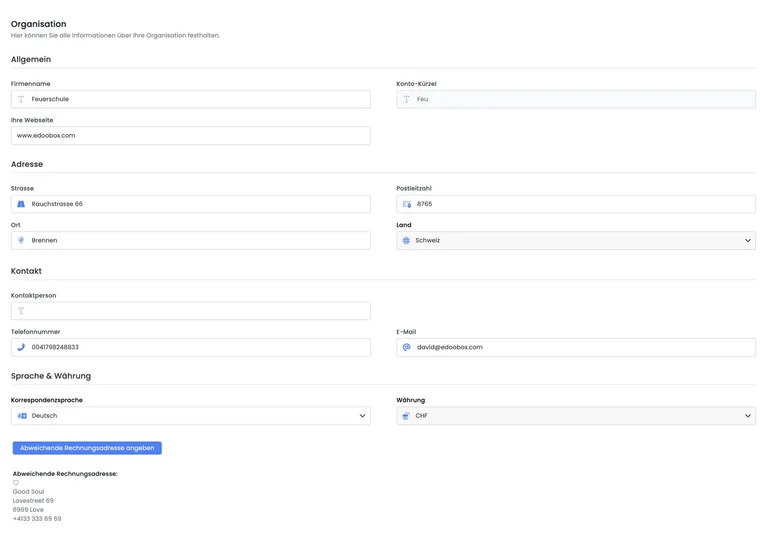
| Where are our edoobox account documents sent? | The organisation and alternative account billing address and account billing settings. |
| Who receives a course invoice? | The relevant booking's data and, if applicable, its alternative billing address. |
Example: trace prepayment for edoobox fees
Accounting deposits credit for future edoobox costs in the account section. Once received and posted, the deposit appears in the account journal and future account charges reduce that credit. This deposit does not pay a participant's outstanding course invoice. That payment must be recorded or reconciled against the relevant participant invoice.
Subject of your edoobox account invoice: The editable “Invoice email” course template controls invoice delivery to your participants. It does not change the subject of account billing sent by edoobox to your organisation. Account billing settings let you choose the recipient; they do not provide a custom subject editor for these account documents. If accounting needs a special reference, check the cost centre and alternative billing address and clarify further requirements with support beforehand.
Access and layout
Open Settings → Billing. Above the table, edoobox displays the current balance in the account currency. A positive amount is credit in your favour; a negative amount is owed to edoobox.
The currency comes from account settings. If an admin cannot see billing data, check permissions under Admins and their user permissions.
Monthly groups and individual items
The account journal is grouped by period. A period row summarises charges, credits and the month-end balance. Expand the group to see that month's individual items.
If a period has no data, edoobox displays a notice that the selected month has no entries. First check the period, then whether any charges or top-ups actually occurred on the account then.
Example: check month-end closing
Open Account > Billing and first compare the period row for the required month. Then expand the month and check individual items such as subscription costs, Business transactions, letters, SMS, calls or manual entries.
Account journal columns
Timestamp: Shows the month name for periods and the posting date for individual items.
Description: Describes the entry or opens detailed information for certain items.
Charges: Shows costs or fees. These amounts reduce your credit.
Credits: Shows deposits or credit. These amounts increase the balance.
Account balance: Shows the balance after the period or item.
Charges and credits are highlighted differently. This makes it easier to see whether a balance resulted from costs, deposits or corrections.
Business transaction details
For Business transactions and letter, SMS or call items, the description can open detailed data. edoobox then loads individual fees, such as time, booking number and price.
If a detail row is linked to a booking, open its booking number to go directly to the underlying cause. This is particularly useful for checking which specific booking triggered a Business fee.
Open documents and invoices
For payment-system transactions such as credit card, PayPal, invoice or Sofort, the description may contain direct PDF document links. Depending on the operation, a transaction receipt and transaction invoice are available.
Documents use the current admin language and account context. If one is missing, first check whether the operation completed fully and whether a document is generated for that transaction type at all.
Export as CSV and Excel
Use Export to download the account journal as CSV or Excel. It contains the core columns Timestamp, Description, Charges, Credits and Account balance.
Period rows and individual items are output together. The export therefore suits internal checks or supplements an external accounting system. For further processing, read Import edoobox transactions into an external accounting system.
Reconcile the exported account balance: In the current export, a negative balance may appear without its minus sign. Do not therefore assume an exported balance is credit without checking. Compare it with the signed balance in edoobox and the Charges and Credits columns before processing the file in your accounts.
Record payments and EU VAT
If the EU VAT relationship for a EUR account is not yet saved, a VAT arrangement notice may appear above the journal. Select B2B with a VAT number or B2C for private use before fully continuing the payment process.
Once the VAT relationship is clarified, edoobox shows Record payment. This opens the payment popup for deposits to edoobox. The workflow covering credit cards, bank transfers, saved cards, billing addresses and annual amounts is under Account: payment, GDPR and EU VAT and Your edoobox subscription: create an invoice yourself.
Account view: invoices, transactions and reconciliation
Account view connects several billing areas. Alongside the account journal, account invoices and transactions may be relevant. First check the journal balance, then the associated invoices and, for payment questions, detailed transaction data.
Do not confuse account reconciliation with payment reconciliation using CAMT files. CAMT concerns receipts for participant invoices; the account journal concerns your billing with edoobox.
Typical journal items
Items vary by subscription and usage. Common examples include subscription costs, Business fees, deposits, credits, manual corrections, letters, SMS, calls or payment documents.
Business fees arise from using the relevant plans or booking operations. Letters, SMS and calls arise from delivery or validation functions. If unexpected, check the associated account functions and the item's detail rows.
A negative balance is not automatically an error. It may result when fees are posted before a deposit is made. A positive balance means credit is available to cover future charges.
Paid plugins may also appear as separate billing items. Open the plugin names in the item description or the Plugin Manager to check activation and the cost relationship. A plugin fee differs from a payment provider's charge for an individual participant payment.
Even for free events, check software and usage costs separately from the course price. For participant file uploads, clarify plan scope, required storage and possible additional costs before handling larger datasets. A form field's file-size limit is not a fee overview.
Working with accounting
Accounting needs to consider period rows, individual items and PDF documents together. The Excel export suits checks and reconciliation; PDF documents and invoices provide evidence.
If external accounting systems are used, define internally whether the account journal is exported monthly, quarterly or as needed. Record who checks outstanding balances and who initiates deposits.
Checklist for an unclear account balance
Is the selected period correct?
Which monthly group changes the balance?
Are Business or letter/SMS/call details available for the item?
Is a PDF document or transaction invoice available?
Was a subscription changed shortly beforehand?
Was a payment recorded but not yet fully processed?
Does accounting need CSV or Excel rather than PDF?
Distinguish account subscriptions from participant subscriptions
Your edoobox account subscription defines your organization's software package. Configure subscriptions sold to your customers in the Subscription Manager for participant subscriptions. A company card for edoobox account costs does not thereby become your participants' payment source.
The separate tasks are described under Company card, monthly debit and Business top-up and Pause or delete an account.
Related guides
- Manually record and check participant transactions
- The edoobox account: subscription, billing and GDPR
- Account: Payment, GDPR, and EU VAT
- Your edoobox subscription: create an invoice yourself
- Settings Subscription
- edoobox subscriptions
- Import edoobox transactions into an external accounting system
- Payment reconciliation using CAMT files
- Payment systems for participant payments