
All placeholders for emails and PDFs
Look it up directly: Filter placeholders by template and group. The reference also includes subscription, dunning, ticket, and custom template contexts.
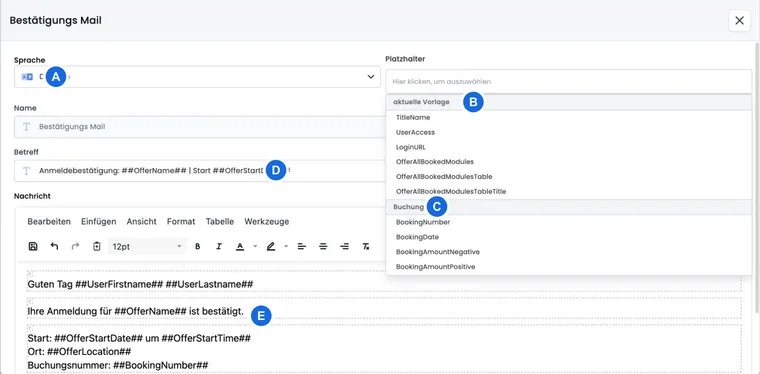
Placeholders connect an email or PDF template to data from the current process. When sending, edoobox replaces, for example, ##UserFirstname##, ##OfferName## or ##InvoiceNumber## with values from the relevant person, booking, invoice or event.
The key rule is: The placeholder selection in the open template is the authoritative list for that context. Not every template has offer, booking, invoice or ticket data. A correctly written placeholder can therefore remain empty in another template.
Insert placeholders safely
Under Settings → Email → Templates, open the exact email or PDF attachment you want to edit.
Select the language first. Placeholders stay the same; maintain the surrounding text separately for each language.
Insert the entry via the placeholder menu. This prevents typos and ensures that you only see the groups intended for this template.
Do not change capitalization, underscores, square brackets, or double hashes.
Generate a preview and additionally run an actual test process. The preview uses demo data and does not fully cover empty or special customer data.
Do not blindly copy between templates: A booking confirmation has different data than an invoice, dunning letter, ICS file, or manual message. Copy complex blocks only if the required placeholders are also available in the target menu.
Common placeholder groups
The V2 editor organizes available values into Current template, Booking, Offer, Participant and Organization. Which groups appear depends on the template.
| Group | Current common placeholders |
|---|---|
| Organization | ##CompanyName##, ##CompanyContactPerson##, ##Shortcuts##, ##Street##, ##ZipCode##, ##ZipCity##, ##CompanyCountry##, ##Phone##, ##WebsiteURL##, ##Femail## |
| Offer | ##OfferName##, ##OfferNumber##, ##OfferURL##, ##OfferURLTagFilter##, ##MinimumMember##, ##MaximumMember##, ##RegisteredMember##, ##OfferStartDate##, ##OfferStartTime##, ##OfferEndDate##, ##OfferEndTime##, ##OfferStartendDate##, ##WeekNumber##, ##Deadline##, ##OfferType##, ##OfferTypes##, ##OfferStatus##, ##Room_first_module##, ##Location_first_module##, ##Teacher_first_module##, ##Teacher_first_module_email##, ##OfferConfirmationText1## to 3, ##LessonBooking##, ##OfferCurrency## |
| Booking | ##BookingNumber##, ##BookingDate##, ##BookingAmountNegative##, ##BookingAmountPositive##, ##UserAccessURL##, ##UserAnnulmentURL##, ##EventReservationJsonLD## |
| Participants | ##Title1##, ##Title2##, ##UserFullName## as well as the standard and custom participant fields visible in the account. |
##Title1## and ##Title2## generate a greeting that matches the saved salutation. For new templates, prefer these salutation placeholders over hardcoded formulations for Ms. or Mr.
Standard fields and custom participant fields
For visible standard fields, edoobox generates, among others, ##UserSalutation##, ##UserFirstname##, ##UserLastname##, ##UserStreet##, ##UserZipcode##, ##UserTown##, ##UserPhone##, ##UserEmail##, ##UserCountry##, ##UserLanguage##, and ##UserCompany##.
Custom participant fields receive the prefix User. Spaces and special characters are removed, not translated. Mitgliedernummer becomes ##UserMitgliedernummer##; ältere Nummer technically becomes ##UserltereNummer## because ä is removed. Always select the placeholder from the menu instead of guessing it from the field name.
Only participant fields that are visible in the account's data structure are included in the selection. An empty value results in an empty spot in the output; for optional fields, use IF to build a suitable alternative.
Booking confirmation, Booking.pdf, ticket, and ICS
| Template | Important template-specific values |
|---|---|
| Confirmation email | TitleName, UserAccess, LoginURL, multiple variants of OfferAllBookedModules, OfferAllBookedOffers with NoPrice and NoOfferNumber, as well as MobileWalletTickets and the individual wallet URLs. |
| Booking.pdf registration | BookingTime, DateNow, BookingPart with attributes such as Gender, DurationDaysHours, DistinctDays, NoPrices, NetAmountAndVATAdded, NoUsers, NoTime, NoWeekDays and NoWeekDay; also the billing address, BookingTemplateType and OfferAllBookedOffers. |
| Booking.pdf waiting list | Largely matches Booking.pdf and additionally includes Watermark; it must not be treated as a ticket or a standard booking confirmation. |
| Ticket.pdf | TicketCode, TicketNumber, TicketNumberTotal, TicketPriceCategory, wallet placeholders and barcode variants such as TicketDataMatrix*120px*P. |
| Date ICS file | DateDescription, PlaceLat, PlaceLong, PlaceName, PlaceAddress, StartDate, EndDate, StartTime, EndTime. |
Write attributes in square brackets inside the double hashes. Several comma-separated attributes can be used, for example ##OfferAllBookedOffers[NoPrice,NoOfferNumber]##. More details on the invoice listing placeholder are available under Edit Rechnung.pdf.
Invoices and payments
Invoice and payment templates have their own placeholders for the document, amount, payment details and booking reference. For the classic Payment reminder email template, use only values actually offered by its placeholder menu.
Do not guess between templates: Placeholders from previous or other templates must not be transferred to the payment reminder without verification. The placeholder menu of the specific template being edited is always decisive.
Waiting list, MustPay and request list
Waiting list inquiry email:
##WaitinglistOfferName##and##BookingURL##.MustPay complete registration:
##UserName##,##UserEmail##,##BookingURL##, and##DeleteURL##.Request list email:
##OfferlistFeedbackURL##,##OfferlistValidityDate##,##OfferlistSecondMailExists##and##OfferlistSecondMailNumber##.Request list reminder and rejection: feedback URL and validity date.
Booking.pdf request list: combines request list values with the appropriate Booking.pdf values and
Watermark.
Cancellation, attendance, and certificate
| Template | Important template-specific values |
|---|---|
| Cancellation requested / Cancellation confirmation | CancellationRules, CancellationFeeAmount, CancellationFeeOpenAmount, CancellationFeeStatus, CancellationRefundAmount, CancellationRefundInfo, CancellationInvoiceInfo, CancellationRequestDate, CancellationRequestReason. |
| Attendance confirmation / Non-attendance notification | VisitingTimesPercent, VisitingTimesHourMinute, OfferTotalTime, DateNow and VisitingTimesNumber0 through 7. |
| Zertifikat.pdf | Additionally CertificateValidationUrl, CertificateValidationQR, CertificateNumber, LeaderSignature and variants of OfferAllBookedOffers. |
Tags, value tags, conditions and loops
Some powerful variables are used manually in conditions or loops and do not appear in every standard placeholder list:
OfferTagscontains the names of the tags linked to the current offer. Use it withINorNOTIN.UserTagscontains the person’s active standard tags from bookings that are not on a waiting list, tags maintained directly on the user profile, and SAML assignments.##Tag[InternerCode]##outputs the stored value of an offer tag with this exact name. Multiple values are output comma-separated.{EACH?BookingUsers}repeats a block for booking participants. Within it,##Id##,##Salutation##,##Firstname##,##Lastname##,##Email##, and##Pricecategory##are available.{EACH?OfferLeaders}repeats a block for instructors. Depending on the required content,##name##,##leaderemail##,##leadername##,##leaderavatar##, and##leaderavatarurl##are available.
Syntax, operators, and ready-to-use examples are found under Customize email templates with IF and EACH. Positive and negative tag conditions of an offer control who is allowed to book; they are not the same as the output of OfferTags or UserTags.
Placeholders in a manual email
A manual message to a selected participant profile can use visible participant fields and salutations. The V2 dialog selects recipients from existing participants, admins or offers; it does not send to arbitrary email addresses typed in freely. A message to an admin profile does not automatically have the same participant fields.
When you select an offer, its associated participants are identified and offer data may become available. This does not automatically provide a specific booking number or invoice data. For those, use the email action in the relevant booking or invoice process. The steps are explained in Send manual emails to profiles and offers.
The practical examples explain Course instructor, signature, and course-dependent additional logo, Subject areas as own offer values, and a Proof of attendance for employers or educational leave. Use the respective explained standard values and self-maintained offer tags for this.
Checklist for changes
Test one case with filled and one with empty optional fields per template.
For multiple languages, generate each language variant separately.
For group bookings, check one and multiple persons as well as different price categories.
For invoices, compare open, partially paid, and canceled status.
For tags, test a matching and a non-matching case; check spelling and tag value exactly.
In Outbox, check subject, recipient, content, and attachments.
Use case: Group booking with persons and rates
A company registers multiple employees. In Booking.pdf, {EACH?BookingUsers} lists name, email, and price category per person. In Rechnung.pdf, ##InvoiceListing[User,PricecategoryDetail]## shows the same assignment for accounting.
Use case: Webinar with tag value
The offer has a standard tag named Format with the value Teams, and a tag named Zugangslink containing a demo URL. The confirmation outputs ##Tag[Format]## and ##Tag[Zugangslink]##. An IF condition displays this block only if OfferTags contains the expected tag.
Use case: Certificate with validation
A provider adds certificate number, validation QR, instructor signature, and attendance percentage in Zertifikat.pdf. Two test persons with sufficient and insufficient attendance show whether the certificate, non-attendance notice, and validation link work correctly together.
Use the reference for your template
The Reference at the end of the page contains all fixed entries of the template catalog as well as the additionally documented loops, tag conditions, and format variants. Search for a name like Membership, Dunning, BookingPart, or TicketBookedSchedule and then select the relevant template. The entries remain readable even without JavaScript.
Account-specific participant fields and self-created templates arise from your configuration. Their complete specific names are shown in your editor. A standard field is only offered if it is visible in the participant data structure. A context in the reference means that the relevant template can use these data; a single message may still contain empty values.
Subscriptions and dunning
The Subscription renewal reminder has its own values for name, validity, remaining uses, renewal start, price, currency, tax, cancellation date, and personal action links. It has participant and organization data, but no general offer or booking context. The guide to the subscription email explains each of the 13 subscription values and optional links.
The Dunning process uses its own templates for payment reminder, dunning, and dunning post (PDF). The Dunning… values include, among others, dunning level, reference, payment due date, open amount, dunning fee, total amount, payment link, and affected bookings. The classic manual payment reminder, however, uses the Account… values of its own template. Select the appropriate process in the reference before you take over content.
Design lists, wallet, and date fields specifically
You will find the detailed variants and combinations for booking blocks, date lists, tickets, wallet, and invoices in Placeholder variants for bookings, tickets, and invoices. Custom date fields can be formatted, for example, with ##UserGeburtsdatum[d.m.Y]##; the prerequisite is a visible participant field of type date. See Format participant date fields.
Instructor contacts can be output with ##Teacher_first_module_email## for the first relevant date or with ##leaderemail## within {EACH?OfferLeaders}. An instructor without an email remains in the list and provides an empty value for the address.
Output tag values with suitable names
For ##Tag[Name]##, the attribute notation supports Latin letters A–Z/a–z, digits, spaces, as well as underscore, colon, slash, period, and hyphen. Use, for example, Zugangslink or Interner_Code for such output tags. An umlaut, a commercial ampersand, or square brackets in the tag name do not fit this notation.
Commas separate multiple tag names: ##Tag[Plattform,Zugangslink]## combines existing values. A comma is therefore not a unique part of a single output tag name. The names in a OfferTags IN condition are a separate list check.
Generate personal promotion code
Open the relevant promotional campaign and copy the entire ##Promotion[…]## placeholder shown in its overview. It contains the identifier of your own campaign. When the placeholder is evaluated, a new active code is generated for that campaign. It is not a placeholder for simply displaying an existing voucher sale.
Use the current notation from your campaign and no invented identifier. A re-evaluation or preview can also generate new codes. Test the process with a dedicated demo campaign. The older notations ##PROMOCODE*…## are compatibility variants and are not needed for new content.
Related guides
Additional texts in multi-offer bookings
For confirmations and certificates with a multi-offer context, ##OfferConfirmationTextMultiOffers1##, ##OfferConfirmationTextMultiOffers2##, and ##OfferConfirmationTextMultiOffers3## additionally exist. They combine the corresponding additional texts of the selected offers. Use these special values only in the appropriate multi-offer process and check a booking with multiple offers. Individual offer information is still output via OfferConfirmationText1 to 3.
Look up placeholders and variants
Reviewed: . 256 entries with syntax, variants and relevant contexts.
No matching entries. Remove a filter or search for the base name without brackets.
##AccountNameLastNegativeTransaction##Current template
Description of the last negative transaction.
Available in: Payment reminder email
Syntax example:
##AccountNameLastNegativeTransaction####AccountPaymentURL##Current template
Payment link in the MustPay context.
Available in: MustPay payment reminder
Syntax example:
##AccountPaymentURL####AccountUserBalance##Current template
Person account balance.
Available in: Payment reminder email
Syntax example:
##AccountUserBalance####AccountUserURL##Current template
Link to the person account.
Available in: Payment reminder email
Syntax example:
##AccountUserURL####ActivationCodeURL##Current template
Link for email activation.
Available in: Email activation
Syntax example:
##ActivationCodeURL####BookingInfoType##Current template
Type of internal booking information.
Available in: Registration info
Syntax example:
##BookingInfoType####BookingPart##Current template
Summary of booking, people, dates and prices. Attributes can be combined.
Available in: Booking.pdf (Registration) · Booking.pdf (Waiting list) · Booking.pdf (Enquiry list)
Variants or fields: Gender, DurationDaysHours, DistinctDays, DurationWeekDays, DurationWeekDayRange, NoPrices, AlwaysShowPriceCategories, NetAmountAndVATAdded, NoUsers, NoTime, NoWeekDays, NoWeekDay
Syntax example:
##BookingPart[Gender,DurationDaysHours]####BookingPart[AlwaysShowPriceCategories]##Current template
Shows price categories even when only the standard category has been booked.
Available in: Booking.pdf (Registration) · Booking.pdf (Waiting list) · Booking.pdf (Enquiry list)
Variants or fields: Gender, DurationDaysHours, DistinctDays, DurationWeekDays, DurationWeekDayRange, NoPrices, AlwaysShowPriceCategories, NetAmountAndVATAdded, NoUsers, NoTime, NoWeekDays, NoWeekDay
Syntax example:
##BookingPart[AlwaysShowPriceCategories]####BookingPart[DistinctDays]##Current template
Counts distinct delivery dates.
Available in: Booking.pdf (Registration) · Booking.pdf (Waiting list) · Booking.pdf (Enquiry list)
Variants or fields: Gender, DurationDaysHours, DistinctDays, DurationWeekDays, DurationWeekDayRange, NoPrices, AlwaysShowPriceCategories, NetAmountAndVATAdded, NoUsers, NoTime, NoWeekDays, NoWeekDay
Syntax example:
##BookingPart[DistinctDays]####BookingPart[DurationDaysHours]##Current template
Shows the duration in days/hours.
Available in: Booking.pdf (Registration) · Booking.pdf (Waiting list) · Booking.pdf (Enquiry list)
Variants or fields: Gender, DurationDaysHours, DistinctDays, DurationWeekDays, DurationWeekDayRange, NoPrices, AlwaysShowPriceCategories, NetAmountAndVATAdded, NoUsers, NoTime, NoWeekDays, NoWeekDay
Syntax example:
##BookingPart[DurationDaysHours]####BookingPart[DurationWeekDayRange]##Current template
Combines consecutive weekdays into a range; otherwise uses a list.
Available in: Booking.pdf (Registration) · Booking.pdf (Waiting list) · Booking.pdf (Enquiry list)
Variants or fields: Gender, DurationDaysHours, DistinctDays, DurationWeekDays, DurationWeekDayRange, NoPrices, AlwaysShowPriceCategories, NetAmountAndVATAdded, NoUsers, NoTime, NoWeekDays, NoWeekDay
Syntax example:
##BookingPart[DurationWeekDayRange]####BookingPart[DurationWeekDays]##Current template
Shows the delivery days as a list of weekdays.
Available in: Booking.pdf (Registration) · Booking.pdf (Waiting list) · Booking.pdf (Enquiry list)
Variants or fields: Gender, DurationDaysHours, DistinctDays, DurationWeekDays, DurationWeekDayRange, NoPrices, AlwaysShowPriceCategories, NetAmountAndVATAdded, NoUsers, NoTime, NoWeekDays, NoWeekDay
Syntax example:
##BookingPart[DurationWeekDays]####BookingPart[Gender]##Current template
Adds the salutation for each person.
Available in: Booking.pdf (Registration) · Booking.pdf (Waiting list) · Booking.pdf (Enquiry list)
Variants or fields: Gender, DurationDaysHours, DistinctDays, DurationWeekDays, DurationWeekDayRange, NoPrices, AlwaysShowPriceCategories, NetAmountAndVATAdded, NoUsers, NoTime, NoWeekDays, NoWeekDay
Syntax example:
##BookingPart[Gender]####BookingPart[NetAmountAndVATAdded]##Current template
Adds the net amount and VAT.
Available in: Booking.pdf (Registration) · Booking.pdf (Waiting list) · Booking.pdf (Enquiry list)
Variants or fields: Gender, DurationDaysHours, DistinctDays, DurationWeekDays, DurationWeekDayRange, NoPrices, AlwaysShowPriceCategories, NetAmountAndVATAdded, NoUsers, NoTime, NoWeekDays, NoWeekDay
Syntax example:
##BookingPart[NetAmountAndVATAdded]####BookingPart[NoPrices]##Current template
Hides prices.
Available in: Booking.pdf (Registration) · Booking.pdf (Waiting list) · Booking.pdf (Enquiry list)
Variants or fields: Gender, DurationDaysHours, DistinctDays, DurationWeekDays, DurationWeekDayRange, NoPrices, AlwaysShowPriceCategories, NetAmountAndVATAdded, NoUsers, NoTime, NoWeekDays, NoWeekDay
Syntax example:
##BookingPart[NoPrices]####BookingPart[NoTime]##Current template
Hides times.
Available in: Booking.pdf (Registration) · Booking.pdf (Waiting list) · Booking.pdf (Enquiry list)
Variants or fields: Gender, DurationDaysHours, DistinctDays, DurationWeekDays, DurationWeekDayRange, NoPrices, AlwaysShowPriceCategories, NetAmountAndVATAdded, NoUsers, NoTime, NoWeekDays, NoWeekDay
Syntax example:
##BookingPart[NoTime]####BookingPart[NoUsers]##Current template
Hides the list of people.
Available in: Booking.pdf (Registration)
Variants or fields: Gender, DurationDaysHours, DistinctDays, DurationWeekDays, DurationWeekDayRange, NoPrices, AlwaysShowPriceCategories, NetAmountAndVATAdded, NoUsers, NoTime, NoWeekDays, NoWeekDay
Syntax example:
##BookingPart[NoUsers]####BookingPart[NoWeekDay]##Current template
Hides weekdays; equivalent to NoWeekDays.
Available in: Booking.pdf (Registration) · Booking.pdf (Waiting list) · Booking.pdf (Enquiry list)
Variants or fields: Gender, DurationDaysHours, DistinctDays, DurationWeekDays, DurationWeekDayRange, NoPrices, AlwaysShowPriceCategories, NetAmountAndVATAdded, NoUsers, NoTime, NoWeekDays, NoWeekDay
Syntax example:
##BookingPart[NoWeekDay]####BookingPart[NoWeekDays]##Current template
Hides weekdays; equivalent to NoWeekDay.
Available in: Booking.pdf (Registration) · Booking.pdf (Waiting list) · Booking.pdf (Enquiry list)
Variants or fields: Gender, DurationDaysHours, DistinctDays, DurationWeekDays, DurationWeekDayRange, NoPrices, AlwaysShowPriceCategories, NetAmountAndVATAdded, NoUsers, NoTime, NoWeekDays, NoWeekDay
Syntax example:
##BookingPart[NoWeekDays]####BookingTemplateType##Current template
Booking document type identifier.
Available in: Booking.pdf (Registration) · Booking.pdf (Waiting list) · Booking.pdf (Enquiry list)
Syntax example:
##BookingTemplateType####BookingTime##Current template
Booking time.
Available in: Booking.pdf (Registration) · Booking.pdf (Waiting list) · Booking.pdf (Enquiry list)
Syntax example:
##BookingTime####BookingURL##Current template
Link to complete the offered booking.
Available in: Waiting list enquiry email · Complete MustPay registration
Syntax example:
##BookingURL####CancellationFeeAmount##Current template
Total cancellation fee.
Available in: Cancellation requested · Cancellation confirmation
Syntax example:
##CancellationFeeAmount####CancellationFeeOpenAmount##Current template
Still-outstanding portion of the cancellation fee.
Available in: Cancellation requested · Cancellation confirmation
Syntax example:
##CancellationFeeOpenAmount####CancellationFeeStatus##Current template
Cancellation fee status.
Available in: Cancellation requested · Cancellation confirmation
Syntax example:
##CancellationFeeStatus####CancellationInvoiceInfo##Current template
Information about the invoice or cancellation invoice.
Available in: Cancellation requested · Cancellation confirmation
Syntax example:
##CancellationInvoiceInfo####CancellationInvoiceNumber##Current template
Cancellation invoice number.
Available in: Stornorechnung.pdf
Syntax example:
##CancellationInvoiceNumber####CancellationRefundAmount##Current template
Intended or determined refund amount.
Available in: Cancellation requested · Cancellation confirmation
Syntax example:
##CancellationRefundAmount####CancellationRefundInfo##Current template
Information about the refund process.
Available in: Cancellation requested · Cancellation confirmation
Syntax example:
##CancellationRefundInfo####CancellationRequestDate##Current template
Cancellation request date.
Available in: Cancellation requested · Cancellation confirmation
Syntax example:
##CancellationRequestDate####CancellationRequestReason##Current template
Cancellation request reason.
Available in: Cancellation requested · Cancellation confirmation
Syntax example:
##CancellationRequestReason####CancellationRules##Current template
Summary of applied cancellation rules.
Available in: Cancellation requested · Cancellation confirmation
Syntax example:
##CancellationRules####CertificateNumber##Current template
Certificate number.
Available in: Zertifikat.pdf · Custom PDF template for participant documents
Syntax example:
##CertificateNumber####CertificateValidationQR##Current template
QR code for certificate verification.
Available in: Zertifikat.pdf · Custom PDF template for participant documents
Syntax example:
##CertificateValidationQR####CertificateValidationUrl##Current template
Link for certificate verification.
Available in: Zertifikat.pdf · Custom PDF template for participant documents
Syntax example:
##CertificateValidationUrl####ContactPhone##Current template
Telephone number from the contact form.
Available in: Contact form
Syntax example:
##ContactPhone####DateDescription##Current template
Description of the individual calendar event.
Available in: Dates ICS file
Syntax example:
##DateDescription####DateNow##Current template
Current document generation date.
Available in: Booking.pdf (Registration) · Rechnung.pdf · Attendance confirmation email · Zertifikat.pdf · Non-attendance notification email · Stornorechnung.pdf · Booking.pdf (Waiting list) · Booking.pdf (Enquiry list) · Custom PDF template for participant documents
Syntax example:
##DateNow####DeleteURL##Current template
Link to delete an incomplete registration.
Available in: Complete MustPay registration
Syntax example:
##DeleteURL####DunningBookings##Current template
Summary of affected bookings.
Available in: Payment reminder (Overdue payment management) · Overdue notice · Postal overdue notice (PDF)
Syntax example:
##DunningBookings####DunningDaysWithoutPayment##Current template
Days without payment in the overdue notice process.
Available in: Payment reminder (Overdue payment management) · Overdue notice · Postal overdue notice (PDF)
Syntax example:
##DunningDaysWithoutPayment####DunningDueDate##Current template
Payment deadline for the overdue notice level.
Available in: Payment reminder (Overdue payment management) · Overdue notice · Postal overdue notice (PDF)
Syntax example:
##DunningDueDate####DunningFeeAmount##Current template
Reminder fee.
Available in: Payment reminder (Overdue payment management) · Overdue notice · Postal overdue notice (PDF)
Syntax example:
##DunningFeeAmount####DunningInvoiceAttached##Current template
Indicator of whether the invoice is attached.
Available in: Payment reminder (Overdue payment management) · Overdue notice · Postal overdue notice (PDF)
Syntax example:
##DunningInvoiceAttached####DunningInvoiceDate##Current template
Associated invoice date.
Available in: Payment reminder (Overdue payment management) · Overdue notice · Postal overdue notice (PDF)
Syntax example:
##DunningInvoiceDate####DunningInvoiceNumber##Current template
Associated invoice number.
Available in: Payment reminder (Overdue payment management) · Overdue notice · Postal overdue notice (PDF)
Syntax example:
##DunningInvoiceNumber####DunningLeadingBookingNumber##Current template
Booking number of the primary booking context.
Available in: Payment reminder (Overdue payment management) · Overdue notice · Postal overdue notice (PDF)
Syntax example:
##DunningLeadingBookingNumber####DunningLevel##Current template
Overdue notice level label.
Available in: Payment reminder (Overdue payment management) · Overdue notice · Postal overdue notice (PDF)
Syntax example:
##DunningLevel####DunningLevelNumber##Current template
Overdue notice level number.
Available in: Payment reminder (Overdue payment management) · Overdue notice · Postal overdue notice (PDF)
Syntax example:
##DunningLevelNumber####DunningName##Current template
Overdue notice or payment reminder label.
Available in: Payment reminder (Overdue payment management) · Overdue notice · Postal overdue notice (PDF)
Syntax example:
##DunningName####DunningOpenAmount##Current template
Outstanding amount before reminder fee.
Available in: Payment reminder (Overdue payment management) · Overdue notice · Postal overdue notice (PDF)
Syntax example:
##DunningOpenAmount####DunningPaymentURL##Current template
Overdue notice payment link.
Available in: Payment reminder (Overdue payment management) · Overdue notice · Postal overdue notice (PDF)
Syntax example:
##DunningPaymentURL####DunningReference##Current template
Overdue notice process reference.
Available in: Payment reminder (Overdue payment management) · Overdue notice · Postal overdue notice (PDF)
Syntax example:
##DunningReference####DunningRuleName##Current template
Name of the applied overdue notice rule.
Available in: Payment reminder (Overdue payment management) · Overdue notice · Postal overdue notice (PDF)
Syntax example:
##DunningRuleName####DunningSentDate##Current template
Overdue notice issue date.
Available in: Payment reminder (Overdue payment management) · Overdue notice · Postal overdue notice (PDF)
Syntax example:
##DunningSentDate####DunningTotalAmount##Current template
Total amount including reminder fee.
Available in: Payment reminder (Overdue payment management) · Overdue notice · Postal overdue notice (PDF)
Syntax example:
##DunningTotalAmount####DunningType##Current template
Type of overdue notice process.
Available in: Payment reminder (Overdue payment management) · Overdue notice · Postal overdue notice (PDF)
Syntax example:
##DunningType####EndDate##Current template
End date of the individual calendar event.
Available in: Dates ICS file
Syntax example:
##EndDate####EndTime##Current template
End time of the individual calendar event.
Available in: Dates ICS file
Syntax example:
##EndTime####InvoiceAddressCity##Current template
Billing address postcode and town/city.
Available in: Booking.pdf (Registration) · Rechnung.pdf · Invoice email · Stornorechnung.pdf · Booking.pdf (Waiting list) · Booking.pdf (Enquiry list)
Syntax example:
##InvoiceAddressCity####InvoiceAddressCompany##Current template
Billing address company.
Available in: Booking.pdf (Registration) · Rechnung.pdf · Invoice email · Stornorechnung.pdf · Booking.pdf (Waiting list) · Booking.pdf (Enquiry list)
Syntax example:
##InvoiceAddressCompany####InvoiceAddressCountry##Current template
Billing address country.
Available in: Booking.pdf (Registration) · Rechnung.pdf · Invoice email · Stornorechnung.pdf · Booking.pdf (Waiting list) · Booking.pdf (Enquiry list)
Syntax example:
##InvoiceAddressCountry####InvoiceAddressEmail##Current template
Billing address email.
Available in: Booking.pdf (Registration) · Rechnung.pdf · Invoice email · Stornorechnung.pdf · Booking.pdf (Waiting list) · Booking.pdf (Enquiry list)
Syntax example:
##InvoiceAddressEmail####InvoiceAddressName##Current template
Billing address name.
Available in: Booking.pdf (Registration) · Rechnung.pdf · Invoice email · Stornorechnung.pdf · Booking.pdf (Waiting list) · Booking.pdf (Enquiry list)
Syntax example:
##InvoiceAddressName####InvoiceAddressStreet##Current template
Billing address street.
Available in: Booking.pdf (Registration) · Rechnung.pdf · Invoice email · Stornorechnung.pdf · Booking.pdf (Waiting list) · Booking.pdf (Enquiry list)
Syntax example:
##InvoiceAddressStreet####InvoiceAddressVAT##Current template
Billing address VAT number.
Available in: Booking.pdf (Registration) · Rechnung.pdf · Invoice email · Stornorechnung.pdf · Booking.pdf (Waiting list) · Booking.pdf (Enquiry list)
Syntax example:
##InvoiceAddressVAT####InvoiceBeneficiary##Current template
Payment recipient.
Available in: Rechnung.pdf · Stornorechnung.pdf
Syntax example:
##InvoiceBeneficiary####InvoiceBIC##Current template
BIC from invoice details.
Available in: Rechnung.pdf · Stornorechnung.pdf
Syntax example:
##InvoiceBIC####InvoiceDate##Current template
Invoice date.
Available in: Rechnung.pdf · Stornorechnung.pdf
Syntax example:
##InvoiceDate####InvoiceIBAN##Current template
IBAN from invoice details.
Available in: Rechnung.pdf · Stornorechnung.pdf
Syntax example:
##InvoiceIBAN####InvoiceIsReverseCharge##Current template
Indicator for a reverse charge invoice.
Available in: Rechnung.pdf · Stornorechnung.pdf
Syntax example:
##InvoiceIsReverseCharge####InvoiceListing##Current template
Invoice items with amounts, taxes, payments and balance. Attributes can be combined.
Available in: Rechnung.pdf · Stornorechnung.pdf
Variants or fields: NoDate, User, Pricecategory, PricecategoryDetail, TextInvoiceBalance, TaxLabelShort
Syntax example:
##InvoiceListing[NoDate,User]####InvoiceListing[NoDate]##Current template
Hides additional appointment/offer details.
Available in: Rechnung.pdf · Stornorechnung.pdf
Variants or fields: NoDate, User, Pricecategory, PricecategoryDetail, TextInvoiceBalance, TaxLabelShort
Syntax example:
##InvoiceListing[NoDate]####InvoiceListing[Pricecategory]##Current template
Adds price categories.
Available in: Rechnung.pdf · Stornorechnung.pdf
Variants or fields: NoDate, User, Pricecategory, PricecategoryDetail, TextInvoiceBalance, TaxLabelShort
Syntax example:
##InvoiceListing[Pricecategory]####InvoiceListing[PricecategoryDetail]##Current template
Adds offer names for additional price categories.
Available in: Rechnung.pdf · Stornorechnung.pdf
Variants or fields: NoDate, User, Pricecategory, PricecategoryDetail, TextInvoiceBalance, TaxLabelShort
Syntax example:
##InvoiceListing[PricecategoryDetail]####InvoiceListing[TaxLabelShort]##Current template
Uses the short tax description.
Available in: Rechnung.pdf · Stornorechnung.pdf
Variants or fields: NoDate, User, Pricecategory, PricecategoryDetail, TextInvoiceBalance, TaxLabelShort
Syntax example:
##InvoiceListing[TaxLabelShort]####InvoiceListing[TextInvoiceBalance]##Current template
Distinguishes the labels for invoice amount and invoice balance more clearly.
Available in: Rechnung.pdf · Stornorechnung.pdf
Variants or fields: NoDate, User, Pricecategory, PricecategoryDetail, TextInvoiceBalance, TaxLabelShort
Syntax example:
##InvoiceListing[TextInvoiceBalance]####InvoiceListing[User]##Current template
Adds the names of assigned participants.
Available in: Rechnung.pdf · Stornorechnung.pdf
Variants or fields: NoDate, User, Pricecategory, PricecategoryDetail, TextInvoiceBalance, TaxLabelShort
Syntax example:
##InvoiceListing[User]####InvoiceNumber##Current template
Invoice number.
Available in: Rechnung.pdf · Invoice email · Stornorechnung.pdf
Syntax example:
##InvoiceNumber####InvoicePayableDate##Current template
Payment deadline date.
Available in: Rechnung.pdf
Syntax example:
##InvoicePayableDate####InvoicePayableDays##Current template
Number of days until the payment deadline.
Available in: Rechnung.pdf
Syntax example:
##InvoicePayableDays####InvoicePayURL##Current template
Link for paying the invoice.
Available in: Rechnung.pdf · Invoice email · Stornorechnung.pdf
Syntax example:
##InvoicePayURL####LeaderSignature##Current template
Signature of the assigned instructor(s).
Available in: Zertifikat.pdf · Custom PDF template for participant documents
Syntax example:
##LeaderSignature####LoginURL##Current template
Login link from confirmation context.
Available in: Confirmation email · Waiting list confirmation email
Syntax example:
##LoginURL####Mail##Current template
Email address in contact or password context.
Available in: Contact form · Forgot password
Syntax example:
##Mail####MembershipCancelEffectiveDate##Current template
Date on which cancellation takes effect.
Available in: Subscription renewal reminder
Syntax example:
##MembershipCancelEffectiveDate####MembershipCancelUrl##Current template
Personal cancellation link; show only if populated.
Available in: Subscription renewal reminder
Syntax example:
##MembershipCancelUrl####MembershipInvoiceUrl##Current template
Personal invoice link if an invoice exists for the subsequent period; may be empty.
Available in: Subscription renewal reminder
Syntax example:
##MembershipInvoiceUrl####MembershipName##Current template
Subscription name in the renewal period.
Available in: Subscription renewal reminder
Syntax example:
##MembershipName####MembershipPaymentUrl##Current template
Personal payment link for a still-outstanding or failed subsequent period; may be empty.
Available in: Subscription renewal reminder
Syntax example:
##MembershipPaymentUrl####MembershipRemainingUses##Current template
Remaining usage allocation; empty for unlimited usage.
Available in: Subscription renewal reminder
Syntax example:
##MembershipRemainingUses####MembershipRenewalCurrency##Current template
Subsequent period currency, such as CHF.
Available in: Subscription renewal reminder
Syntax example:
##MembershipRenewalCurrency####MembershipRenewalDate##Current template
Start of the next period.
Available in: Subscription renewal reminder
Syntax example:
##MembershipRenewalDate####MembershipRenewalPrice##Current template
Gross amount of the next period with two decimal places.
Available in: Subscription renewal reminder
Syntax example:
##MembershipRenewalPrice####MembershipRenewalVat##Current template
Subsequent period tax rate as a numeric value; check output in actual sending.
Available in: Subscription renewal reminder
Syntax example:
##MembershipRenewalVat####MembershipStatus##Current template
Personal subscription status; preview may use a representation different from actual status.
Available in: Subscription renewal reminder
Syntax example:
##MembershipStatus####MembershipValidFrom##Current template
Start of the personal subscription.
Available in: Subscription renewal reminder
Syntax example:
##MembershipValidFrom####MembershipValidUntil##Current template
Current end of the personal subscription.
Available in: Subscription renewal reminder
Syntax example:
##MembershipValidUntil####Message##Current template
Message from the contact form.
Available in: Contact form
Syntax example:
##Message####MinimumMaximum##Current template
Label of the reached minimum or maximum limit.
Available in: Information notice
Syntax example:
##MinimumMaximum####MobileWalletAndroidURL##Current template
Link to available Android Wallet output.
Available in: Confirmation email · Ticket.pdf
Syntax example:
##MobileWalletAndroidURL####MobileWalletAppleURL##Current template
Link to available Apple Wallet output.
Available in: Confirmation email · Ticket.pdf
Syntax example:
##MobileWalletAppleURL####MobileWalletGoogleURL##Current template
Link to available Google Wallet output.
Available in: Confirmation email · Ticket.pdf
Syntax example:
##MobileWalletGoogleURL####MobileWalletSamsungURL##Current template
Link to available Samsung Wallet output.
Available in: Confirmation email · Ticket.pdf
Syntax example:
##MobileWalletSamsungURL####MobileWalletTickets##Current template
Output of available Mobile Wallet tickets.
Available in: Confirmation email · Ticket.pdf
Syntax example:
##MobileWalletTickets####MobileWalletTicketURL##Current template
General link to the Mobile Wallet ticket.
Available in: Confirmation email · Ticket.pdf
Syntax example:
##MobileWalletTicketURL####MustPayAmount##Current template
Amount still payable in the MustPay context.
Available in: MustPay payment reminder
Syntax example:
##MustPayAmount####OfferAllBookedModules##Current template
List of booked dates.
Available in: Reminder email · Confirmation email
Syntax example:
##OfferAllBookedModules####OfferAllBookedModulesDate##Current template
Booked dates as a date overview.
Available in: Reminder email
Syntax example:
##OfferAllBookedModulesDate####OfferAllBookedModulesTable##Current template
Booked dates as a table.
Available in: Reminder email · Confirmation email
Syntax example:
##OfferAllBookedModulesTable####OfferAllBookedModulesTableTitle##Current template
Date table with title.
Available in: Reminder email · Confirmation email
Syntax example:
##OfferAllBookedModulesTableTitle####OfferAllBookedModulesTableTitle2##Current template
Another title variant of the date table.
Available in: Reminder email
Syntax example:
##OfferAllBookedModulesTableTitle2####OfferAllBookedOffers##Current template
Overview of offers booked in the booking context.
Available in: Confirmation email · Booking.pdf (Registration) · Zertifikat.pdf · Custom PDF template for participant documents
Variants or fields: NoPrice, NoOfferNumber
Syntax example:
##OfferAllBookedOffers[NoPrice,NoOfferNumber]####OfferAllBookedOffers[NoOfferNumber]##Current template
Hides offer numbers.
Available in: Confirmation email · Booking.pdf (Registration) · Zertifikat.pdf · Custom PDF template for participant documents
Variants or fields: NoPrice, NoOfferNumber
Syntax example:
##OfferAllBookedOffers[NoOfferNumber]####OfferAllBookedOffers[NoPrice,NoOfferNumber]##Current template
Hides prices. Hides offer numbers.
Available in: Confirmation email · Booking.pdf (Registration) · Zertifikat.pdf · Custom PDF template for participant documents
Variants or fields: NoPrice, NoOfferNumber
Syntax example:
##OfferAllBookedOffers[NoPrice,NoOfferNumber]####OfferAllBookedOffers[NoPrice]##Current template
Hides prices.
Available in: Confirmation email · Booking.pdf (Registration) · Zertifikat.pdf · Custom PDF template for participant documents
Variants or fields: NoPrice, NoOfferNumber
Syntax example:
##OfferAllBookedOffers[NoPrice]####OfferlistFeedbackURL##Current template
Personal link to decide on an enquiry.
Available in: Enquiry list email · Enquiry list reminder email · Booking.pdf (Enquiry list) · Enquiry list rejection email · Admin rejected the enquiry · Decision deadline expired
Syntax example:
##OfferlistFeedbackURL####OfferlistSecondMailExists##Current template
Indicator of whether a second enquiry address exists.
Available in: Enquiry list email · Booking.pdf (Enquiry list)
Syntax example:
##OfferlistSecondMailExists####OfferlistSecondMailNumber##Current template
Information about the second enquiry address in enquiry context.
Available in: Enquiry list email · Booking.pdf (Enquiry list)
Syntax example:
##OfferlistSecondMailNumber####OfferlistValidityDate##Current template
End of the decision period.
Available in: Enquiry list email · Enquiry list reminder email · Booking.pdf (Enquiry list) · Enquiry list rejection email · Admin rejected the enquiry · Decision deadline expired
Syntax example:
##OfferlistValidityDate####OfferTotalTime##Current template
Total offer duration.
Available in: Attendance confirmation email · Zertifikat.pdf · Non-attendance notification email · Custom PDF template for participant documents
Syntax example:
##OfferTotalTime####PlaceAddress##Current template
Venue address.
Available in: Dates ICS file
Syntax example:
##PlaceAddress####PlaceLat##Current template
Venue latitude.
Available in: Dates ICS file
Syntax example:
##PlaceLat####PlaceLong##Current template
Venue longitude.
Available in: Dates ICS file
Syntax example:
##PlaceLong####PlaceName##Current template
Venue name. In venue notifications, outside the Dates loop this value represents the rule’s venue.
Available in: Dates ICS file · Venue-related notification
Syntax example:
##PlaceName####PromoCode##Current template
Sold voucher code.
Available in: Voucher sales
Syntax example:
##PromoCode####PromoExpiry##Current template
Sold voucher expiry date.
Available in: Voucher sales
Syntax example:
##PromoExpiry####PromoName##Current template
Sold voucher name.
Available in: Voucher sales
Syntax example:
##PromoName####PromoValue##Current template
Sold voucher value.
Available in: Voucher sales
Syntax example:
##PromoValue####StartDate##Current template
Start date of the individual calendar event.
Available in: Dates ICS file
Syntax example:
##StartDate####StartTime##Current template
Start time of the individual calendar event.
Available in: Dates ICS file
Syntax example:
##StartTime####Subject##Current template
Subject from the contact form.
Available in: Contact form
Syntax example:
##Subject####TicketBookedSchedule##Current template
Display of actually booked dates; attributes change details and grouping.
Available in: Booking.pdf (Registration) · Ticket.pdf · Booking.pdf (Waiting list) · Booking.pdf (Enquiry list)
Variants or fields: ShortDate, EndTime, NoDate, NoTime, NoName, NoLocation, NoRoom, NoTimeLabel, NoGrouping
Syntax example:
##TicketBookedSchedule[ShortDate,EndTime]####TicketBookedSchedule[EndTime]##Current template
Also shows the end time.
Available in: Booking.pdf (Registration) · Ticket.pdf · Booking.pdf (Waiting list) · Booking.pdf (Enquiry list)
Variants or fields: ShortDate, EndTime, NoDate, NoTime, NoName, NoLocation, NoRoom, NoTimeLabel, NoGrouping
Syntax example:
##TicketBookedSchedule[EndTime]####TicketBookedSchedule[NoDate]##Current template
Hides the date.
Available in: Booking.pdf (Registration) · Ticket.pdf · Booking.pdf (Waiting list) · Booking.pdf (Enquiry list)
Variants or fields: ShortDate, EndTime, NoDate, NoTime, NoName, NoLocation, NoRoom, NoTimeLabel, NoGrouping
Syntax example:
##TicketBookedSchedule[NoDate]####TicketBookedSchedule[NoGrouping]##Current template
Outputs appointments without the usual grouping.
Available in: Booking.pdf (Registration) · Ticket.pdf · Booking.pdf (Waiting list) · Booking.pdf (Enquiry list)
Variants or fields: ShortDate, EndTime, NoDate, NoTime, NoName, NoLocation, NoRoom, NoTimeLabel, NoGrouping
Syntax example:
##TicketBookedSchedule[NoGrouping]####TicketBookedSchedule[NoLocation]##Current template
Hides the venue.
Available in: Booking.pdf (Registration) · Ticket.pdf · Booking.pdf (Waiting list) · Booking.pdf (Enquiry list)
Variants or fields: ShortDate, EndTime, NoDate, NoTime, NoName, NoLocation, NoRoom, NoTimeLabel, NoGrouping
Syntax example:
##TicketBookedSchedule[NoLocation]####TicketBookedSchedule[NoName]##Current template
Hides the appointment description.
Available in: Booking.pdf (Registration) · Ticket.pdf · Booking.pdf (Waiting list) · Booking.pdf (Enquiry list)
Variants or fields: ShortDate, EndTime, NoDate, NoTime, NoName, NoLocation, NoRoom, NoTimeLabel, NoGrouping
Syntax example:
##TicketBookedSchedule[NoName]####TicketBookedSchedule[NoRoom]##Current template
Hides the room.
Available in: Booking.pdf (Registration) · Ticket.pdf · Booking.pdf (Waiting list) · Booking.pdf (Enquiry list)
Variants or fields: ShortDate, EndTime, NoDate, NoTime, NoName, NoLocation, NoRoom, NoTimeLabel, NoGrouping
Syntax example:
##TicketBookedSchedule[NoRoom]####TicketBookedSchedule[NoTime]##Current template
Hides times.
Available in: Booking.pdf (Registration) · Ticket.pdf · Booking.pdf (Waiting list) · Booking.pdf (Enquiry list)
Variants or fields: ShortDate, EndTime, NoDate, NoTime, NoName, NoLocation, NoRoom, NoTimeLabel, NoGrouping
Syntax example:
##TicketBookedSchedule[NoTime]####TicketBookedSchedule[NoTimeLabel]##Current template
Hides the time label.
Available in: Booking.pdf (Registration) · Ticket.pdf · Booking.pdf (Waiting list) · Booking.pdf (Enquiry list)
Variants or fields: ShortDate, EndTime, NoDate, NoTime, NoName, NoLocation, NoRoom, NoTimeLabel, NoGrouping
Syntax example:
##TicketBookedSchedule[NoTimeLabel]####TicketBookedSchedule[ShortDate]##Current template
Uses a short date.
Available in: Booking.pdf (Registration) · Ticket.pdf · Booking.pdf (Waiting list) · Booking.pdf (Enquiry list)
Variants or fields: ShortDate, EndTime, NoDate, NoTime, NoName, NoLocation, NoRoom, NoTimeLabel, NoGrouping
Syntax example:
##TicketBookedSchedule[ShortDate]####TicketCode##Current template
Ticket code.
Available in: Ticket.pdf
Syntax example:
##TicketCode####TicketDataMatrix*100px*L##Current template
Ticket code as an image: width 100px, landscape.
Available in: Ticket.pdf
Syntax example:
##TicketDataMatrix*100px*L####TicketDataMatrix*120px*P##Current template
Ticket code as an image: width 120px, portrait.
Available in: Ticket.pdf
Syntax example:
##TicketDataMatrix*120px*P####TicketDataMatrix*50px*L##Current template
Ticket code as an image: width 50px, landscape.
Available in: Ticket.pdf
Syntax example:
##TicketDataMatrix*50px*L####TicketDataMatrix*80px*P##Current template
Ticket code as an image: width 80px, portrait.
Available in: Ticket.pdf
Syntax example:
##TicketDataMatrix*80px*P####TicketNumber##Current template
Sequential ticket number.
Available in: Ticket.pdf
Syntax example:
##TicketNumber####TicketNumberTotal##Current template
Total ticket count in context.
Available in: Ticket.pdf
Syntax example:
##TicketNumberTotal####TicketPriceCategory##Current template
Ticket price category.
Available in: Ticket.pdf
Syntax example:
##TicketPriceCategory####Title##Current template
Salutation in the relevant system context.
Available in: Reminder email · Contact form · Forgot password
Syntax example:
##Title####TitleName##Current template
Salutation and name in the relevant system context.
Available in: Email activation · Confirmation email · Waiting list confirmation email
Syntax example:
##TitleName####TransactionsList##Current template
List of transactions in payment or invoice context.
Available in: Payment confirmation · Invoice email
Syntax example:
##TransactionsList####TransactionsPaymentSystem##Current template
Payment system used.
Available in: Payment confirmation
Syntax example:
##TransactionsPaymentSystem####TransactionsTotal##Current template
Total amount of confirmed transactions.
Available in: Payment confirmation
Syntax example:
##TransactionsTotal####UnsubscribeReason##Current template
Participant cancellation reason.
Available in: Participant cancellation
Syntax example:
##UnsubscribeReason####UnsubscribeStatus##Current template
Participant cancellation status.
Available in: Participant cancellation
Syntax example:
##UnsubscribeStatus####URLPasswordChange##Current template
Personal password change link.
Available in: Forgot password
Syntax example:
##URLPasswordChange####UserAccess##Current template
Composite access block of the confirmation.
Available in: Confirmation email · Waiting list confirmation email
Syntax example:
##UserAccess####UserName##Current template
Person name in the relevant system context.
Available in: Registration info · Complete MustPay registration
Syntax example:
##UserName####VisitingTimesHourMinute##Current template
Attendance duration in hours and minutes.
Available in: Attendance confirmation email · Zertifikat.pdf · Non-attendance notification email · Custom PDF template for participant documents
Syntax example:
##VisitingTimesHourMinute####VisitingTimesNumber0##Current template
Number of attendance values with attendance status 0 as defined in the account.
Available in: Attendance confirmation email · Zertifikat.pdf · Non-attendance notification email · Custom PDF template for participant documents
Syntax example:
##VisitingTimesNumber0####VisitingTimesNumber1##Current template
Number of attendance values with attendance status 1 as defined in the account.
Available in: Attendance confirmation email · Zertifikat.pdf · Non-attendance notification email · Custom PDF template for participant documents
Syntax example:
##VisitingTimesNumber1####VisitingTimesNumber2##Current template
Number of attendance values with attendance status 2 as defined in the account.
Available in: Attendance confirmation email · Zertifikat.pdf · Non-attendance notification email · Custom PDF template for participant documents
Syntax example:
##VisitingTimesNumber2####VisitingTimesNumber3##Current template
Number of attendance values with attendance status 3 as defined in the account.
Available in: Attendance confirmation email · Zertifikat.pdf · Non-attendance notification email · Custom PDF template for participant documents
Syntax example:
##VisitingTimesNumber3####VisitingTimesNumber4##Current template
Number of attendance values with attendance status 4 as defined in the account.
Available in: Attendance confirmation email · Zertifikat.pdf · Non-attendance notification email · Custom PDF template for participant documents
Syntax example:
##VisitingTimesNumber4####VisitingTimesNumber5##Current template
Number of attendance values with attendance status 5 as defined in the account.
Available in: Attendance confirmation email · Zertifikat.pdf · Non-attendance notification email · Custom PDF template for participant documents
Syntax example:
##VisitingTimesNumber5####VisitingTimesNumber6##Current template
Number of attendance values with attendance status 6 as defined in the account.
Available in: Attendance confirmation email · Zertifikat.pdf · Non-attendance notification email · Custom PDF template for participant documents
Syntax example:
##VisitingTimesNumber6####VisitingTimesNumber7##Current template
Number of attendance values with attendance status 7 as defined in the account.
Available in: Attendance confirmation email · Zertifikat.pdf · Non-attendance notification email · Custom PDF template for participant documents
Syntax example:
##VisitingTimesNumber7####VisitingTimesPercent##Current template
Calculated attendance percentage.
Available in: Attendance confirmation email · Zertifikat.pdf · Non-attendance notification email · Custom PDF template for participant documents
Syntax example:
##VisitingTimesPercent####WaitinglistOfferName##Current template
Offer name in the waiting list enquiry.
Available in: Waiting list enquiry email
Syntax example:
##WaitinglistOfferName####Watermark##Current template
Watermark for waiting list or enquiry list documents.
Available in: Booking.pdf (Waiting list) · Booking.pdf (Enquiry list)
Syntax example:
##Watermark####Deadline##Offer
Registration deadline.
Available in: Email activation · Information notice · Go-ahead email · Cancellation email · Reminder email · Confirmation email · Registration info · Booking.pdf (Registration) · Waiting list confirmation email · Waiting list enquiry email · Complete MustPay registration · MustPay payment reminder · Rechnung.pdf · Participant cancellation · Ticket.pdf · Attendance confirmation email · Zertifikat.pdf · Non-attendance notification email · Stornorechnung.pdf · Booking.pdf (Waiting list) · Enquiry list email · Enquiry list reminder email · Booking.pdf (Enquiry list) · Dates ICS file · Enquiry list rejection email · Admin rejected the enquiry · Decision deadline expired · Cancellation requested · Cancellation confirmation · Payment reminder (Overdue payment management) · Overdue notice · Postal overdue notice (PDF) · Custom email template · Custom PDF template for participant documents
Syntax example:
##Deadline####LessonBooking##Offer
Information about the bookable lesson or lesson booking.
Available in: Email activation · Information notice · Go-ahead email · Cancellation email · Reminder email · Confirmation email · Registration info · Booking.pdf (Registration) · Waiting list confirmation email · Waiting list enquiry email · Complete MustPay registration · MustPay payment reminder · Rechnung.pdf · Participant cancellation · Ticket.pdf · Attendance confirmation email · Zertifikat.pdf · Non-attendance notification email · Stornorechnung.pdf · Booking.pdf (Waiting list) · Enquiry list email · Enquiry list reminder email · Booking.pdf (Enquiry list) · Dates ICS file · Enquiry list rejection email · Admin rejected the enquiry · Decision deadline expired · Cancellation requested · Cancellation confirmation · Payment reminder (Overdue payment management) · Overdue notice · Postal overdue notice (PDF) · Custom email template · Custom PDF template for participant documents
Syntax example:
##LessonBooking####Location_first_module##Offer
Location of the first date.
Available in: Email activation · Information notice · Go-ahead email · Cancellation email · Reminder email · Confirmation email · Registration info · Booking.pdf (Registration) · Waiting list confirmation email · Waiting list enquiry email · Complete MustPay registration · MustPay payment reminder · Rechnung.pdf · Participant cancellation · Ticket.pdf · Attendance confirmation email · Zertifikat.pdf · Non-attendance notification email · Stornorechnung.pdf · Booking.pdf (Waiting list) · Enquiry list email · Enquiry list reminder email · Booking.pdf (Enquiry list) · Dates ICS file · Enquiry list rejection email · Admin rejected the enquiry · Decision deadline expired · Cancellation requested · Cancellation confirmation · Payment reminder (Overdue payment management) · Overdue notice · Postal overdue notice (PDF) · Custom email template · Custom PDF template for participant documents
Syntax example:
##Location_first_module####MaximumMember##Offer
Maximum participant count.
Available in: Email activation · Information notice · Go-ahead email · Cancellation email · Reminder email · Confirmation email · Registration info · Booking.pdf (Registration) · Waiting list confirmation email · Waiting list enquiry email · Complete MustPay registration · MustPay payment reminder · Rechnung.pdf · Participant cancellation · Ticket.pdf · Attendance confirmation email · Zertifikat.pdf · Non-attendance notification email · Stornorechnung.pdf · Booking.pdf (Waiting list) · Enquiry list email · Enquiry list reminder email · Booking.pdf (Enquiry list) · Dates ICS file · Enquiry list rejection email · Admin rejected the enquiry · Decision deadline expired · Cancellation requested · Cancellation confirmation · Payment reminder (Overdue payment management) · Overdue notice · Postal overdue notice (PDF) · Custom email template · Custom PDF template for participant documents
Syntax example:
##MaximumMember####MinimumMember##Offer
Minimum participant count.
Available in: Email activation · Information notice · Go-ahead email · Cancellation email · Reminder email · Confirmation email · Registration info · Booking.pdf (Registration) · Waiting list confirmation email · Waiting list enquiry email · Complete MustPay registration · MustPay payment reminder · Rechnung.pdf · Participant cancellation · Ticket.pdf · Attendance confirmation email · Zertifikat.pdf · Non-attendance notification email · Stornorechnung.pdf · Booking.pdf (Waiting list) · Enquiry list email · Enquiry list reminder email · Booking.pdf (Enquiry list) · Dates ICS file · Enquiry list rejection email · Admin rejected the enquiry · Decision deadline expired · Cancellation requested · Cancellation confirmation · Payment reminder (Overdue payment management) · Overdue notice · Postal overdue notice (PDF) · Custom email template · Custom PDF template for participant documents
Syntax example:
##MinimumMember####OfferConfirmationText1##Offer
Offer-specific additional text 1.
Available in: Email activation · Information notice · Go-ahead email · Cancellation email · Reminder email · Confirmation email · Registration info · Booking.pdf (Registration) · Waiting list confirmation email · Waiting list enquiry email · Complete MustPay registration · MustPay payment reminder · Rechnung.pdf · Participant cancellation · Ticket.pdf · Attendance confirmation email · Zertifikat.pdf · Non-attendance notification email · Stornorechnung.pdf · Booking.pdf (Waiting list) · Enquiry list email · Enquiry list reminder email · Booking.pdf (Enquiry list) · Dates ICS file · Enquiry list rejection email · Admin rejected the enquiry · Decision deadline expired · Cancellation requested · Cancellation confirmation · Payment reminder (Overdue payment management) · Overdue notice · Postal overdue notice (PDF) · Custom email template · Custom PDF template for participant documents
Syntax example:
##OfferConfirmationText1####OfferConfirmationText2##Offer
Offer-specific additional text 2.
Available in: Email activation · Information notice · Go-ahead email · Cancellation email · Reminder email · Confirmation email · Registration info · Booking.pdf (Registration) · Waiting list confirmation email · Waiting list enquiry email · Complete MustPay registration · MustPay payment reminder · Rechnung.pdf · Participant cancellation · Ticket.pdf · Attendance confirmation email · Zertifikat.pdf · Non-attendance notification email · Stornorechnung.pdf · Booking.pdf (Waiting list) · Enquiry list email · Enquiry list reminder email · Booking.pdf (Enquiry list) · Dates ICS file · Enquiry list rejection email · Admin rejected the enquiry · Decision deadline expired · Cancellation requested · Cancellation confirmation · Payment reminder (Overdue payment management) · Overdue notice · Postal overdue notice (PDF) · Custom email template · Custom PDF template for participant documents
Syntax example:
##OfferConfirmationText2####OfferConfirmationText3##Offer
Offer-specific additional text 3.
Available in: Email activation · Information notice · Go-ahead email · Cancellation email · Reminder email · Confirmation email · Registration info · Booking.pdf (Registration) · Waiting list confirmation email · Waiting list enquiry email · Complete MustPay registration · MustPay payment reminder · Rechnung.pdf · Participant cancellation · Ticket.pdf · Attendance confirmation email · Zertifikat.pdf · Non-attendance notification email · Stornorechnung.pdf · Booking.pdf (Waiting list) · Enquiry list email · Enquiry list reminder email · Booking.pdf (Enquiry list) · Dates ICS file · Enquiry list rejection email · Admin rejected the enquiry · Decision deadline expired · Cancellation requested · Cancellation confirmation · Payment reminder (Overdue payment management) · Overdue notice · Postal overdue notice (PDF) · Custom email template · Custom PDF template for participant documents
Syntax example:
##OfferConfirmationText3####OfferCurrency##Offer
Offer currency.
Available in: Email activation · Information notice · Go-ahead email · Cancellation email · Reminder email · Confirmation email · Registration info · Booking.pdf (Registration) · Waiting list confirmation email · Waiting list enquiry email · Complete MustPay registration · MustPay payment reminder · Rechnung.pdf · Participant cancellation · Ticket.pdf · Attendance confirmation email · Zertifikat.pdf · Non-attendance notification email · Stornorechnung.pdf · Booking.pdf (Waiting list) · Enquiry list email · Enquiry list reminder email · Booking.pdf (Enquiry list) · Dates ICS file · Enquiry list rejection email · Admin rejected the enquiry · Decision deadline expired · Cancellation requested · Cancellation confirmation · Payment reminder (Overdue payment management) · Overdue notice · Postal overdue notice (PDF) · Custom email template · Custom PDF template for participant documents
Syntax example:
##OfferCurrency####OfferEndDate##Offer
Formatted offer end date.
Available in: Email activation · Information notice · Go-ahead email · Cancellation email · Reminder email · Confirmation email · Registration info · Booking.pdf (Registration) · Waiting list confirmation email · Waiting list enquiry email · Complete MustPay registration · MustPay payment reminder · Rechnung.pdf · Participant cancellation · Ticket.pdf · Attendance confirmation email · Zertifikat.pdf · Non-attendance notification email · Stornorechnung.pdf · Booking.pdf (Waiting list) · Enquiry list email · Enquiry list reminder email · Booking.pdf (Enquiry list) · Dates ICS file · Enquiry list rejection email · Admin rejected the enquiry · Decision deadline expired · Cancellation requested · Cancellation confirmation · Payment reminder (Overdue payment management) · Overdue notice · Postal overdue notice (PDF) · Custom email template · Custom PDF template for participant documents
Syntax example:
##OfferEndDate####OfferEndTime##Offer
Formatted offer end time.
Available in: Email activation · Information notice · Go-ahead email · Cancellation email · Reminder email · Confirmation email · Registration info · Booking.pdf (Registration) · Waiting list confirmation email · Waiting list enquiry email · Complete MustPay registration · MustPay payment reminder · Rechnung.pdf · Participant cancellation · Ticket.pdf · Attendance confirmation email · Zertifikat.pdf · Non-attendance notification email · Stornorechnung.pdf · Booking.pdf (Waiting list) · Enquiry list email · Enquiry list reminder email · Booking.pdf (Enquiry list) · Dates ICS file · Enquiry list rejection email · Admin rejected the enquiry · Decision deadline expired · Cancellation requested · Cancellation confirmation · Payment reminder (Overdue payment management) · Overdue notice · Postal overdue notice (PDF) · Custom email template · Custom PDF template for participant documents
Syntax example:
##OfferEndTime####OfferName##Offer
Offer name. In venue notifications, inside the Dates loop this value represents the current date’s offer.
Available in: Email activation · Information notice · Go-ahead email · Cancellation email · Reminder email · Confirmation email · Registration info · Share link · Booking.pdf (Registration) · Waiting list confirmation email · Waiting list enquiry email · Complete MustPay registration · MustPay payment reminder · Rechnung.pdf · Participant cancellation · Ticket.pdf · Attendance confirmation email · Zertifikat.pdf · Non-attendance notification email · Stornorechnung.pdf · Booking.pdf (Waiting list) · Enquiry list email · Enquiry list reminder email · Booking.pdf (Enquiry list) · Dates ICS file · Enquiry list rejection email · Admin rejected the enquiry · Decision deadline expired · Cancellation requested · Cancellation confirmation · Payment reminder (Overdue payment management) · Overdue notice · Postal overdue notice (PDF) · Custom email template · Custom PDF template for participant documents · Venue-related notification
Syntax example:
##OfferName####OfferNumber##Offer
Offer number.
Available in: Email activation · Information notice · Go-ahead email · Cancellation email · Reminder email · Confirmation email · Registration info · Booking.pdf (Registration) · Waiting list confirmation email · Waiting list enquiry email · Complete MustPay registration · MustPay payment reminder · Rechnung.pdf · Participant cancellation · Ticket.pdf · Attendance confirmation email · Zertifikat.pdf · Non-attendance notification email · Stornorechnung.pdf · Booking.pdf (Waiting list) · Enquiry list email · Enquiry list reminder email · Booking.pdf (Enquiry list) · Dates ICS file · Enquiry list rejection email · Admin rejected the enquiry · Decision deadline expired · Cancellation requested · Cancellation confirmation · Payment reminder (Overdue payment management) · Overdue notice · Postal overdue notice (PDF) · Custom email template · Custom PDF template for participant documents
Syntax example:
##OfferNumber####OfferStartDate##Offer
Formatted offer start date.
Available in: Email activation · Information notice · Go-ahead email · Cancellation email · Reminder email · Confirmation email · Registration info · Share link · Booking.pdf (Registration) · Waiting list confirmation email · Waiting list enquiry email · Complete MustPay registration · MustPay payment reminder · Rechnung.pdf · Participant cancellation · Ticket.pdf · Attendance confirmation email · Zertifikat.pdf · Non-attendance notification email · Stornorechnung.pdf · Booking.pdf (Waiting list) · Enquiry list email · Enquiry list reminder email · Booking.pdf (Enquiry list) · Dates ICS file · Enquiry list rejection email · Admin rejected the enquiry · Decision deadline expired · Cancellation requested · Cancellation confirmation · Payment reminder (Overdue payment management) · Overdue notice · Postal overdue notice (PDF) · Custom email template · Custom PDF template for participant documents
Syntax example:
##OfferStartDate####OfferStartendDate##Offer
Combined offer date range.
Available in: Email activation · Information notice · Go-ahead email · Cancellation email · Reminder email · Confirmation email · Registration info · Booking.pdf (Registration) · Waiting list confirmation email · Waiting list enquiry email · Complete MustPay registration · MustPay payment reminder · Rechnung.pdf · Participant cancellation · Ticket.pdf · Attendance confirmation email · Zertifikat.pdf · Non-attendance notification email · Stornorechnung.pdf · Booking.pdf (Waiting list) · Enquiry list email · Enquiry list reminder email · Booking.pdf (Enquiry list) · Dates ICS file · Enquiry list rejection email · Admin rejected the enquiry · Decision deadline expired · Cancellation requested · Cancellation confirmation · Payment reminder (Overdue payment management) · Overdue notice · Postal overdue notice (PDF) · Custom email template · Custom PDF template for participant documents
Syntax example:
##OfferStartendDate####OfferStartTime##Offer
Formatted offer start time.
Available in: Email activation · Information notice · Go-ahead email · Cancellation email · Reminder email · Confirmation email · Registration info · Booking.pdf (Registration) · Waiting list confirmation email · Waiting list enquiry email · Complete MustPay registration · MustPay payment reminder · Rechnung.pdf · Participant cancellation · Ticket.pdf · Attendance confirmation email · Zertifikat.pdf · Non-attendance notification email · Stornorechnung.pdf · Booking.pdf (Waiting list) · Enquiry list email · Enquiry list reminder email · Booking.pdf (Enquiry list) · Dates ICS file · Enquiry list rejection email · Admin rejected the enquiry · Decision deadline expired · Cancellation requested · Cancellation confirmation · Payment reminder (Overdue payment management) · Overdue notice · Postal overdue notice (PDF) · Custom email template · Custom PDF template for participant documents
Syntax example:
##OfferStartTime####OfferStatus##Offer
Offer status label.
Available in: Email activation · Information notice · Go-ahead email · Cancellation email · Reminder email · Confirmation email · Registration info · Booking.pdf (Registration) · Waiting list confirmation email · Waiting list enquiry email · Complete MustPay registration · MustPay payment reminder · Rechnung.pdf · Participant cancellation · Ticket.pdf · Attendance confirmation email · Zertifikat.pdf · Non-attendance notification email · Stornorechnung.pdf · Booking.pdf (Waiting list) · Enquiry list email · Enquiry list reminder email · Booking.pdf (Enquiry list) · Dates ICS file · Enquiry list rejection email · Admin rejected the enquiry · Decision deadline expired · Cancellation requested · Cancellation confirmation · Payment reminder (Overdue payment management) · Overdue notice · Postal overdue notice (PDF) · Custom email template · Custom PDF template for participant documents
Syntax example:
##OfferStatus####OfferType##Offer
Offer type in the singular.
Available in: Email activation · Information notice · Go-ahead email · Cancellation email · Reminder email · Confirmation email · Registration info · Share link · Booking.pdf (Registration) · Waiting list confirmation email · Waiting list enquiry email · Complete MustPay registration · MustPay payment reminder · Rechnung.pdf · Participant cancellation · Ticket.pdf · Attendance confirmation email · Zertifikat.pdf · Non-attendance notification email · Stornorechnung.pdf · Booking.pdf (Waiting list) · Enquiry list email · Enquiry list reminder email · Booking.pdf (Enquiry list) · Dates ICS file · Enquiry list rejection email · Admin rejected the enquiry · Decision deadline expired · Cancellation requested · Cancellation confirmation · Payment reminder (Overdue payment management) · Overdue notice · Postal overdue notice (PDF) · Custom email template · Custom PDF template for participant documents
Syntax example:
##OfferType####OfferTypes##Offer
Offer type in the plural.
Available in: Email activation · Information notice · Go-ahead email · Cancellation email · Reminder email · Confirmation email · Registration info · Booking.pdf (Registration) · Waiting list confirmation email · Waiting list enquiry email · Complete MustPay registration · MustPay payment reminder · Rechnung.pdf · Participant cancellation · Ticket.pdf · Attendance confirmation email · Zertifikat.pdf · Non-attendance notification email · Stornorechnung.pdf · Booking.pdf (Waiting list) · Enquiry list email · Enquiry list reminder email · Booking.pdf (Enquiry list) · Dates ICS file · Enquiry list rejection email · Admin rejected the enquiry · Decision deadline expired · Cancellation requested · Cancellation confirmation · Payment reminder (Overdue payment management) · Overdue notice · Postal overdue notice (PDF) · Custom email template · Custom PDF template for participant documents
Syntax example:
##OfferTypes####OfferURL##Offer
Link to the offer page.
Available in: Email activation · Information notice · Go-ahead email · Cancellation email · Reminder email · Confirmation email · Registration info · Share link · Booking.pdf (Registration) · Waiting list confirmation email · Waiting list enquiry email · Complete MustPay registration · MustPay payment reminder · Rechnung.pdf · Participant cancellation · Ticket.pdf · Attendance confirmation email · Zertifikat.pdf · Non-attendance notification email · Stornorechnung.pdf · Booking.pdf (Waiting list) · Enquiry list email · Enquiry list reminder email · Booking.pdf (Enquiry list) · Dates ICS file · Enquiry list rejection email · Admin rejected the enquiry · Decision deadline expired · Cancellation requested · Cancellation confirmation · Payment reminder (Overdue payment management) · Overdue notice · Postal overdue notice (PDF) · Custom email template · Custom PDF template for participant documents
Syntax example:
##OfferURL####OfferURLTagFilter##Offer
Link to the overview filtered by normal offer tags.
Available in: Email activation · Information notice · Go-ahead email · Cancellation email · Reminder email · Confirmation email · Registration info · Booking.pdf (Registration) · Waiting list confirmation email · Waiting list enquiry email · Complete MustPay registration · MustPay payment reminder · Rechnung.pdf · Participant cancellation · Ticket.pdf · Attendance confirmation email · Zertifikat.pdf · Non-attendance notification email · Stornorechnung.pdf · Booking.pdf (Waiting list) · Enquiry list email · Enquiry list reminder email · Booking.pdf (Enquiry list) · Dates ICS file · Enquiry list rejection email · Admin rejected the enquiry · Decision deadline expired · Cancellation requested · Cancellation confirmation · Payment reminder (Overdue payment management) · Overdue notice · Postal overdue notice (PDF) · Custom email template · Custom PDF template for participant documents
Syntax example:
##OfferURLTagFilter####RegisteredMember##Offer
Number of registered participants.
Available in: Email activation · Information notice · Go-ahead email · Cancellation email · Reminder email · Confirmation email · Registration info · Booking.pdf (Registration) · Waiting list confirmation email · Waiting list enquiry email · Complete MustPay registration · MustPay payment reminder · Rechnung.pdf · Participant cancellation · Ticket.pdf · Attendance confirmation email · Zertifikat.pdf · Non-attendance notification email · Stornorechnung.pdf · Booking.pdf (Waiting list) · Enquiry list email · Enquiry list reminder email · Booking.pdf (Enquiry list) · Dates ICS file · Enquiry list rejection email · Admin rejected the enquiry · Decision deadline expired · Cancellation requested · Cancellation confirmation · Payment reminder (Overdue payment management) · Overdue notice · Postal overdue notice (PDF) · Custom email template · Custom PDF template for participant documents
Syntax example:
##RegisteredMember####Room_first_module##Offer
Room of the first date.
Available in: Email activation · Information notice · Go-ahead email · Cancellation email · Reminder email · Confirmation email · Registration info · Booking.pdf (Registration) · Waiting list confirmation email · Waiting list enquiry email · Complete MustPay registration · MustPay payment reminder · Rechnung.pdf · Participant cancellation · Ticket.pdf · Attendance confirmation email · Zertifikat.pdf · Non-attendance notification email · Stornorechnung.pdf · Booking.pdf (Waiting list) · Enquiry list email · Enquiry list reminder email · Booking.pdf (Enquiry list) · Dates ICS file · Enquiry list rejection email · Admin rejected the enquiry · Decision deadline expired · Cancellation requested · Cancellation confirmation · Payment reminder (Overdue payment management) · Overdue notice · Postal overdue notice (PDF) · Custom email template · Custom PDF template for participant documents
Syntax example:
##Room_first_module####Tag[Tagname]##Offer
Stored offer tag values. Names allow A–Z/a–z, digits, spaces and _ : / . -; no umlauts or &. Commas separate several names; output values are combined with comma separators.
Available in: Email activation · Information notice · Go-ahead email · Cancellation email · Reminder email · Confirmation email · Registration info · Booking.pdf (Registration) · Waiting list confirmation email · Waiting list enquiry email · Complete MustPay registration · MustPay payment reminder · Rechnung.pdf · Participant cancellation · Ticket.pdf · Attendance confirmation email · Zertifikat.pdf · Non-attendance notification email · Stornorechnung.pdf · Booking.pdf (Waiting list) · Enquiry list email · Enquiry list reminder email · Booking.pdf (Enquiry list) · Dates ICS file · Enquiry list rejection email · Admin rejected the enquiry · Decision deadline expired · Cancellation requested · Cancellation confirmation · Payment reminder (Overdue payment management) · Overdue notice · Postal overdue notice (PDF) · Custom email template · Custom PDF template for participant documents
Syntax example:
##Tag[Plattform,Zugangslink]####Teacher_first_module##Offer
Instructor of the first date.
Available in: Email activation · Information notice · Go-ahead email · Cancellation email · Reminder email · Confirmation email · Registration info · Booking.pdf (Registration) · Waiting list confirmation email · Waiting list enquiry email · Complete MustPay registration · MustPay payment reminder · Rechnung.pdf · Participant cancellation · Ticket.pdf · Attendance confirmation email · Zertifikat.pdf · Non-attendance notification email · Stornorechnung.pdf · Booking.pdf (Waiting list) · Enquiry list email · Enquiry list reminder email · Booking.pdf (Enquiry list) · Dates ICS file · Enquiry list rejection email · Admin rejected the enquiry · Decision deadline expired · Cancellation requested · Cancellation confirmation · Payment reminder (Overdue payment management) · Overdue notice · Postal overdue notice (PDF) · Custom email template · Custom PDF template for participant documents
Syntax example:
##Teacher_first_module####Teacher_first_module_email##Offer
Email addresses of the first date’s instructors; may be empty.
Available in: Email activation · Information notice · Go-ahead email · Cancellation email · Reminder email · Confirmation email · Registration info · Booking.pdf (Registration) · Waiting list confirmation email · Waiting list enquiry email · Complete MustPay registration · MustPay payment reminder · Rechnung.pdf · Participant cancellation · Ticket.pdf · Attendance confirmation email · Zertifikat.pdf · Non-attendance notification email · Stornorechnung.pdf · Booking.pdf (Waiting list) · Enquiry list email · Enquiry list reminder email · Booking.pdf (Enquiry list) · Dates ICS file · Enquiry list rejection email · Admin rejected the enquiry · Decision deadline expired · Cancellation requested · Cancellation confirmation · Payment reminder (Overdue payment management) · Overdue notice · Postal overdue notice (PDF) · Custom email template · Custom PDF template for participant documents
Syntax example:
##Teacher_first_module_email####WeekNumber##Offer
Calendar week.
Available in: Email activation · Information notice · Go-ahead email · Cancellation email · Reminder email · Confirmation email · Registration info · Booking.pdf (Registration) · Waiting list confirmation email · Waiting list enquiry email · Complete MustPay registration · MustPay payment reminder · Rechnung.pdf · Participant cancellation · Ticket.pdf · Attendance confirmation email · Zertifikat.pdf · Non-attendance notification email · Stornorechnung.pdf · Booking.pdf (Waiting list) · Enquiry list email · Enquiry list reminder email · Booking.pdf (Enquiry list) · Dates ICS file · Enquiry list rejection email · Admin rejected the enquiry · Decision deadline expired · Cancellation requested · Cancellation confirmation · Payment reminder (Overdue payment management) · Overdue notice · Postal overdue notice (PDF) · Custom email template · Custom PDF template for participant documents
Syntax example:
##WeekNumber##{IF?OfferTags IN online}…{ENDIF}Condition
List of offer tag names, including linked condition tags. IN checks all named tags, NOTIN none; this output check does not replace booking entitlement.
Available in: Email activation · Information notice · Go-ahead email · Cancellation email · Reminder email · Confirmation email · Registration info · Booking.pdf (Registration) · Waiting list confirmation email · Waiting list enquiry email · Complete MustPay registration · MustPay payment reminder · Rechnung.pdf · Participant cancellation · Ticket.pdf · Attendance confirmation email · Zertifikat.pdf · Non-attendance notification email · Stornorechnung.pdf · Booking.pdf (Waiting list) · Enquiry list email · Enquiry list reminder email · Booking.pdf (Enquiry list) · Dates ICS file · Enquiry list rejection email · Admin rejected the enquiry · Decision deadline expired · Cancellation requested · Cancellation confirmation · Payment reminder (Overdue payment management) · Overdue notice · Postal overdue notice (PDF) · Custom email template · Custom PDF template for participant documents
Syntax example:
{IF?OfferTags IN online}The course takes place online.{ELSE}We look forward to your visit.{ENDIF}{IF?UserTags IN grundkurs}…{ENDIF}Condition
List of effective user tags from profile, eligible bookings and SAML mapping; not proof of an active paid subscription.
Available in: Go-ahead email · Cancellation email · Reminder email · Confirmation email · Registration info · Booking.pdf (Registration) · Waiting list confirmation email · Waiting list enquiry email · Payment reminder email · MustPay payment reminder · Rechnung.pdf · Voucher sales · Participant cancellation · Payment confirmation · Invoice email · Ticket.pdf · Attendance confirmation email · Zertifikat.pdf · Non-attendance notification email · Stornorechnung.pdf · Booking.pdf (Waiting list) · Enquiry list email · Enquiry list reminder email · Booking.pdf (Enquiry list) · Enquiry list rejection email · Admin rejected the enquiry · Decision deadline expired · Cancellation requested · Cancellation confirmation · Payment reminder (Overdue payment management) · Overdue notice · Postal overdue notice (PDF) · Subscription renewal reminder · Custom email template · Custom PDF template for participant documents
Syntax example:
{IF?UserTags IN grundkurs}You already know the basics.{ENDIF}##BookingAmountNegative##Booking
Negative booking amount.
Available in: Go-ahead email · Cancellation email · Reminder email · Confirmation email · Registration info · Booking.pdf (Registration) · Rechnung.pdf · Stornorechnung.pdf · Booking.pdf (Waiting list) · Booking.pdf (Enquiry list) · Dates ICS file · Enquiry list rejection email · Admin rejected the enquiry · Decision deadline expired · Cancellation requested · Cancellation confirmation · Payment reminder (Overdue payment management) · Overdue notice · Postal overdue notice (PDF) · Custom email template
Syntax example:
##BookingAmountNegative####BookingAmountPositive##Booking
Positive booking amount.
Available in: Go-ahead email · Cancellation email · Reminder email · Confirmation email · Registration info · Booking.pdf (Registration) · Rechnung.pdf · Stornorechnung.pdf · Booking.pdf (Waiting list) · Booking.pdf (Enquiry list) · Dates ICS file · Enquiry list rejection email · Admin rejected the enquiry · Decision deadline expired · Cancellation requested · Cancellation confirmation · Payment reminder (Overdue payment management) · Overdue notice · Postal overdue notice (PDF) · Custom email template
Syntax example:
##BookingAmountPositive####BookingDate##Booking
Booking date.
Available in: Go-ahead email · Cancellation email · Reminder email · Confirmation email · Registration info · Booking.pdf (Registration) · Rechnung.pdf · Stornorechnung.pdf · Booking.pdf (Waiting list) · Booking.pdf (Enquiry list) · Dates ICS file · Enquiry list rejection email · Admin rejected the enquiry · Decision deadline expired · Cancellation requested · Cancellation confirmation · Payment reminder (Overdue payment management) · Overdue notice · Postal overdue notice (PDF) · Custom email template
Syntax example:
##BookingDate####BookingNumber##Booking
Booking number.
Available in: Go-ahead email · Cancellation email · Reminder email · Confirmation email · Registration info · Booking.pdf (Registration) · Rechnung.pdf · Stornorechnung.pdf · Booking.pdf (Waiting list) · Booking.pdf (Enquiry list) · Dates ICS file · Enquiry list rejection email · Admin rejected the enquiry · Decision deadline expired · Cancellation requested · Cancellation confirmation · Payment reminder (Overdue payment management) · Overdue notice · Postal overdue notice (PDF) · Custom email template
Syntax example:
##BookingNumber####EventReservationJsonLD##Booking
Structured reservation data for supporting email programs.
Available in: Go-ahead email · Cancellation email · Reminder email · Confirmation email · Registration info · Booking.pdf (Registration) · Rechnung.pdf · Stornorechnung.pdf · Booking.pdf (Waiting list) · Booking.pdf (Enquiry list) · Dates ICS file · Enquiry list rejection email · Admin rejected the enquiry · Decision deadline expired · Cancellation requested · Cancellation confirmation · Payment reminder (Overdue payment management) · Overdue notice · Postal overdue notice (PDF) · Custom email template
Syntax example:
##EventReservationJsonLD####UserAccessURL##Booking
Personal access link to the booking or participant area.
Available in: Go-ahead email · Cancellation email · Reminder email · Confirmation email · Registration info · Booking.pdf (Registration) · Rechnung.pdf · Stornorechnung.pdf · Booking.pdf (Waiting list) · Booking.pdf (Enquiry list) · Dates ICS file · Enquiry list rejection email · Admin rejected the enquiry · Decision deadline expired · Cancellation requested · Cancellation confirmation · Payment reminder (Overdue payment management) · Overdue notice · Postal overdue notice (PDF) · Custom email template
Syntax example:
##UserAccessURL####UserAnnulmentURL##Booking
Personal link to cancellation.
Available in: Go-ahead email · Cancellation email · Reminder email · Confirmation email · Registration info · Booking.pdf (Registration) · Rechnung.pdf · Stornorechnung.pdf · Booking.pdf (Waiting list) · Booking.pdf (Enquiry list) · Dates ICS file · Enquiry list rejection email · Admin rejected the enquiry · Decision deadline expired · Cancellation requested · Cancellation confirmation · Payment reminder (Overdue payment management) · Overdue notice · Postal overdue notice (PDF) · Custom email template
Syntax example:
##UserAnnulmentURL####OfferConfirmationTextMultiOffers1##Multi-offers
Additional text 1 from offers selected in the multi-offer context, combined. Special confirmation/certificate context; not offered in every general placeholder selection.
Available in: Confirmation email · Zertifikat.pdf
Syntax example:
##OfferConfirmationTextMultiOffers1####OfferConfirmationTextMultiOffers2##Multi-offers
Additional text 2 from offers selected in the multi-offer context, combined. Special confirmation/certificate context; not offered in every general placeholder selection.
Available in: Confirmation email · Zertifikat.pdf
Syntax example:
##OfferConfirmationTextMultiOffers2####OfferConfirmationTextMultiOffers3##Multi-offers
Additional text 3 from offers selected in the multi-offer context, combined. Special confirmation/certificate context; not offered in every general placeholder selection.
Available in: Confirmation email · Zertifikat.pdf
Syntax example:
##OfferConfirmationTextMultiOffers3####CompanyContactPerson##Organization
Your organisation’s contact person.
Available in: Email activation · Information notice · Go-ahead email · Cancellation email · Reminder email · Confirmation email · Contact form · Registration info · Forgot password · Booking.pdf (Registration) · Waiting list confirmation email · Waiting list enquiry email · Complete MustPay registration · Payment reminder email · MustPay payment reminder · Rechnung.pdf · Voucher sales · Participant cancellation · Payment confirmation · Invoice email · Ticket.pdf · Attendance confirmation email · Zertifikat.pdf · Non-attendance notification email · Stornorechnung.pdf · Booking.pdf (Waiting list) · Enquiry list email · Enquiry list reminder email · Booking.pdf (Enquiry list) · Dates ICS file · Enquiry list rejection email · Admin rejected the enquiry · Decision deadline expired · Cancellation requested · Cancellation confirmation · Payment reminder (Overdue payment management) · Overdue notice · Postal overdue notice (PDF) · Subscription renewal reminder · Custom email template · Custom PDF template for participant documents · Manual email to a participant profile
Syntax example:
##CompanyContactPerson####CompanyCountry##Organization
Organisation country.
Available in: Email activation · Information notice · Go-ahead email · Cancellation email · Reminder email · Confirmation email · Contact form · Registration info · Forgot password · Booking.pdf (Registration) · Waiting list confirmation email · Waiting list enquiry email · Complete MustPay registration · Payment reminder email · MustPay payment reminder · Rechnung.pdf · Voucher sales · Participant cancellation · Payment confirmation · Invoice email · Ticket.pdf · Attendance confirmation email · Zertifikat.pdf · Non-attendance notification email · Stornorechnung.pdf · Booking.pdf (Waiting list) · Enquiry list email · Enquiry list reminder email · Booking.pdf (Enquiry list) · Dates ICS file · Enquiry list rejection email · Admin rejected the enquiry · Decision deadline expired · Cancellation requested · Cancellation confirmation · Payment reminder (Overdue payment management) · Overdue notice · Postal overdue notice (PDF) · Subscription renewal reminder · Custom email template · Custom PDF template for participant documents · Manual email to a participant profile
Syntax example:
##CompanyCountry####CompanyName##Organization
Your organisation’s name.
Available in: Email activation · Information notice · Go-ahead email · Cancellation email · Reminder email · Confirmation email · Contact form · Registration info · Forgot password · Booking.pdf (Registration) · Waiting list confirmation email · Waiting list enquiry email · Complete MustPay registration · Payment reminder email · MustPay payment reminder · Rechnung.pdf · Voucher sales · Participant cancellation · Payment confirmation · Invoice email · Ticket.pdf · Attendance confirmation email · Zertifikat.pdf · Non-attendance notification email · Stornorechnung.pdf · Booking.pdf (Waiting list) · Enquiry list email · Enquiry list reminder email · Booking.pdf (Enquiry list) · Dates ICS file · Enquiry list rejection email · Admin rejected the enquiry · Decision deadline expired · Cancellation requested · Cancellation confirmation · Payment reminder (Overdue payment management) · Overdue notice · Postal overdue notice (PDF) · Subscription renewal reminder · Custom email template · Custom PDF template for participant documents · Manual email to a participant profile
Syntax example:
##CompanyName####Femail##Organization
Organisation email address.
Available in: Email activation · Information notice · Go-ahead email · Cancellation email · Reminder email · Confirmation email · Contact form · Registration info · Forgot password · Booking.pdf (Registration) · Waiting list confirmation email · Waiting list enquiry email · Complete MustPay registration · Payment reminder email · MustPay payment reminder · Rechnung.pdf · Voucher sales · Participant cancellation · Payment confirmation · Invoice email · Ticket.pdf · Attendance confirmation email · Zertifikat.pdf · Non-attendance notification email · Stornorechnung.pdf · Booking.pdf (Waiting list) · Enquiry list email · Enquiry list reminder email · Booking.pdf (Enquiry list) · Dates ICS file · Enquiry list rejection email · Admin rejected the enquiry · Decision deadline expired · Cancellation requested · Cancellation confirmation · Payment reminder (Overdue payment management) · Overdue notice · Postal overdue notice (PDF) · Subscription renewal reminder · Custom email template · Custom PDF template for participant documents · Manual email to a participant profile
Syntax example:
##Femail####Phone##Organization
Organisation telephone number.
Available in: Email activation · Information notice · Go-ahead email · Cancellation email · Reminder email · Confirmation email · Contact form · Registration info · Forgot password · Booking.pdf (Registration) · Waiting list confirmation email · Waiting list enquiry email · Complete MustPay registration · Payment reminder email · MustPay payment reminder · Rechnung.pdf · Voucher sales · Participant cancellation · Payment confirmation · Invoice email · Ticket.pdf · Attendance confirmation email · Zertifikat.pdf · Non-attendance notification email · Stornorechnung.pdf · Booking.pdf (Waiting list) · Enquiry list email · Enquiry list reminder email · Booking.pdf (Enquiry list) · Dates ICS file · Enquiry list rejection email · Admin rejected the enquiry · Decision deadline expired · Cancellation requested · Cancellation confirmation · Payment reminder (Overdue payment management) · Overdue notice · Postal overdue notice (PDF) · Subscription renewal reminder · Custom email template · Custom PDF template for participant documents · Manual email to a participant profile
Syntax example:
##Phone####Shortcuts##Organization
edoobox account abbreviation.
Available in: Email activation · Information notice · Go-ahead email · Cancellation email · Reminder email · Confirmation email · Contact form · Registration info · Forgot password · Booking.pdf (Registration) · Waiting list confirmation email · Waiting list enquiry email · Complete MustPay registration · Payment reminder email · MustPay payment reminder · Rechnung.pdf · Voucher sales · Participant cancellation · Payment confirmation · Invoice email · Ticket.pdf · Attendance confirmation email · Zertifikat.pdf · Non-attendance notification email · Stornorechnung.pdf · Booking.pdf (Waiting list) · Enquiry list email · Enquiry list reminder email · Booking.pdf (Enquiry list) · Dates ICS file · Enquiry list rejection email · Admin rejected the enquiry · Decision deadline expired · Cancellation requested · Cancellation confirmation · Payment reminder (Overdue payment management) · Overdue notice · Postal overdue notice (PDF) · Subscription renewal reminder · Custom email template · Custom PDF template for participant documents · Manual email to a participant profile
Syntax example:
##Shortcuts####Street##Organization
Organisation street.
Available in: Email activation · Information notice · Go-ahead email · Cancellation email · Reminder email · Confirmation email · Contact form · Registration info · Forgot password · Booking.pdf (Registration) · Waiting list confirmation email · Waiting list enquiry email · Complete MustPay registration · Payment reminder email · MustPay payment reminder · Rechnung.pdf · Voucher sales · Participant cancellation · Payment confirmation · Invoice email · Ticket.pdf · Attendance confirmation email · Zertifikat.pdf · Non-attendance notification email · Stornorechnung.pdf · Booking.pdf (Waiting list) · Enquiry list email · Enquiry list reminder email · Booking.pdf (Enquiry list) · Dates ICS file · Enquiry list rejection email · Admin rejected the enquiry · Decision deadline expired · Cancellation requested · Cancellation confirmation · Payment reminder (Overdue payment management) · Overdue notice · Postal overdue notice (PDF) · Subscription renewal reminder · Custom email template · Custom PDF template for participant documents · Manual email to a participant profile
Syntax example:
##Street####WebsiteURL##Organization
Organisation website.
Available in: Email activation · Information notice · Go-ahead email · Cancellation email · Reminder email · Confirmation email · Contact form · Registration info · Forgot password · Booking.pdf (Registration) · Waiting list confirmation email · Waiting list enquiry email · Complete MustPay registration · Payment reminder email · MustPay payment reminder · Rechnung.pdf · Voucher sales · Participant cancellation · Payment confirmation · Invoice email · Ticket.pdf · Attendance confirmation email · Zertifikat.pdf · Non-attendance notification email · Stornorechnung.pdf · Booking.pdf (Waiting list) · Enquiry list email · Enquiry list reminder email · Booking.pdf (Enquiry list) · Dates ICS file · Enquiry list rejection email · Admin rejected the enquiry · Decision deadline expired · Cancellation requested · Cancellation confirmation · Payment reminder (Overdue payment management) · Overdue notice · Postal overdue notice (PDF) · Subscription renewal reminder · Custom email template · Custom PDF template for participant documents · Manual email to a participant profile
Syntax example:
##WebsiteURL####ZipCity##Organization
Organisation town/city.
Available in: Email activation · Information notice · Go-ahead email · Cancellation email · Reminder email · Confirmation email · Contact form · Registration info · Forgot password · Booking.pdf (Registration) · Waiting list confirmation email · Waiting list enquiry email · Complete MustPay registration · Payment reminder email · MustPay payment reminder · Rechnung.pdf · Voucher sales · Participant cancellation · Payment confirmation · Invoice email · Ticket.pdf · Attendance confirmation email · Zertifikat.pdf · Non-attendance notification email · Stornorechnung.pdf · Booking.pdf (Waiting list) · Enquiry list email · Enquiry list reminder email · Booking.pdf (Enquiry list) · Dates ICS file · Enquiry list rejection email · Admin rejected the enquiry · Decision deadline expired · Cancellation requested · Cancellation confirmation · Payment reminder (Overdue payment management) · Overdue notice · Postal overdue notice (PDF) · Subscription renewal reminder · Custom email template · Custom PDF template for participant documents · Manual email to a participant profile
Syntax example:
##ZipCity####ZipCode##Organization
Organisation postcode.
Available in: Email activation · Information notice · Go-ahead email · Cancellation email · Reminder email · Confirmation email · Contact form · Registration info · Forgot password · Booking.pdf (Registration) · Waiting list confirmation email · Waiting list enquiry email · Complete MustPay registration · Payment reminder email · MustPay payment reminder · Rechnung.pdf · Voucher sales · Participant cancellation · Payment confirmation · Invoice email · Ticket.pdf · Attendance confirmation email · Zertifikat.pdf · Non-attendance notification email · Stornorechnung.pdf · Booking.pdf (Waiting list) · Enquiry list email · Enquiry list reminder email · Booking.pdf (Enquiry list) · Dates ICS file · Enquiry list rejection email · Admin rejected the enquiry · Decision deadline expired · Cancellation requested · Cancellation confirmation · Payment reminder (Overdue payment management) · Overdue notice · Postal overdue notice (PDF) · Subscription renewal reminder · Custom email template · Custom PDF template for participant documents · Manual email to a participant profile
Syntax example:
##ZipCode##{EACH?Dates}…{ENDEACH}Venue notification
Date list; EACH repeats content per date.
Available in: Venue-related notification
Syntax example:
{EACH?Dates}<p>##OfferName## · ##Start_date## ##Start_time##</p>{ENDEACH}##Description##Venue notification
Date description within Dates.
Available in: Venue-related notification
Syntax example:
##Description####End_date##Venue notification
End date within Dates.
Available in: Venue-related notification
Syntax example:
##End_date####End_time##Venue notification
End time within Dates.
Available in: Venue-related notification
Syntax example:
##End_time####ParticipantCount##Venue notification
Determined number of named, non-waiting-list participations; check actual cases for lesson offers.
Available in: Venue-related notification
Syntax example:
##ParticipantCount####Place##Venue notification
Venue within Dates.
Available in: Venue-related notification
Syntax example:
##Place####QuestionAnswer##Venue notification
Compilation of additional question answers within Dates.
Available in: Venue-related notification
Syntax example:
##QuestionAnswer####Room##Venue notification
Room within Dates.
Available in: Venue-related notification
Syntax example:
##Room####Start_date##Venue notification
Start date within Dates.
Available in: Venue-related notification
Syntax example:
##Start_date####Start_time##Venue notification
Start time within Dates.
Available in: Venue-related notification
Syntax example:
##Start_time##{EACH?BookingUsers}…{ENDEACH}Loop
People in the booking; Id, Salutation, Firstname, Lastname, Email and Pricecategory are available within the loop.
Available in: Go-ahead email · Cancellation email · Reminder email · Confirmation email · Registration info · Booking.pdf (Registration) · Rechnung.pdf · Stornorechnung.pdf · Booking.pdf (Waiting list) · Booking.pdf (Enquiry list) · Dates ICS file · Enquiry list rejection email · Admin rejected the enquiry · Decision deadline expired · Cancellation requested · Cancellation confirmation · Payment reminder (Overdue payment management) · Overdue notice · Postal overdue notice (PDF) · Custom email template
Variants or fields: Id, Salutation, Firstname, Lastname, Email, Pricecategory
Syntax example:
{EACH?BookingUsers}<p>##Firstname## ##Lastname## – ##Pricecategory##</p>{ENDEACH}{EACH?OfferLeaders}…{ENDEACH}Loop
Instructors across offer dates. name and leaderemail can be used directly. leadername and avatar fields belong to the block requesting leaderavatarurl.
Available in: Email activation · Information notice · Go-ahead email · Cancellation email · Reminder email · Confirmation email · Registration info · Booking.pdf (Registration) · Waiting list confirmation email · Waiting list enquiry email · Complete MustPay registration · MustPay payment reminder · Rechnung.pdf · Participant cancellation · Ticket.pdf · Attendance confirmation email · Zertifikat.pdf · Non-attendance notification email · Stornorechnung.pdf · Booking.pdf (Waiting list) · Enquiry list email · Enquiry list reminder email · Booking.pdf (Enquiry list) · Dates ICS file · Enquiry list rejection email · Admin rejected the enquiry · Decision deadline expired · Cancellation requested · Cancellation confirmation · Payment reminder (Overdue payment management) · Overdue notice · Postal overdue notice (PDF) · Custom email template · Custom PDF template for participant documents
Variants or fields: name, leaderemail, leadername, leaderavatar, leaderavatarurl
Syntax example:
{EACH?OfferLeaders}<p>##name## – ##leaderemail##</p>{ENDEACH}##Title1##Participant
Formal greeting matching the stored salutation.
Available in: Go-ahead email · Cancellation email · Reminder email · Confirmation email · Registration info · Booking.pdf (Registration) · Waiting list confirmation email · Waiting list enquiry email · Payment reminder email · MustPay payment reminder · Rechnung.pdf · Voucher sales · Participant cancellation · Payment confirmation · Invoice email · Ticket.pdf · Attendance confirmation email · Zertifikat.pdf · Non-attendance notification email · Stornorechnung.pdf · Booking.pdf (Waiting list) · Enquiry list email · Enquiry list reminder email · Booking.pdf (Enquiry list) · Enquiry list rejection email · Admin rejected the enquiry · Decision deadline expired · Cancellation requested · Cancellation confirmation · Payment reminder (Overdue payment management) · Overdue notice · Postal overdue notice (PDF) · Subscription renewal reminder · Custom email template · Custom PDF template for participant documents · Manual email to a participant profile
Syntax example:
##Title1####Title2##Participant
Greeting with ‘Good day’ matching the stored salutation.
Available in: Go-ahead email · Cancellation email · Reminder email · Confirmation email · Registration info · Booking.pdf (Registration) · Waiting list confirmation email · Waiting list enquiry email · Payment reminder email · MustPay payment reminder · Rechnung.pdf · Voucher sales · Participant cancellation · Payment confirmation · Invoice email · Ticket.pdf · Attendance confirmation email · Zertifikat.pdf · Non-attendance notification email · Stornorechnung.pdf · Booking.pdf (Waiting list) · Enquiry list email · Enquiry list reminder email · Booking.pdf (Enquiry list) · Enquiry list rejection email · Admin rejected the enquiry · Decision deadline expired · Cancellation requested · Cancellation confirmation · Payment reminder (Overdue payment management) · Overdue notice · Postal overdue notice (PDF) · Subscription renewal reminder · Custom email template · Custom PDF template for participant documents · Manual email to a participant profile
Syntax example:
##Title2####Title3##Participant
Salutation with last name according to stored salutation; additional variant available at runtime.
Available in: Go-ahead email · Cancellation email · Reminder email · Confirmation email · Registration info · Booking.pdf (Registration) · Waiting list confirmation email · Waiting list enquiry email · Payment reminder email · MustPay payment reminder · Rechnung.pdf · Voucher sales · Participant cancellation · Payment confirmation · Invoice email · Ticket.pdf · Attendance confirmation email · Zertifikat.pdf · Non-attendance notification email · Stornorechnung.pdf · Booking.pdf (Waiting list) · Enquiry list email · Enquiry list reminder email · Booking.pdf (Enquiry list) · Enquiry list rejection email · Admin rejected the enquiry · Decision deadline expired · Cancellation requested · Cancellation confirmation · Payment reminder (Overdue payment management) · Overdue notice · Postal overdue notice (PDF) · Subscription renewal reminder · Custom email template · Custom PDF template for participant documents · Manual email to a participant profile
Syntax example:
##Title3####Title4##Participant
Salutation with full name according to stored salutation; additional variant available at runtime.
Available in: Go-ahead email · Cancellation email · Reminder email · Confirmation email · Registration info · Booking.pdf (Registration) · Waiting list confirmation email · Waiting list enquiry email · Payment reminder email · MustPay payment reminder · Rechnung.pdf · Voucher sales · Participant cancellation · Payment confirmation · Invoice email · Ticket.pdf · Attendance confirmation email · Zertifikat.pdf · Non-attendance notification email · Stornorechnung.pdf · Booking.pdf (Waiting list) · Enquiry list email · Enquiry list reminder email · Booking.pdf (Enquiry list) · Enquiry list rejection email · Admin rejected the enquiry · Decision deadline expired · Cancellation requested · Cancellation confirmation · Payment reminder (Overdue payment management) · Overdue notice · Postal overdue notice (PDF) · Subscription renewal reminder · Custom email template · Custom PDF template for participant documents · Manual email to a participant profile
Syntax example:
##Title4####UserAvatar##Participant
Participant image as a styled image if a suitable profile picture exists; otherwise empty. Not offered in the menu for every output.
Available in: Go-ahead email · Cancellation email · Reminder email · Confirmation email · Registration info · Booking.pdf (Registration) · Waiting list confirmation email · Waiting list enquiry email · Payment reminder email · MustPay payment reminder · Rechnung.pdf · Voucher sales · Participant cancellation · Payment confirmation · Invoice email · Ticket.pdf · Attendance confirmation email · Zertifikat.pdf · Non-attendance notification email · Stornorechnung.pdf · Booking.pdf (Waiting list) · Enquiry list email · Enquiry list reminder email · Booking.pdf (Enquiry list) · Enquiry list rejection email · Admin rejected the enquiry · Decision deadline expired · Cancellation requested · Cancellation confirmation · Payment reminder (Overdue payment management) · Overdue notice · Postal overdue notice (PDF) · Subscription renewal reminder · Custom email template · Custom PDF template for participant documents · Manual email to a participant profile
Syntax example:
##UserAvatar####UserCompany##Participant
Person’s company.
Available in: Go-ahead email · Cancellation email · Reminder email · Confirmation email · Registration info · Booking.pdf (Registration) · Waiting list confirmation email · Waiting list enquiry email · Payment reminder email · MustPay payment reminder · Rechnung.pdf · Voucher sales · Participant cancellation · Payment confirmation · Invoice email · Ticket.pdf · Attendance confirmation email · Zertifikat.pdf · Non-attendance notification email · Stornorechnung.pdf · Booking.pdf (Waiting list) · Enquiry list email · Enquiry list reminder email · Booking.pdf (Enquiry list) · Enquiry list rejection email · Admin rejected the enquiry · Decision deadline expired · Cancellation requested · Cancellation confirmation · Payment reminder (Overdue payment management) · Overdue notice · Postal overdue notice (PDF) · Subscription renewal reminder · Custom email template · Custom PDF template for participant documents · Manual email to a participant profile
Syntax example:
##UserCompany####UserCountry##Participant
Person’s country.
Available in: Go-ahead email · Cancellation email · Reminder email · Confirmation email · Registration info · Booking.pdf (Registration) · Waiting list confirmation email · Waiting list enquiry email · Payment reminder email · MustPay payment reminder · Rechnung.pdf · Voucher sales · Participant cancellation · Payment confirmation · Invoice email · Ticket.pdf · Attendance confirmation email · Zertifikat.pdf · Non-attendance notification email · Stornorechnung.pdf · Booking.pdf (Waiting list) · Enquiry list email · Enquiry list reminder email · Booking.pdf (Enquiry list) · Enquiry list rejection email · Admin rejected the enquiry · Decision deadline expired · Cancellation requested · Cancellation confirmation · Payment reminder (Overdue payment management) · Overdue notice · Postal overdue notice (PDF) · Subscription renewal reminder · Custom email template · Custom PDF template for participant documents · Manual email to a participant profile
Syntax example:
##UserCountry####UserDatumsfeld[d.m.Y]##Participant
Only for visible participant fields of type Date. An invalid or missing date remains empty. Account time zone is used.
Available in: Go-ahead email · Cancellation email · Reminder email · Confirmation email · Registration info · Booking.pdf (Registration) · Waiting list confirmation email · Waiting list enquiry email · Payment reminder email · MustPay payment reminder · Rechnung.pdf · Voucher sales · Participant cancellation · Payment confirmation · Invoice email · Ticket.pdf · Attendance confirmation email · Zertifikat.pdf · Non-attendance notification email · Stornorechnung.pdf · Booking.pdf (Waiting list) · Enquiry list email · Enquiry list reminder email · Booking.pdf (Enquiry list) · Enquiry list rejection email · Admin rejected the enquiry · Decision deadline expired · Cancellation requested · Cancellation confirmation · Payment reminder (Overdue payment management) · Overdue notice · Postal overdue notice (PDF) · Subscription renewal reminder · Custom email template · Custom PDF template for participant documents · Manual email to a participant profile
Variants or fields: d.m.Y, Y-m-d, d/m/Y, Y
Syntax example:
##UserGeburtsdatum[d.m.Y]## → 17.05.1990##UserEigenesFeld##Participant
Account-specific placeholder for a visible participant field. Copy the exact name from the editor; special characters are removed.
Available in: Go-ahead email · Cancellation email · Reminder email · Confirmation email · Registration info · Booking.pdf (Registration) · Waiting list confirmation email · Waiting list enquiry email · Payment reminder email · MustPay payment reminder · Rechnung.pdf · Voucher sales · Participant cancellation · Payment confirmation · Invoice email · Ticket.pdf · Attendance confirmation email · Zertifikat.pdf · Non-attendance notification email · Stornorechnung.pdf · Booking.pdf (Waiting list) · Enquiry list email · Enquiry list reminder email · Booking.pdf (Enquiry list) · Enquiry list rejection email · Admin rejected the enquiry · Decision deadline expired · Cancellation requested · Cancellation confirmation · Payment reminder (Overdue payment management) · Overdue notice · Postal overdue notice (PDF) · Subscription renewal reminder · Custom email template · Custom PDF template for participant documents · Manual email to a participant profile
Syntax example:
##UserMitgliedernummer####UserEmail##Participant
Person’s email address.
Available in: Go-ahead email · Cancellation email · Reminder email · Confirmation email · Registration info · Booking.pdf (Registration) · Waiting list confirmation email · Waiting list enquiry email · Complete MustPay registration · Payment reminder email · MustPay payment reminder · Rechnung.pdf · Voucher sales · Participant cancellation · Payment confirmation · Invoice email · Ticket.pdf · Attendance confirmation email · Zertifikat.pdf · Non-attendance notification email · Stornorechnung.pdf · Booking.pdf (Waiting list) · Enquiry list email · Enquiry list reminder email · Booking.pdf (Enquiry list) · Enquiry list rejection email · Admin rejected the enquiry · Decision deadline expired · Cancellation requested · Cancellation confirmation · Payment reminder (Overdue payment management) · Overdue notice · Postal overdue notice (PDF) · Subscription renewal reminder · Custom email template · Custom PDF template for participant documents · Manual email to a participant profile
Syntax example:
##UserEmail####UserFirstname##Participant
First name.
Available in: Go-ahead email · Cancellation email · Reminder email · Confirmation email · Registration info · Booking.pdf (Registration) · Waiting list confirmation email · Waiting list enquiry email · Payment reminder email · MustPay payment reminder · Rechnung.pdf · Voucher sales · Participant cancellation · Payment confirmation · Invoice email · Ticket.pdf · Attendance confirmation email · Zertifikat.pdf · Non-attendance notification email · Stornorechnung.pdf · Booking.pdf (Waiting list) · Enquiry list email · Enquiry list reminder email · Booking.pdf (Enquiry list) · Enquiry list rejection email · Admin rejected the enquiry · Decision deadline expired · Cancellation requested · Cancellation confirmation · Payment reminder (Overdue payment management) · Overdue notice · Postal overdue notice (PDF) · Subscription renewal reminder · Custom email template · Custom PDF template for participant documents · Manual email to a participant profile
Syntax example:
##UserFirstname####UserFirstName##Participant
Compatible spelling of UserFirstname; use the UserFirstname menu entry for new content.
Available in: Go-ahead email · Cancellation email · Reminder email · Confirmation email · Registration info · Booking.pdf (Registration) · Waiting list confirmation email · Waiting list enquiry email · Payment reminder email · MustPay payment reminder · Rechnung.pdf · Voucher sales · Participant cancellation · Payment confirmation · Invoice email · Ticket.pdf · Attendance confirmation email · Zertifikat.pdf · Non-attendance notification email · Stornorechnung.pdf · Booking.pdf (Waiting list) · Enquiry list email · Enquiry list reminder email · Booking.pdf (Enquiry list) · Enquiry list rejection email · Admin rejected the enquiry · Decision deadline expired · Cancellation requested · Cancellation confirmation · Payment reminder (Overdue payment management) · Overdue notice · Postal overdue notice (PDF) · Subscription renewal reminder · Custom email template · Custom PDF template for participant documents · Manual email to a participant profile
Syntax example:
##UserFirstName####UserFullName##Participant
Full participant name.
Available in: Go-ahead email · Cancellation email · Reminder email · Confirmation email · Registration info · Booking.pdf (Registration) · Waiting list confirmation email · Waiting list enquiry email · Payment reminder email · MustPay payment reminder · Rechnung.pdf · Voucher sales · Participant cancellation · Payment confirmation · Invoice email · Ticket.pdf · Attendance confirmation email · Zertifikat.pdf · Non-attendance notification email · Stornorechnung.pdf · Booking.pdf (Waiting list) · Enquiry list email · Enquiry list reminder email · Booking.pdf (Enquiry list) · Enquiry list rejection email · Admin rejected the enquiry · Decision deadline expired · Cancellation requested · Cancellation confirmation · Payment reminder (Overdue payment management) · Overdue notice · Postal overdue notice (PDF) · Subscription renewal reminder · Custom email template · Custom PDF template for participant documents · Manual email to a participant profile
Syntax example:
##UserFullName####UserLanguage##Participant
Person’s language.
Available in: Go-ahead email · Cancellation email · Reminder email · Confirmation email · Registration info · Booking.pdf (Registration) · Waiting list confirmation email · Waiting list enquiry email · Payment reminder email · MustPay payment reminder · Rechnung.pdf · Voucher sales · Participant cancellation · Payment confirmation · Invoice email · Ticket.pdf · Attendance confirmation email · Zertifikat.pdf · Non-attendance notification email · Stornorechnung.pdf · Booking.pdf (Waiting list) · Enquiry list email · Enquiry list reminder email · Booking.pdf (Enquiry list) · Enquiry list rejection email · Admin rejected the enquiry · Decision deadline expired · Cancellation requested · Cancellation confirmation · Payment reminder (Overdue payment management) · Overdue notice · Postal overdue notice (PDF) · Subscription renewal reminder · Custom email template · Custom PDF template for participant documents · Manual email to a participant profile
Syntax example:
##UserLanguage####UserLastname##Participant
Last name.
Available in: Go-ahead email · Cancellation email · Reminder email · Confirmation email · Registration info · Booking.pdf (Registration) · Waiting list confirmation email · Waiting list enquiry email · Payment reminder email · MustPay payment reminder · Rechnung.pdf · Voucher sales · Participant cancellation · Payment confirmation · Invoice email · Ticket.pdf · Attendance confirmation email · Zertifikat.pdf · Non-attendance notification email · Stornorechnung.pdf · Booking.pdf (Waiting list) · Enquiry list email · Enquiry list reminder email · Booking.pdf (Enquiry list) · Enquiry list rejection email · Admin rejected the enquiry · Decision deadline expired · Cancellation requested · Cancellation confirmation · Payment reminder (Overdue payment management) · Overdue notice · Postal overdue notice (PDF) · Subscription renewal reminder · Custom email template · Custom PDF template for participant documents · Manual email to a participant profile
Syntax example:
##UserLastname####UserLastName##Participant
Compatible spelling of UserLastname; use the UserLastname menu entry for new content.
Available in: Go-ahead email · Cancellation email · Reminder email · Confirmation email · Registration info · Booking.pdf (Registration) · Waiting list confirmation email · Waiting list enquiry email · Payment reminder email · MustPay payment reminder · Rechnung.pdf · Voucher sales · Participant cancellation · Payment confirmation · Invoice email · Ticket.pdf · Attendance confirmation email · Zertifikat.pdf · Non-attendance notification email · Stornorechnung.pdf · Booking.pdf (Waiting list) · Enquiry list email · Enquiry list reminder email · Booking.pdf (Enquiry list) · Enquiry list rejection email · Admin rejected the enquiry · Decision deadline expired · Cancellation requested · Cancellation confirmation · Payment reminder (Overdue payment management) · Overdue notice · Postal overdue notice (PDF) · Subscription renewal reminder · Custom email template · Custom PDF template for participant documents · Manual email to a participant profile
Syntax example:
##UserLastName####UserPhone##Participant
Person’s telephone number.
Available in: Go-ahead email · Cancellation email · Reminder email · Confirmation email · Registration info · Booking.pdf (Registration) · Waiting list confirmation email · Waiting list enquiry email · Payment reminder email · MustPay payment reminder · Rechnung.pdf · Voucher sales · Participant cancellation · Payment confirmation · Invoice email · Ticket.pdf · Attendance confirmation email · Zertifikat.pdf · Non-attendance notification email · Stornorechnung.pdf · Booking.pdf (Waiting list) · Enquiry list email · Enquiry list reminder email · Booking.pdf (Enquiry list) · Enquiry list rejection email · Admin rejected the enquiry · Decision deadline expired · Cancellation requested · Cancellation confirmation · Payment reminder (Overdue payment management) · Overdue notice · Postal overdue notice (PDF) · Subscription renewal reminder · Custom email template · Custom PDF template for participant documents · Manual email to a participant profile
Syntax example:
##UserPhone####UserSalutation##Participant
Stored salutation.
Available in: Go-ahead email · Cancellation email · Reminder email · Confirmation email · Registration info · Booking.pdf (Registration) · Waiting list confirmation email · Waiting list enquiry email · Payment reminder email · MustPay payment reminder · Rechnung.pdf · Voucher sales · Participant cancellation · Payment confirmation · Invoice email · Ticket.pdf · Attendance confirmation email · Zertifikat.pdf · Non-attendance notification email · Stornorechnung.pdf · Booking.pdf (Waiting list) · Enquiry list email · Enquiry list reminder email · Booking.pdf (Enquiry list) · Enquiry list rejection email · Admin rejected the enquiry · Decision deadline expired · Cancellation requested · Cancellation confirmation · Payment reminder (Overdue payment management) · Overdue notice · Postal overdue notice (PDF) · Subscription renewal reminder · Custom email template · Custom PDF template for participant documents · Manual email to a participant profile
Syntax example:
##UserSalutation####UserStreet##Participant
Person’s street.
Available in: Go-ahead email · Cancellation email · Reminder email · Confirmation email · Registration info · Booking.pdf (Registration) · Waiting list confirmation email · Waiting list enquiry email · Payment reminder email · MustPay payment reminder · Rechnung.pdf · Voucher sales · Participant cancellation · Payment confirmation · Invoice email · Ticket.pdf · Attendance confirmation email · Zertifikat.pdf · Non-attendance notification email · Stornorechnung.pdf · Booking.pdf (Waiting list) · Enquiry list email · Enquiry list reminder email · Booking.pdf (Enquiry list) · Enquiry list rejection email · Admin rejected the enquiry · Decision deadline expired · Cancellation requested · Cancellation confirmation · Payment reminder (Overdue payment management) · Overdue notice · Postal overdue notice (PDF) · Subscription renewal reminder · Custom email template · Custom PDF template for participant documents · Manual email to a participant profile
Syntax example:
##UserStreet####UserTown##Participant
Town/city of residence.
Available in: Go-ahead email · Cancellation email · Reminder email · Confirmation email · Registration info · Booking.pdf (Registration) · Waiting list confirmation email · Waiting list enquiry email · Payment reminder email · MustPay payment reminder · Rechnung.pdf · Voucher sales · Participant cancellation · Payment confirmation · Invoice email · Ticket.pdf · Attendance confirmation email · Zertifikat.pdf · Non-attendance notification email · Stornorechnung.pdf · Booking.pdf (Waiting list) · Enquiry list email · Enquiry list reminder email · Booking.pdf (Enquiry list) · Enquiry list rejection email · Admin rejected the enquiry · Decision deadline expired · Cancellation requested · Cancellation confirmation · Payment reminder (Overdue payment management) · Overdue notice · Postal overdue notice (PDF) · Subscription renewal reminder · Custom email template · Custom PDF template for participant documents · Manual email to a participant profile
Syntax example:
##UserTown####UserZipcode##Participant
Person’s postcode.
Available in: Go-ahead email · Cancellation email · Reminder email · Confirmation email · Registration info · Booking.pdf (Registration) · Waiting list confirmation email · Waiting list enquiry email · Payment reminder email · MustPay payment reminder · Rechnung.pdf · Voucher sales · Participant cancellation · Payment confirmation · Invoice email · Ticket.pdf · Attendance confirmation email · Zertifikat.pdf · Non-attendance notification email · Stornorechnung.pdf · Booking.pdf (Waiting list) · Enquiry list email · Enquiry list reminder email · Booking.pdf (Enquiry list) · Enquiry list rejection email · Admin rejected the enquiry · Decision deadline expired · Cancellation requested · Cancellation confirmation · Payment reminder (Overdue payment management) · Overdue notice · Postal overdue notice (PDF) · Subscription renewal reminder · Custom email template · Custom PDF template for participant documents · Manual email to a participant profile
Syntax example:
##UserZipcode####Promotion[KAMPAGNENKENNUNG]##Promotion
Copy the current notation from the promotion campaign. Generates a new active code when evaluated; preview can also generate codes. Requires a suitable campaign in the same edoobox account.
Available in: Email activation · Information notice · Go-ahead email · Cancellation email · Reminder email · Confirmation email · Contact form · Registration info · Forgot password · Waiting list confirmation email · Waiting list enquiry email · Complete MustPay registration · Payment reminder email · MustPay payment reminder · Voucher sales · Participant cancellation · Payment confirmation · Invoice email · Attendance confirmation email · Non-attendance notification email · Enquiry list email · Enquiry list reminder email · Enquiry list rejection email · Admin rejected the enquiry · Decision deadline expired · Cancellation requested · Cancellation confirmation · Payment reminder (Overdue payment management) · Overdue notice · Subscription renewal reminder · Custom email template · Venue-related notification · Manual email to a participant profile
Syntax example:
Copy the complete campaign placeholder from the promotions overview.##PROMOCODE*KENNUNG##Promotion
Older compatibility family for generating a new code. For new templates, adopt the campaign’s displayed Promotion placeholder. Supports the historical purely numeric identifier and Kurzkennung_Unterstrich_Zahl; copy existing identifiers unchanged.
Available in: Email activation · Information notice · Go-ahead email · Cancellation email · Reminder email · Confirmation email · Contact form · Registration info · Forgot password · Waiting list confirmation email · Waiting list enquiry email · Complete MustPay registration · Payment reminder email · MustPay payment reminder · Voucher sales · Participant cancellation · Payment confirmation · Invoice email · Attendance confirmation email · Non-attendance notification email · Enquiry list email · Enquiry list reminder email · Enquiry list rejection email · Admin rejected the enquiry · Decision deadline expired · Cancellation requested · Cancellation confirmation · Payment reminder (Overdue payment management) · Overdue notice · Subscription renewal reminder · Custom email template · Venue-related notification · Manual email to a participant profile
Variants or fields: PROMOCODE*<numerische Altkennung>, PROMOCODE*<Kurzkennung>_<numerische Kennung>
Syntax example:
Copy the complete campaign placeholder from the promotions overview.Custom participant fields and template names depend on your account. Use the selection in the editor of the open template. A placeholder may be empty when its associated data is missing. For custom templates, the task or notification rule determines which data is actually provided.